Nextpad++ Plugins for Mac and Linux
Below is the list of Notepad++ plugins currently ported to Nextpad++ on macOS and Linux — the macOS/Linux pills on each card show where a plugin is available. This list is growing daily as I continue porting effort. Each plugin is a native macOS port built from the upstream Notepad++ plugin source, installable through the Nextpad++ for Mac Plugin Admin. The catalog below is pulled live from the plugin registry, so anything new shows up here automatically. For background on how the port was built, see the About page.
Through the years many people contributed to the plugin ecosystem. That is why every single plugin I port doesn't list my name on the website or in git but lists the name of its original creator. I'm not taking any credit for this work. Any author can grab ported plugin source and contact me to point the index to their repo.
What Are Nextpad++ Plugins?
Plugins extend Nextpad++ with features the core editor doesn't ship. Upstream Notepad++ has hundreds of plugins built by the community over two decades. For a lot of Windows users, plugins are half the reason they picked Notepad++ in the first place.
On Mac, plugins are compiled as native .dylib dynamic libraries against the NppPluginInterfaceMac.h header (the macOS equivalent of Windows PluginInterface.h). When you install a plugin through Plugin Admin, the host downloads the ZIP from GitHub, verifies the SHA256 against the plugin registry, and extracts the dylib into ~/Library/Application Support/Nextpad++/plugins/. Restart Nextpad++ and the plugin's menu items show up under the Plugins menu.
Loading plugins...
How to Install a Nextpad++ Plugin on Mac
- Open Nextpad++ for Mac. If you don't have it yet, download the DMG from the download page and drag it to Applications.
- From the menu bar, choose Plugins → Plugins Admin…
- The Plugins Admin window opens. Switch to the Available tab to see every plugin in the macOS registry. Use the search box to filter by name or description.
- Check the boxes next to the plugins you want to install. You can install multiple plugins in a single pass.
- Click Install. Plugin Admin fetches each plugin's ZIP from GitHub, verifies the SHA256 against the registry, and extracts the dylib into
~/.nextpad++/plugins/. - Restart Nextpad++. The new plugin's menu items will appear under the Plugins menu.
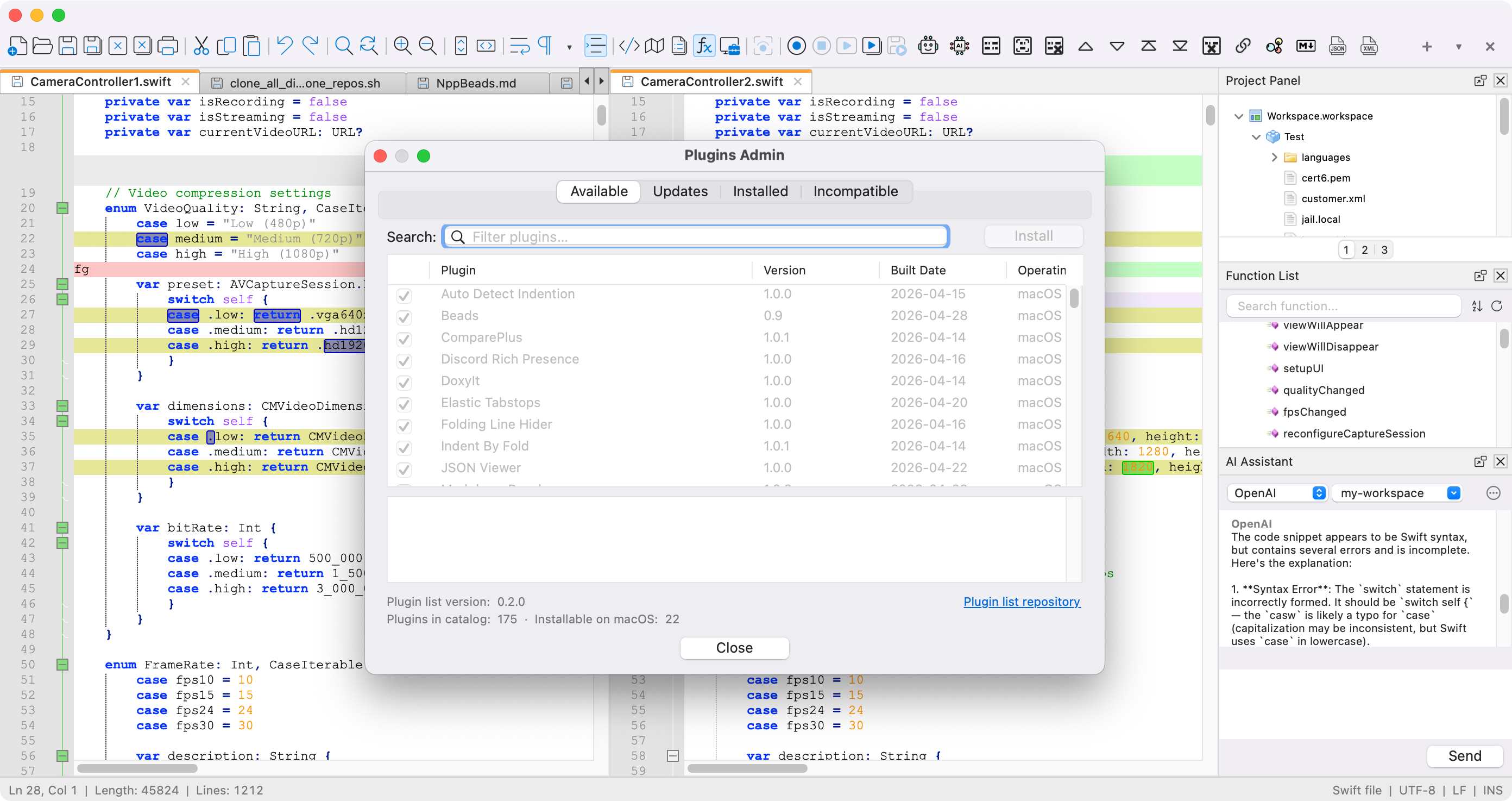
To update plugins already installed, switch to the Updates tab inside Plugin Admin. To remove plugins, use the Installed tab.
How to Install a Nextpad++ Plugin on Linux
- Open Nextpad++ for Linux. If you don't have it yet, grab the
.debor.rpmfor your distribution and architecture from the Linux download page, or install the snap withsudo snap install nextpad. - From the menu bar, choose Plugins → Plugins Admin…
- The Plugins Admin window opens. Switch to the Available tab to see every plugin in the Linux registry — the Operating System column shows the architectures each build supports (
Linux x86_64/arm64). Use the filter box to search by name, description or author. - Check the boxes next to the plugins you want to install. You can install multiple plugins in a single pass.
- Click Install. Plugin Admin fetches the build for your architecture from GitHub, verifies the SHA256 against the registry, and extracts the shared library into
~/.local/share/nextpad++/plugins/. - Restart Nextpad++. The new plugin's menu items will appear under the Plugins menu.
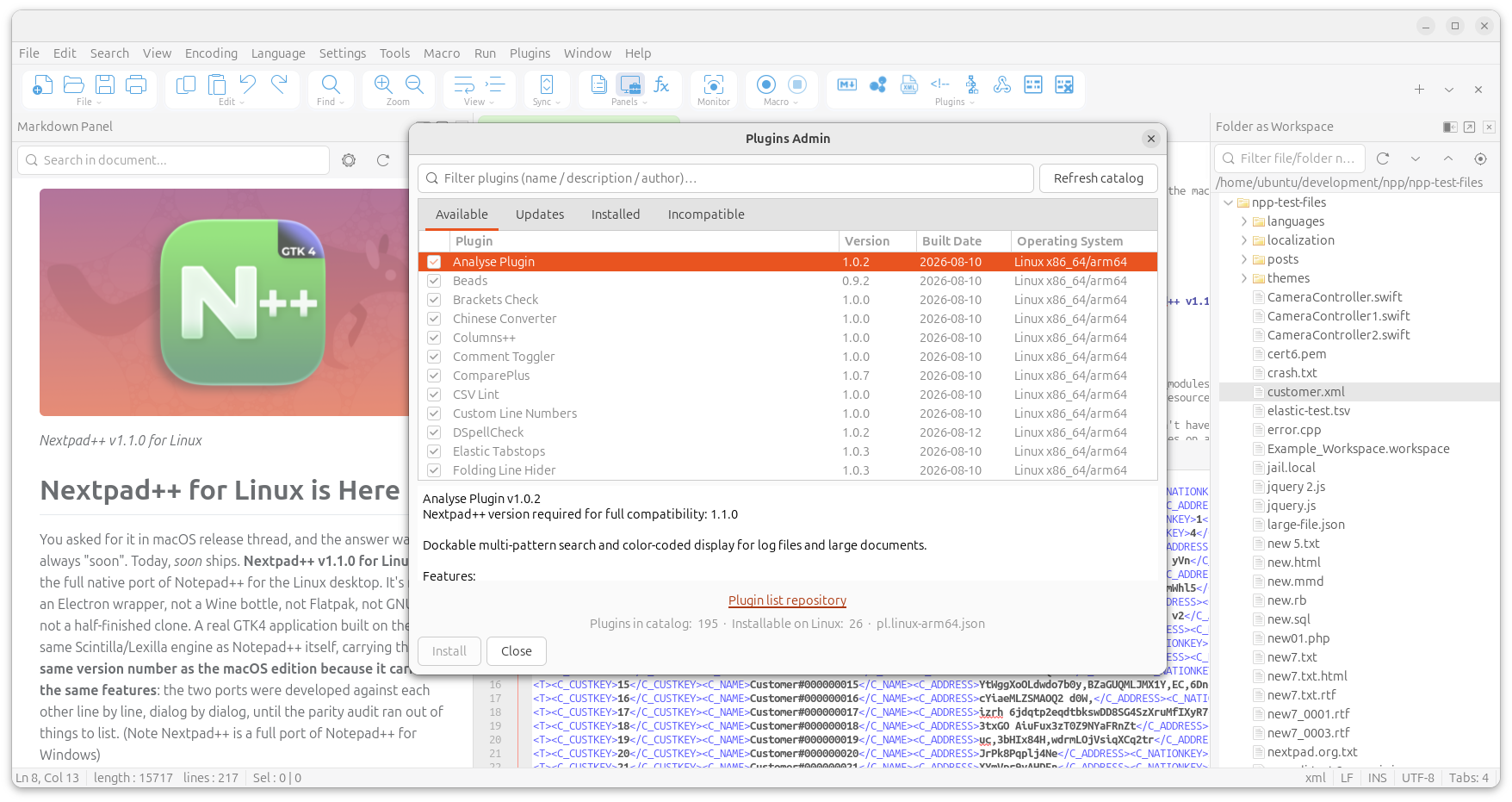
The catalog is per-architecture and checksum-verified, so an x86_64 machine and an arm64 machine each get the right build. As on macOS, the Updates tab upgrades installed plugins and the Installed tab removes them. If the catalog comes up empty, check your connection and press Refresh catalog.
Will My Windows Notepad++ Plugins Work on Mac or Linux?
No. Windows Notepad++ plugins compile to .dll files, Mac plugins compile to .dylib files, and Linux plugins compile to .so shared libraries; the three formats aren't interchangeable. Each plugin has to be ported from its upstream source and built per platform — and, on Linux, per architecture (x86_64 and arm64).
Most Notepad++ plugins are written in portable C++ and only touch the Notepad++ plugin interface plus Scintilla, which makes porting tractable. In practice it's: replace HWND with an opaque handle, swap Windows SendMessage for the host's _sendMessage function pointer, change TCHAR UTF-16 strings to UTF-8, and replace Win32 UI calls (MessageBox, dialogs, registry) with the native toolkit — Cocoa on macOS, GTK4 on Linux. The Linux plugin host speaks a strict superset of the macOS plugin API, so a plugin ported once to Mac is straightforward to bring to Linux as well. The plugins listed above are the ones ported so far, and the macOS/Linux pills on each card show where each one runs today. Want a plugin that isn't here yet? Open a request on the macOS or Linux issue tracker and tell us which one.
Plugin Safety & Trust
The Nextpad++ for Mac app is Developer ID signed and notarized. Plugins are a separate trust chain, and they aren't individually notarized. Trust comes from three things:
- Public source on GitHub. Every plugin in the catalog is built from a tagged commit in the nextpad-plus-plus GitHub organisation. You can audit the source before installing.
- SHA256 checksums in the registry. Every ZIP in the plugin registry carries a recorded SHA256 hash. Plugin Admin verifies the downloaded ZIP against that hash before extracting. If the hash does not match, installation is refused.
- Published release URLs only. Plugins are installed from tagged GitHub Releases, never from arbitrary URLs. You can follow any plugin's release URL back to its release page and review the exact ZIP that Plugin Admin downloads.
If you prefer to install a plugin manually rather than through Plugin Admin, unzip the release and drop the PluginName/PluginName.dylib file into ~/.nextpad++/plugins/PluginName/. Restart Nextpad++ and the plugin will load on next launch.
Frequently Asked Questions
How do I install a Nextpad++ plugin on Mac or Linux?
The flow is identical on both platforms: open Nextpad++, choose Plugins → Plugins Admin from the menu bar, browse the Available tab, check the boxes next to the plugins you want, and click Install. Plugin Admin downloads each plugin from its release URL on GitHub, verifies the SHA256 against the plugin registry, and installs it into ~/.nextpad++/plugins/ on macOS or ~/.local/share/nextpad++/plugins/ on Linux. On Linux the build matching your architecture (x86_64 or arm64) is selected automatically. Restart Nextpad++ to load the plugins.
Are Nextpad++ plugins for Mac and Linux free?
Yes. Every plugin in the Nextpad++ catalog — on both macOS and Linux — is free and open source, distributed under the same GNU General Public License v3 as the editor itself. There are no paid plugins, no subscriptions, and no in-app purchases. Each plugin's full source is available on GitHub.
Will my Windows Notepad++ plugins work on Mac or Linux?
No. Notepad++ plugins on Windows are compiled DLL files, plugins on Mac are compiled dylib files, and plugins on Linux are compiled .so shared libraries. The binary formats are not interchangeable. Each plugin must be individually ported from its upstream source and built for each platform. The plugins listed on this page are the ones ported so far; more are being added regularly.
Are Nextpad++ plugins for Mac and Linux safe to install?
Plugins are compiled from public source in the nextpad-plus-plus GitHub organization. Each release is built from a tagged commit, packaged as a ZIP, and its SHA256 hash is recorded in the plugin registry. When you install via Plugin Admin, the host verifies the downloaded ZIP's SHA256 against the registry before extracting. Plugins themselves are not individually signed with an Apple Developer ID; trust is established by source visibility and registry-verified checksums. Review the source on GitHub before installing if you want to audit the code yourself.
How do I update Nextpad++ plugins on Mac or Linux?
Open Plugins → Plugins Admin and switch to the Updates tab. Plugin Admin compares the installed version of each plugin against the version in the plugin registry and lists anything that has a newer release available. Check the plugins you want to update and click Update. This works the same way on macOS and Linux.
Can I write my own Nextpad++ plugin for Mac or Linux?
Yes. Plugins are compiled as dynamic libraries — .dylib on macOS, .so on Linux — against the NppPluginInterfaceMac.h header. The Linux plugin host speaks a strict superset of the macOS plugin API (72 host messages vs 64), so a plugin written once can target both platforms. The plugin interface mirrors the Windows API (setInfo, getName, getFuncsArray, beNotified, messageProc), so porting a Windows plugin involves replacing HWND with NppHandle, SendMessage with the host's _sendMessage pointer, and TCHAR with char. See the nextpad-plus-plus GitHub organisation for the plugin interface header and example ports.
Are all Nextpad++ plugins available on Linux?
Not yet — the Linux port launched with 26 native plugins while the macOS catalog is larger, and the rest are being ported. Every card in the catalog above carries a macOS pill and, where the plugin is already available for Linux, a Linux pill, so you can see at a glance where each plugin runs. Linux builds are provided for both x86_64 and arm64.
Want a Plugin That Isn't Here Yet?
If there's a Windows Notepad++ plugin you rely on that hasn't been ported yet, open an issue on the main project issue tracker and request it by name. If you want to contribute a port yourself, fork the upstream plugin, adapt the plugin interface calls to the macOS header, and open a pull request under the nextpad-plus-plus GitHub organisation. Contribution guidelines and example ports are in the nextpad-plus-plus-macos repository.