




Nextpad++ for iPad & iPhone — User Manual
Contents
1.Welcome
Nextpad++ brings the Notepad++-style editing experience to iPad and iPhone as a fully native app: a real Scintilla editor core, syntax highlighting for 94 languages plus user-defined ones, multi-document tabs that survive restarts, Find & Replace with regular expressions, side panels (Document Map, Function List, Git, Folder as Workspace…), a split editor, macros, and a set of developer plugins that ship inside the app — Markdown preview, JSON and XML tools, Compare, SpellCheck, MIME Tools and a Converter. With Device Sync your open tabs can follow you between your iPad, iPhone and Mac.
This manual covers the whole app. It is organised the way you use it: a tour of the two workspaces first, then editing, then a menu-by-menu reference, then the deeper features. Each section is illustrated with screenshots taken on an iPad Pro 13″ and an iPhone 17 Pro. Where iPad and iPhone differ, the difference is called out with a iPad or iPhone badge; everything without a badge works the same on both.
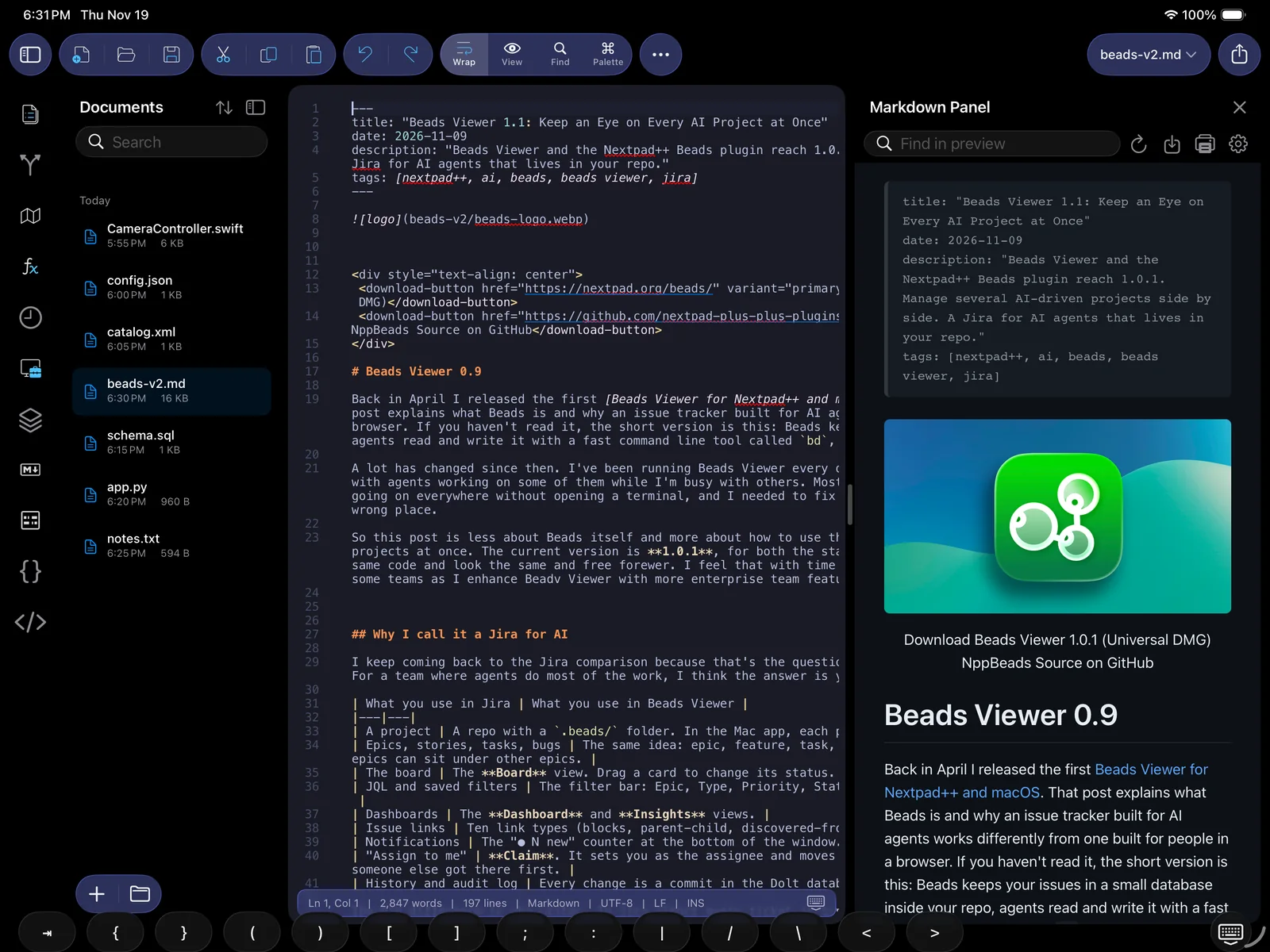
What you need
- An iPad or iPhone running iOS / iPadOS 18 or later. The app is optimised for iPadOS 26 and iOS 26.
- Nothing else. There are no accounts, no sign-ups and no servers: files stay in the Files app locations you choose, and Device Sync (optional) uses your own iCloud Drive or any folder provider.
- A hardware keyboard is optional but turns the iPad into a serious editor — see Command Palette & shortcuts.
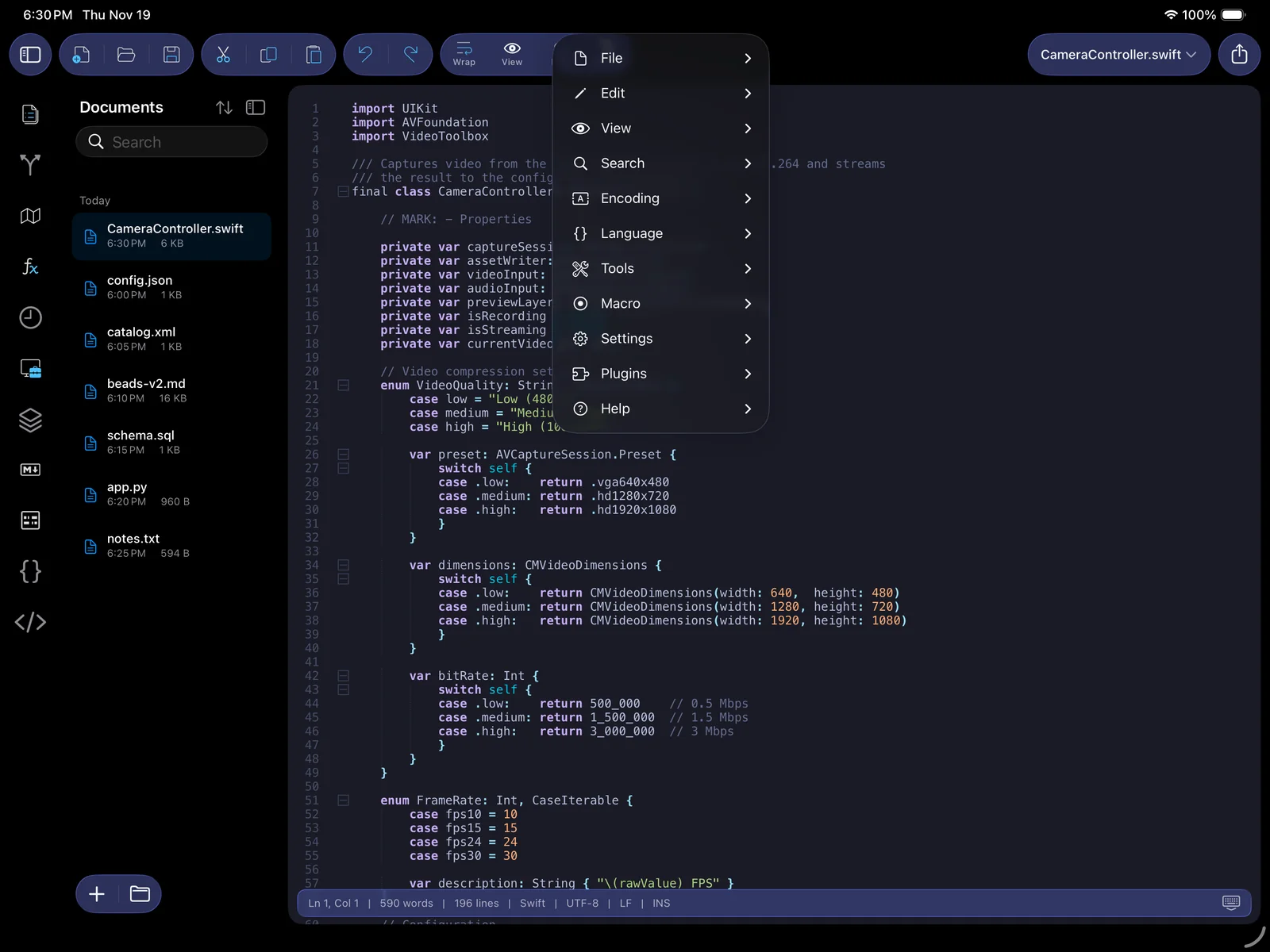
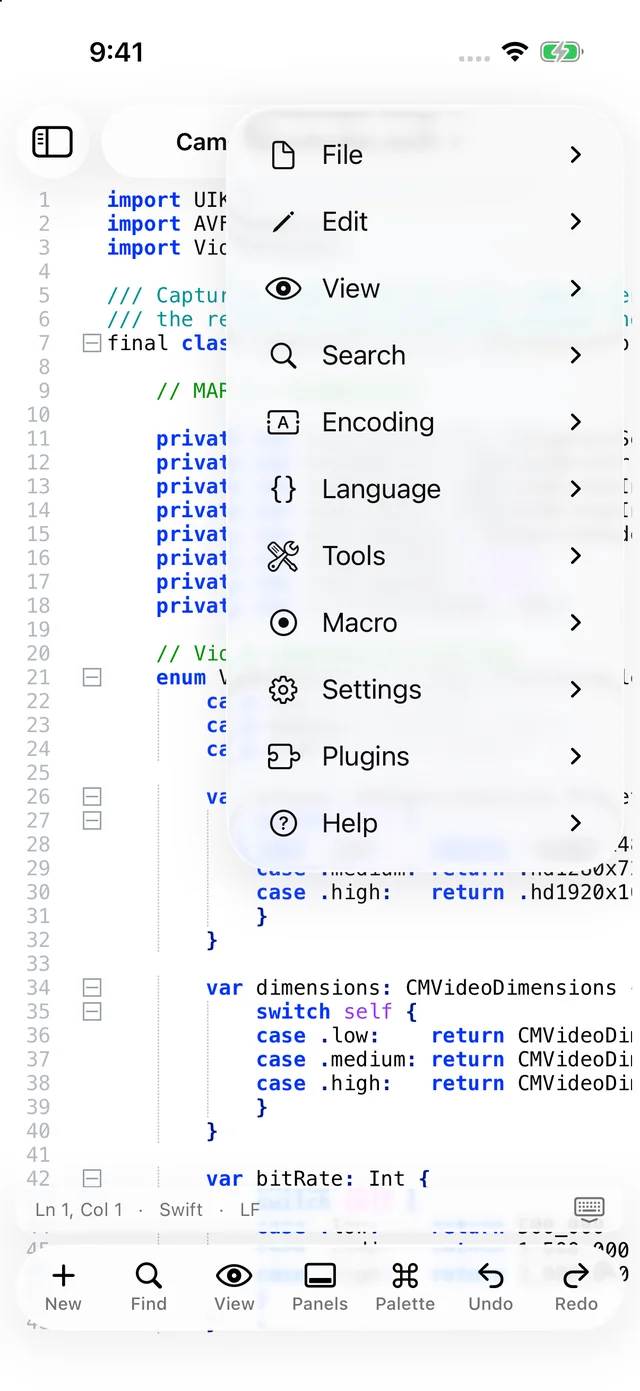
Coming from Notepad++ or Nextpad++ for Mac? The menu tree is the same one you know — File, Edit, View, Search, Encoding, Language, Tools, Macro, Settings, Plugins, Help — folded into one drop-down behind the ⋯ button. Shortcuts follow macOS conventions (⌘ instead of Ctrl).
2.Getting started
Opening files
Nextpad++ is a Files-app-first editor. It can open any text or code file from your device, iCloud Drive, or any storage provider installed on it (Dropbox, OneDrive, SMB shares via the Files app, and so on), and it edits the file in place — there is no import/export step and no second copy.
- iPad tap the folder button at the bottom of the Documents sidebar (or the open-folder button in the toolbar) to show the document browser.
- iPhone tap the document title at the top and choose Open…, or use .
- From the Files app or any other app, use Share ▸ Nextpad++ or simply tap a text file whose default app is Nextpad++. Files opened this way also open in place.
- With a hardware keyboard, ⌘O opens the browser.
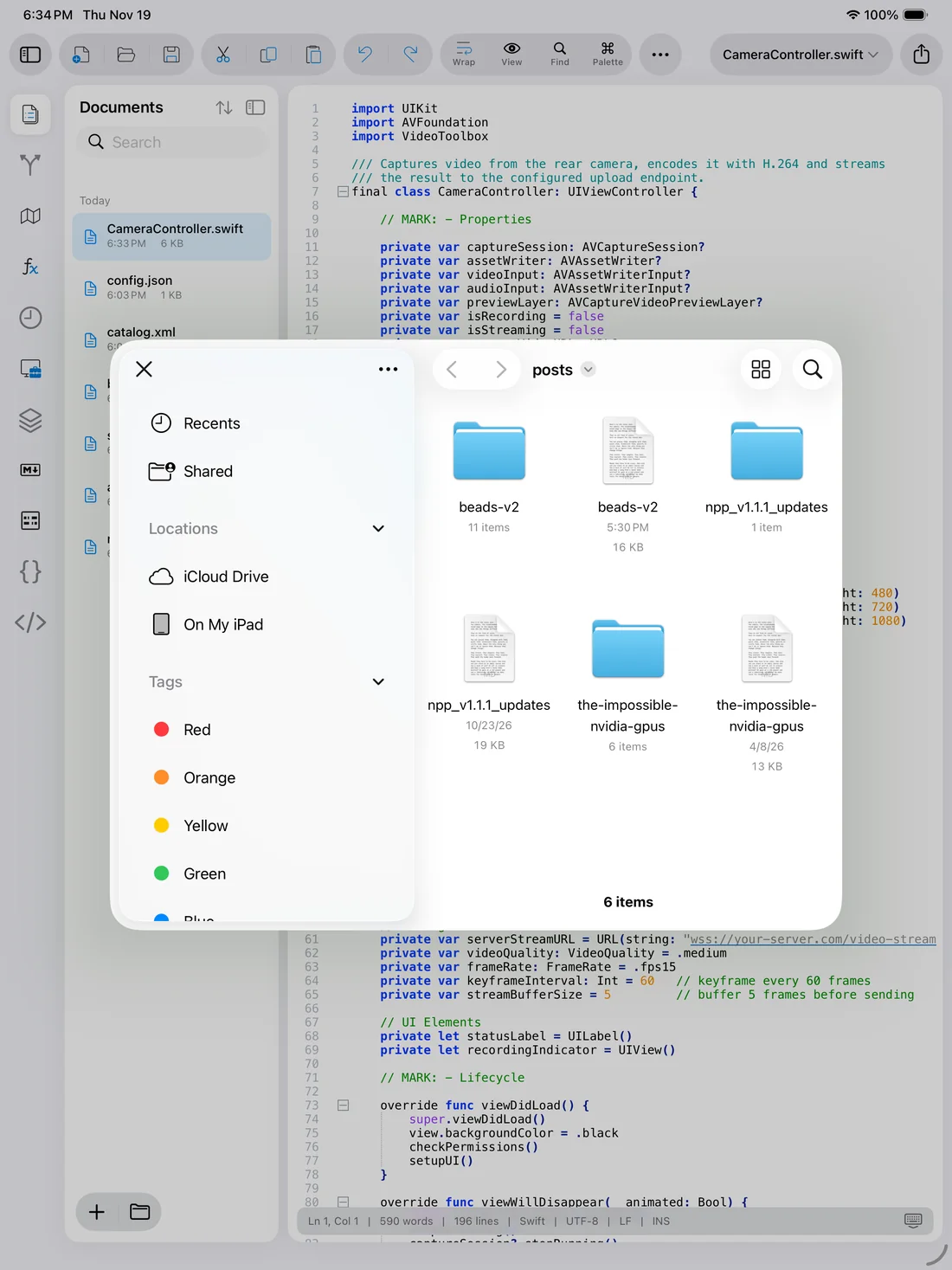
The language (syntax highlighting) is detected from the file extension and, for ambiguous files, from the content. Encoding and line endings are detected from the bytes — UTF-8 with or without BOM, UTF-16, and the legacy Windows code pages are recognised. All three can be changed later from the status bar.
New documents & saving
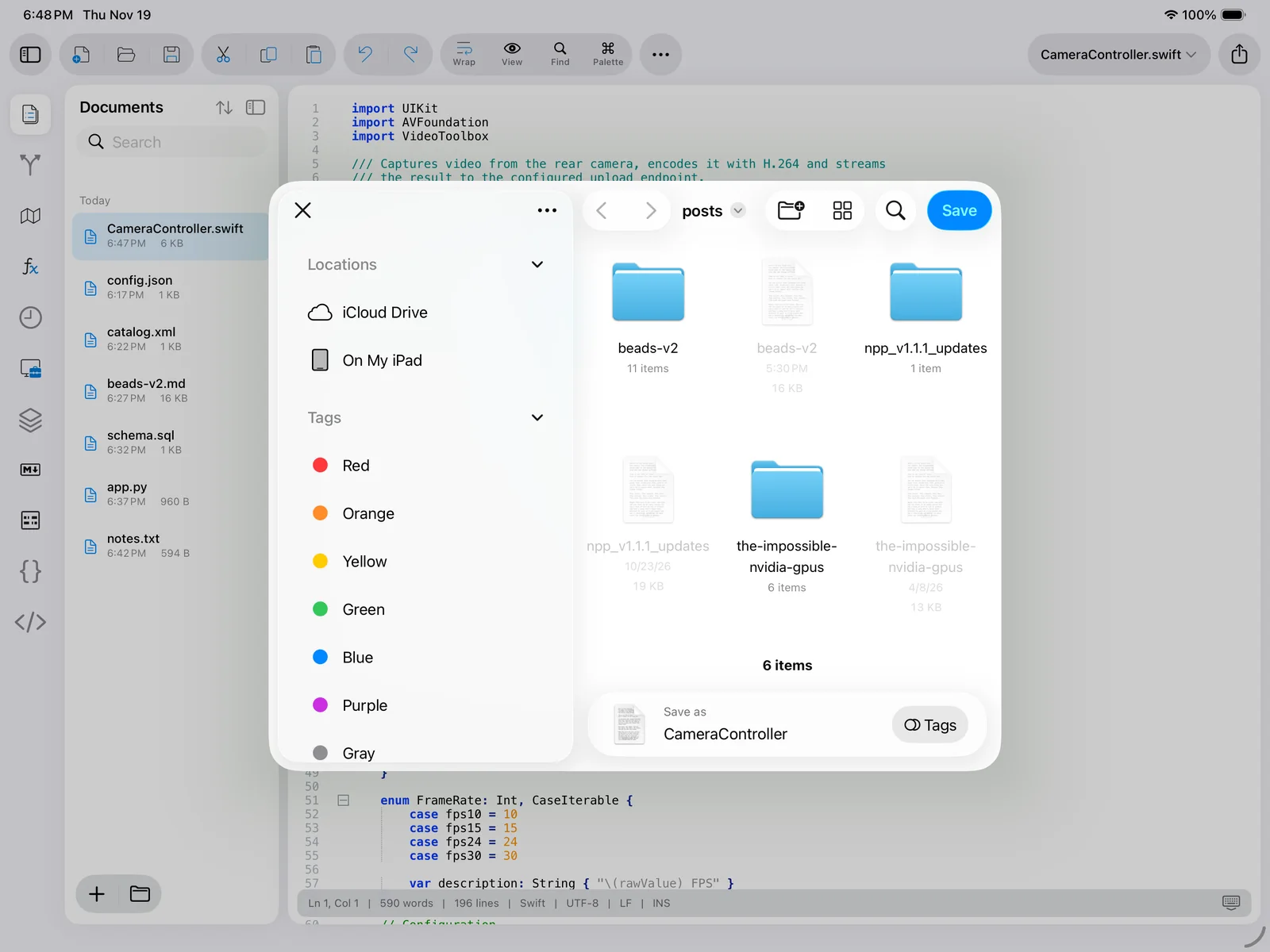
File ▸ New (⌘N, the + button in the sidebar, or the New chip on iPhone) creates an Untitled tab in memory. Untitled documents are part of your session and survive relaunches even if you never save them. The first Save on an untitled tab opens the Files picker so you can choose a name and location; afterwards ⌘S saves in place silently.
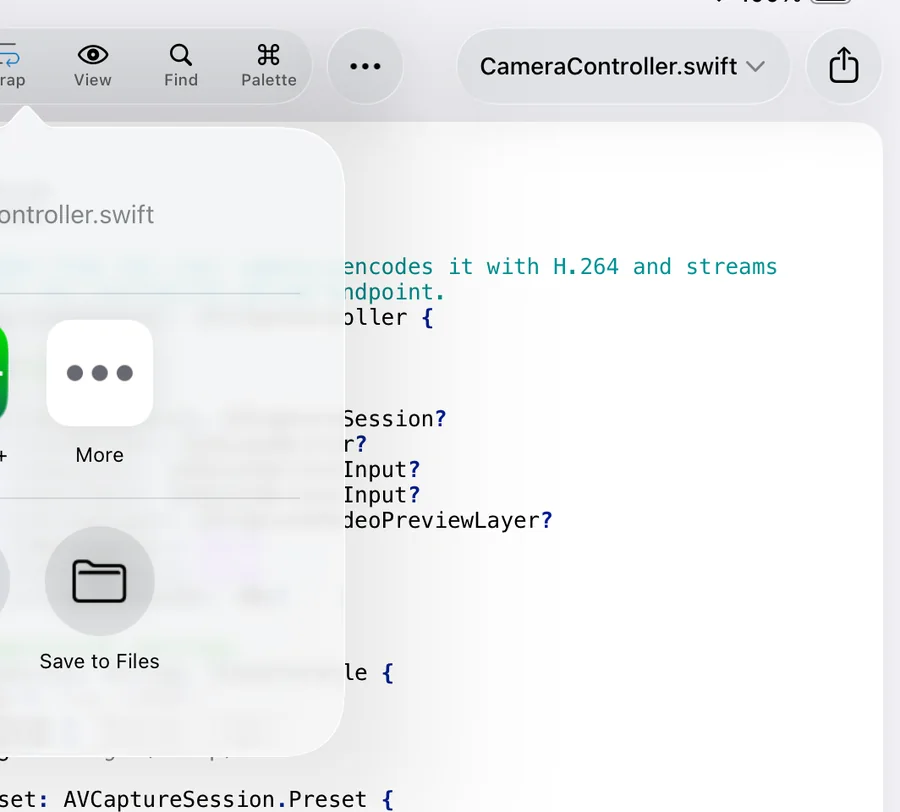
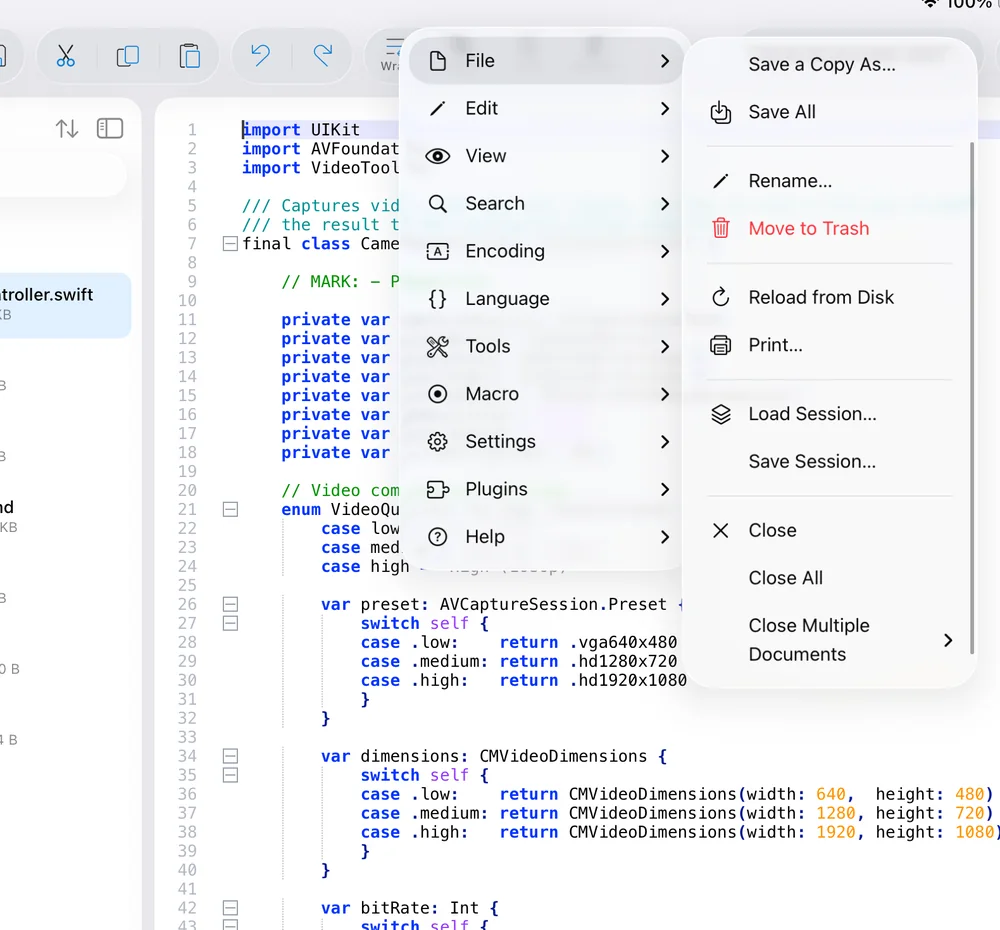
Save options live in the File menu: Save, Save As… (re-binds the tab to the new file), Save a Copy As… (writes a copy, the tab keeps pointing at the original), and Save All. A red dot in front of a document name — in the title capsule and in the sidebar — means it has unsaved changes.
Your session comes back
Nextpad++ remembers everything about your open documents: which files are open and in what order, the active tab, caret position and scroll position, bookmarks, the colour tag and pin state of each tab, and — importantly — the text of unsaved documents. Close the app, restart the device, come back a week later: it all returns exactly as it was. Modified-but-unsaved files are restored as modified; if the file on disk changed in the meantime, you are told so and can reload or keep your version.
You can additionally store a named session — a list of files — with File ▸ Save Session… and bring it back with File ▸ Load Session…. Named sessions are plain files, so they can live next to a project and travel with it.
3.The iPad workspace iPad
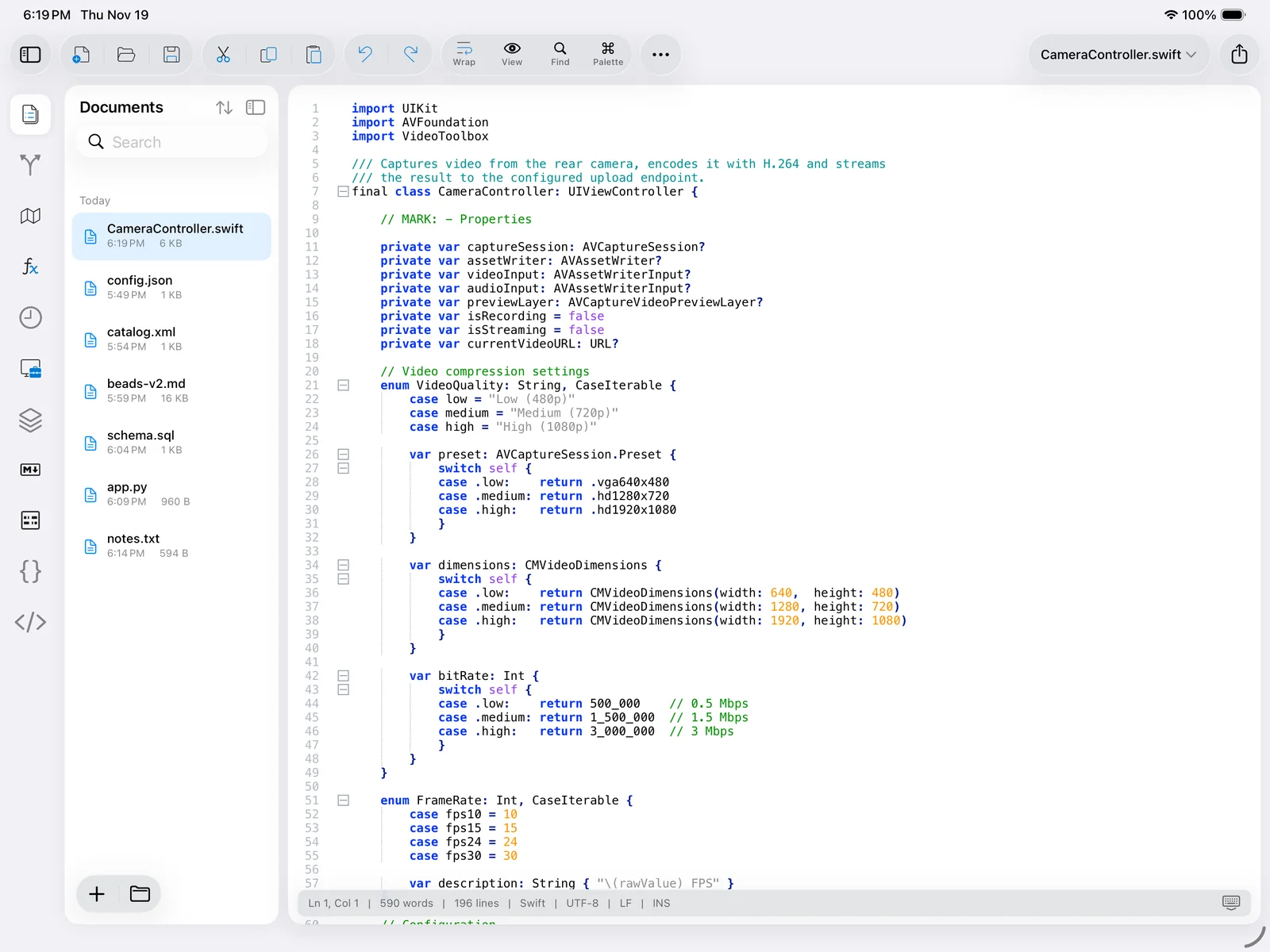
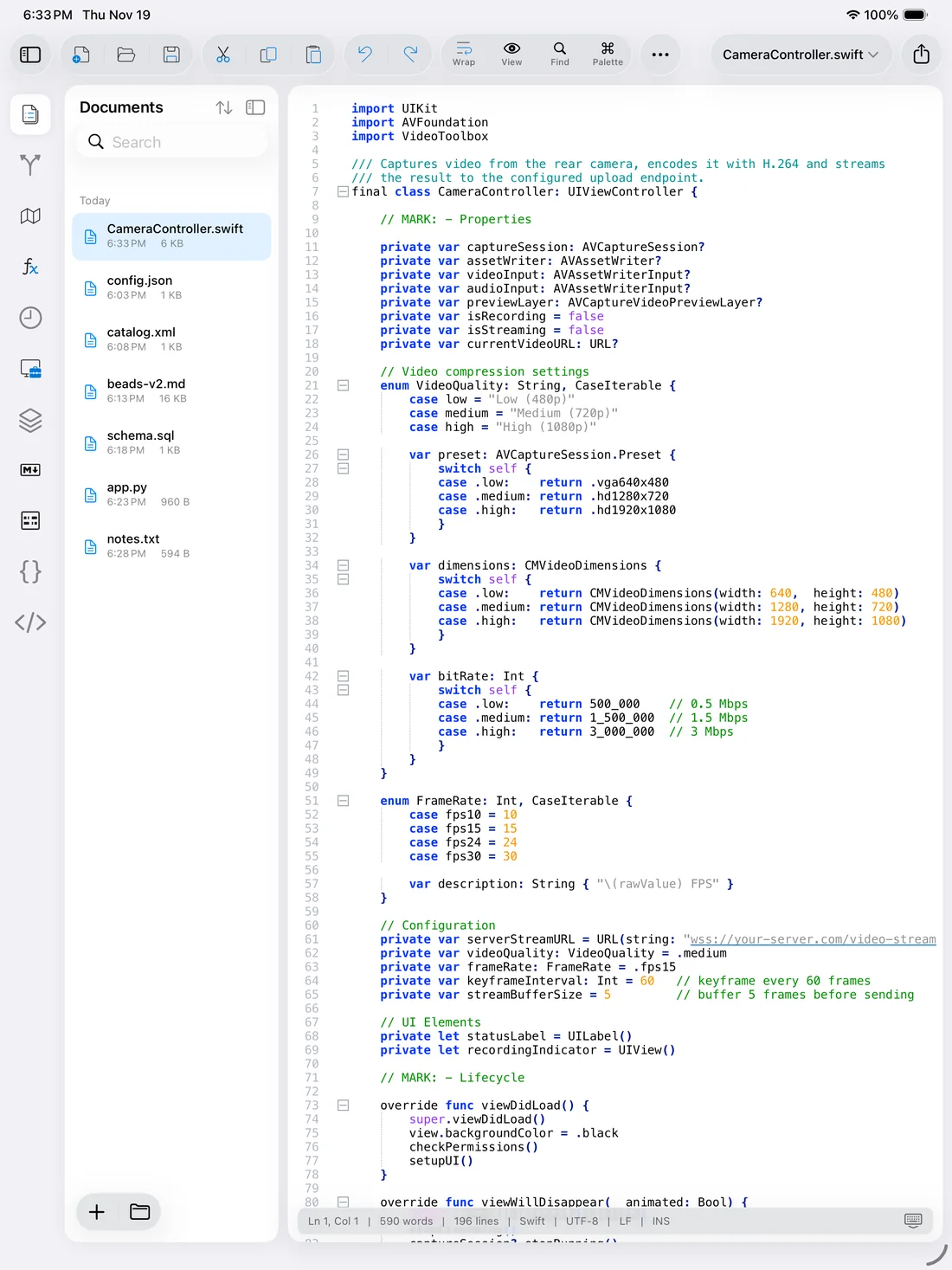
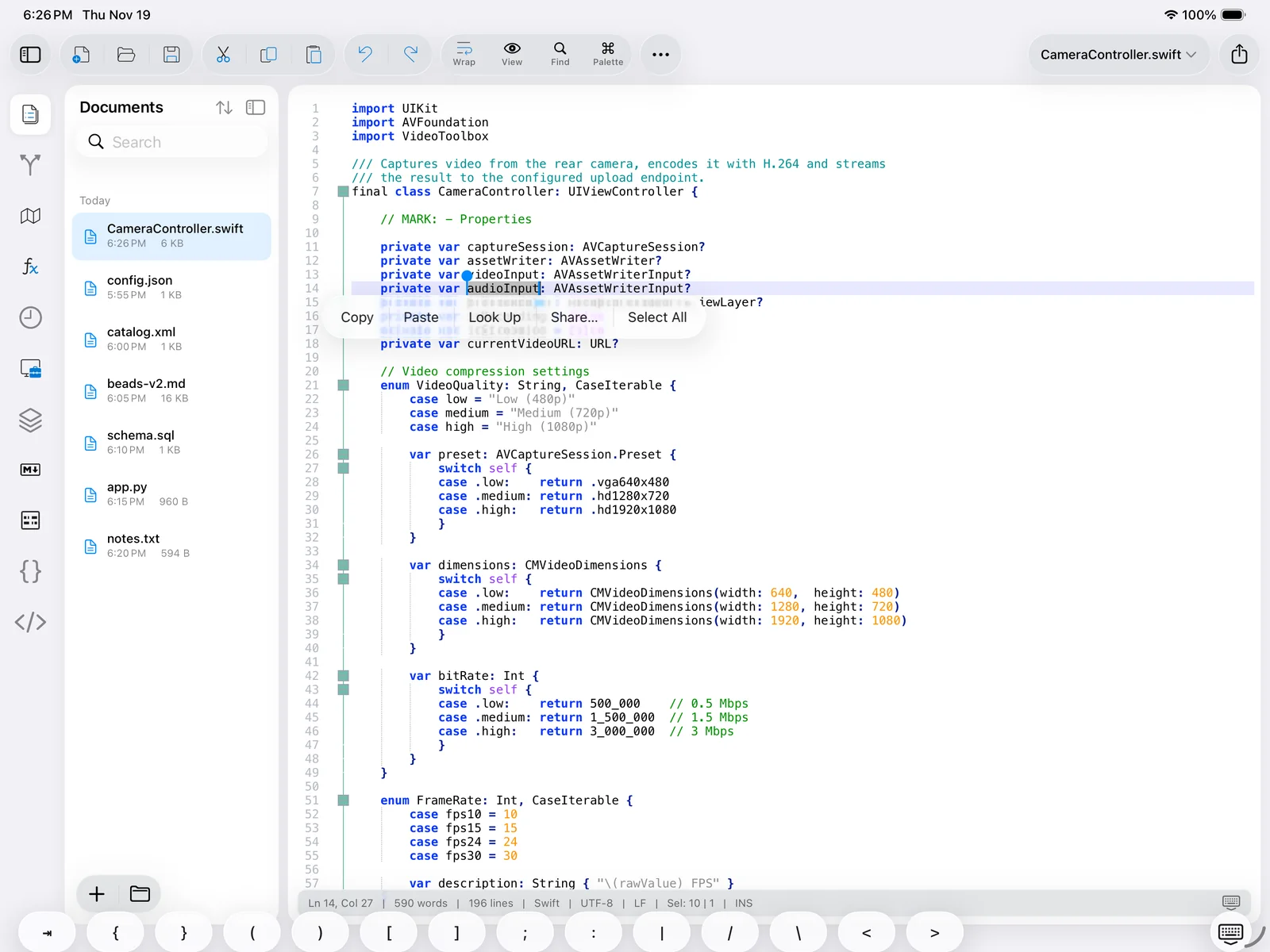
On iPad the app is a single glass-styled workspace: a thin rail of panel buttons on the left, the Documents sidebar, the editor, and a floating toolbar on top. Everything that is not the editor can be hidden, so a 13″ iPad gives you a genuinely desktop-sized editing surface; a split screen with another app still leaves room for the sidebar.
- 1Rail. One button per panel: Documents (shows/hides the sidebar), Git, Document Map, Function List, Clipboard History, Folder as Workspace, Project, and one for each plugin panel (Markdown, Compare, JSON, XML). Tap to open a panel on the right; tap again to close it.
- 2Documents sidebar. All open tabs, grouped by when they were opened, with search and sort. Tap to switch, long-press for Pin / Apply Color / Close. See Documents sidebar & tabs.
- 3File cluster. New document, Open (document browser), Save.
- 4Clipboard & history clusters. Cut, Copy, Paste and Undo, Redo.
- 5Chips. Wrap toggles word wrap; View opens the quick view menu (split view, synchronized scrolling, move/clone to other view, whitespace, indent guides, zoom); Find opens the Find window; Palette opens the Command Palette.
- 6⋯ Main menu. The full Notepad++ menu tree — see the menu reference.
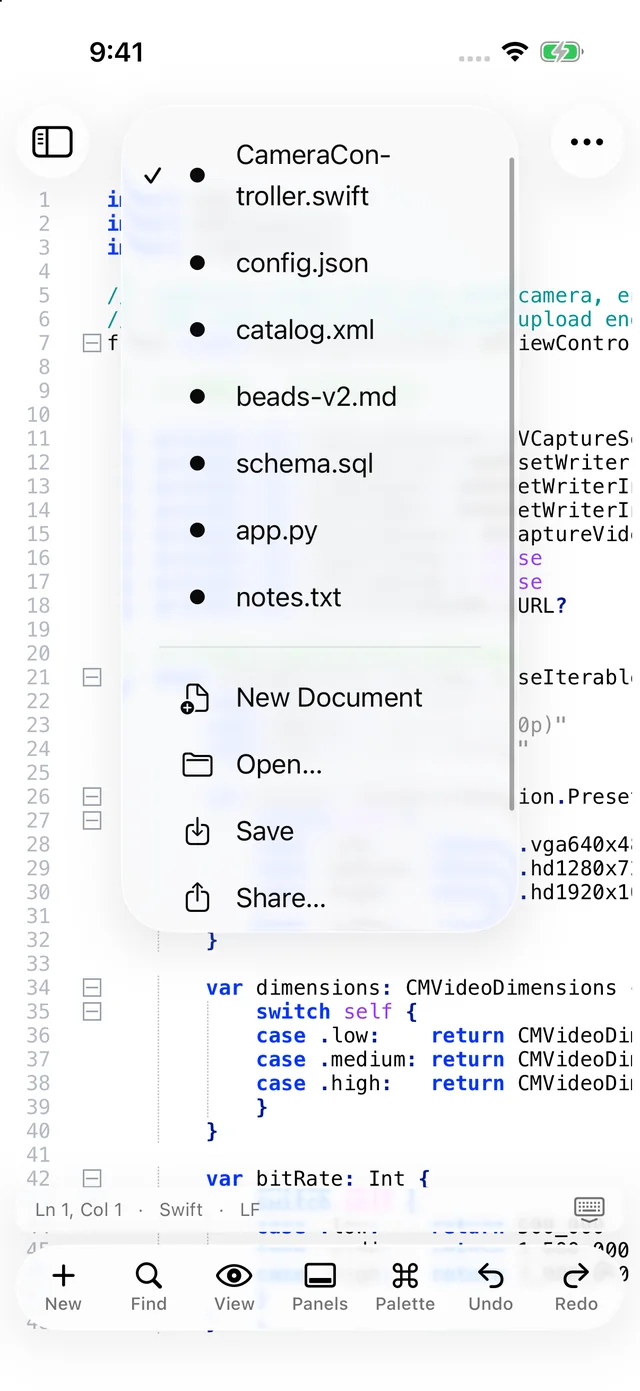
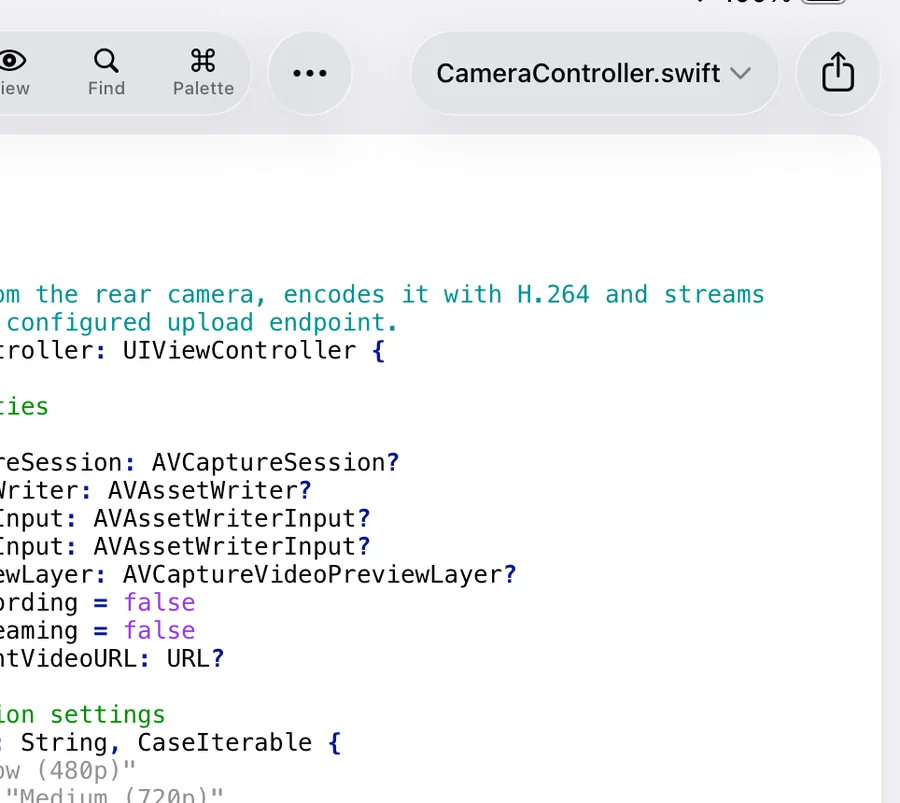
- 7Title capsule. The active document (a red dot = unsaved). Tap it for a quick document switcher with New Document, Open…, Close and Close All.
- 8Share. The iOS share sheet for the current file.
- 9Editor. Line numbers, bookmark and fold margins, change-history marks, and the text. Pinch to zoom.
- 10Status bar. Line/column, word and line counts, language, encoding, line endings and INS/OVR. The language, encoding and EOL segments are buttons.
- 11Sidebar footer. + new document, folder open a file.
Portrait and landscape
Rotate freely: the layout keeps the same elements in both orientations. In portrait the editor is narrower, so you may prefer to collapse the sidebar (tap the sidebar icon at the top-left of the toolbar or the first rail button) while reading long lines. Panels remember their width — drag the grip between the editor and a panel to resize it.
Full Screen and Distraction Free
(⌃⌘F) hides the rail, sidebar and toolbar so only the editor remains — ideal for reading. goes one step further and also removes the status bar and margins. Either command toggles back. The glass toolbar re-appears when you tap the top edge of the screen.
Split view
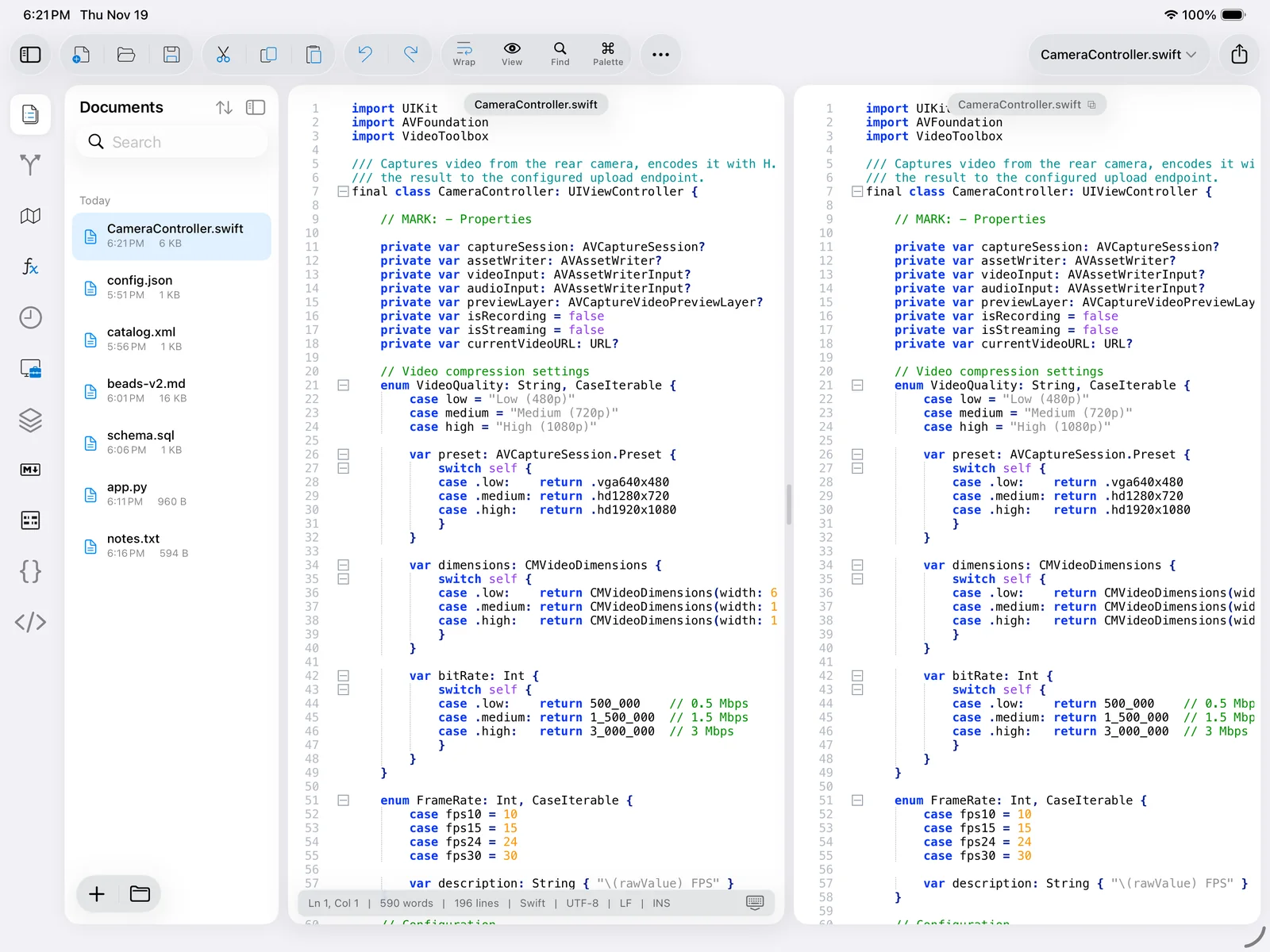
Choose to open a second editor pane beside the first. The pane shows the same document by default (a clone: both views edit one buffer, handy to look at a declaration while editing the call site). Use Move to Other View to send the active document to the other pane, Clone to Other View to show the same document twice, and Synchronize Scrolling to lock both panes together. Each pane has its own caret, selection and scroll position; the active pane carries a slightly brighter title tab.
4.The iPhone workspace iPhone
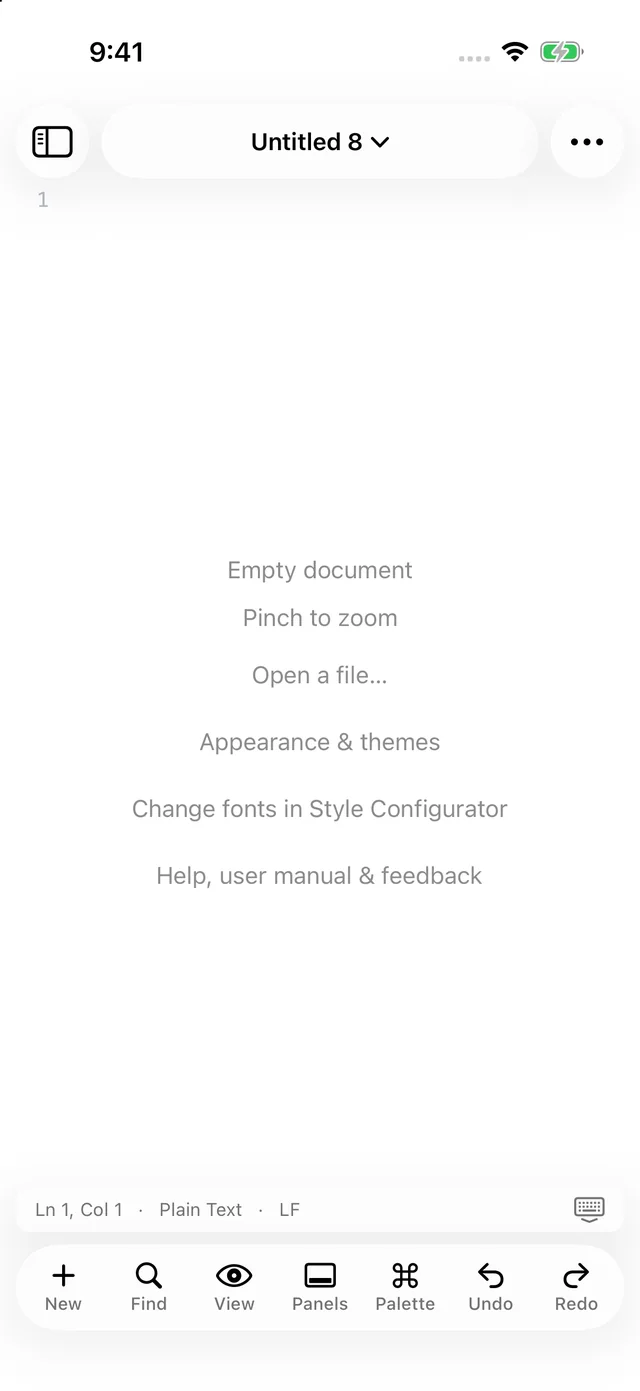
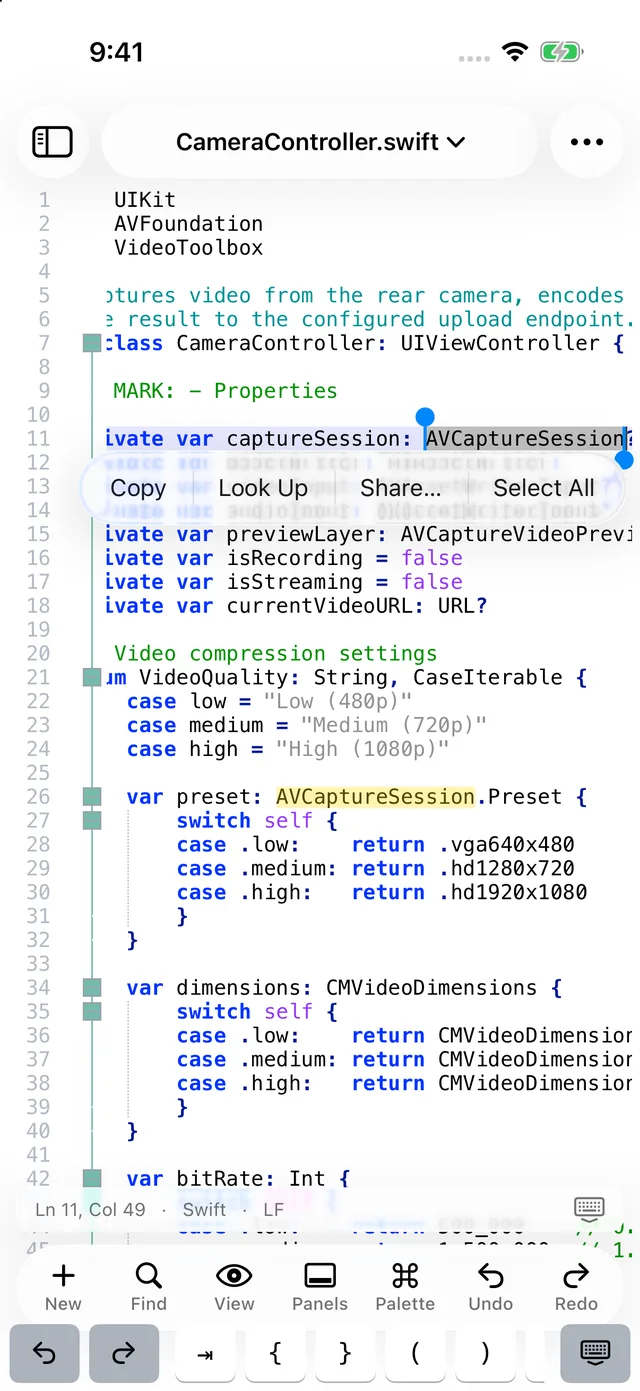
The iPhone layout is built for one hand and a small screen, but it is the same editor underneath with the same menus, panels and plugins. Chrome is reduced to a title capsule at the top and a chip row at the bottom; panels open as sheets that slide up from the bottom and can be pulled to half or full height.
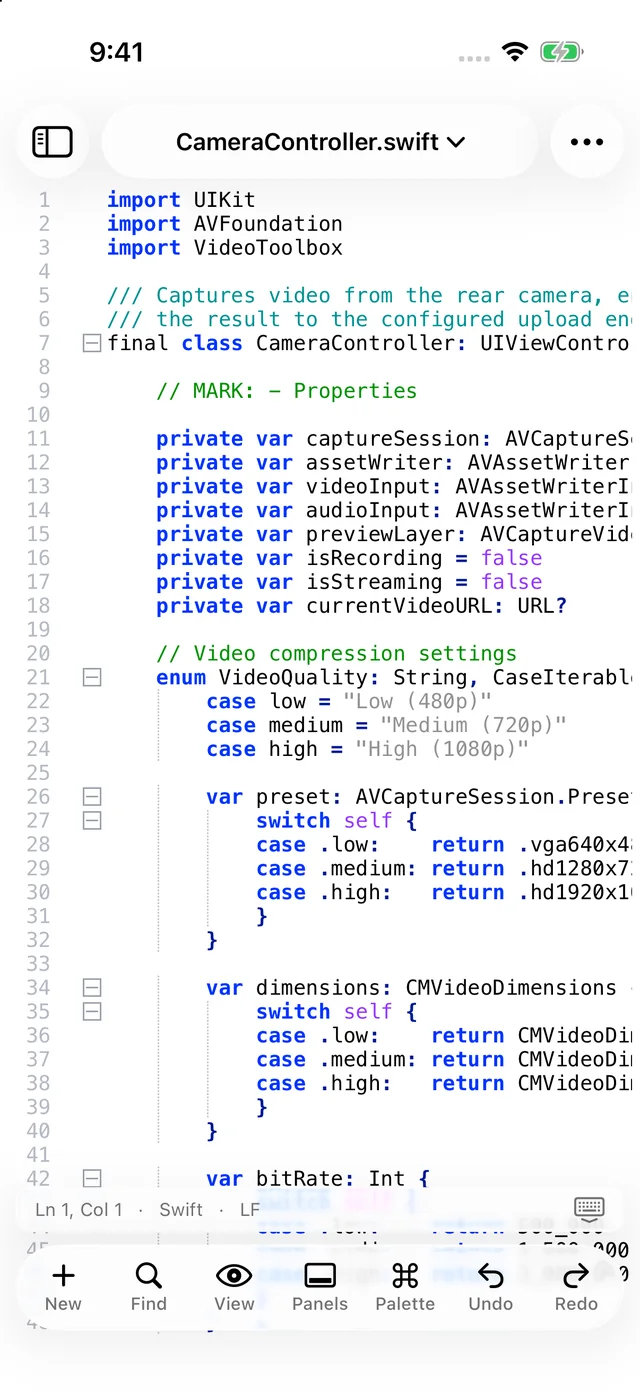
- 1Documents. Opens the Documents sheet — the same list as the iPad sidebar, with search, sort, pin and colour tags.
- 2Title capsule. Tap for the document switcher (all open tabs with their dirty dots), plus New Document, Open…, Save and Share….
- 3⋯ Main menu. The complete menu tree. Submenus open in place with a back arrow.
- 4Status bar. Line/column, language and line-ending segments. Tap the language to change it.
- 5Hide keyboard. Resigns the keyboard and the key row.
- 6Chip row. New, Find, View, Panels, Palette, Undo, Redo. In landscape, Wrap and Save chips join the row.
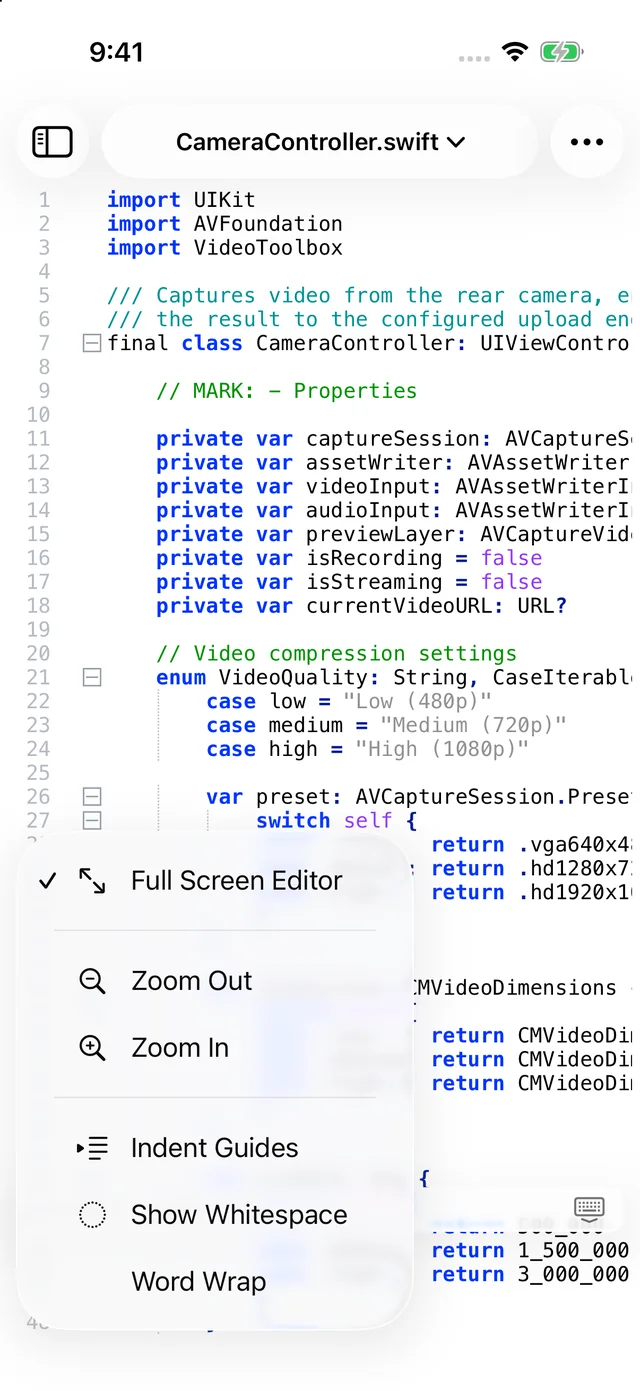
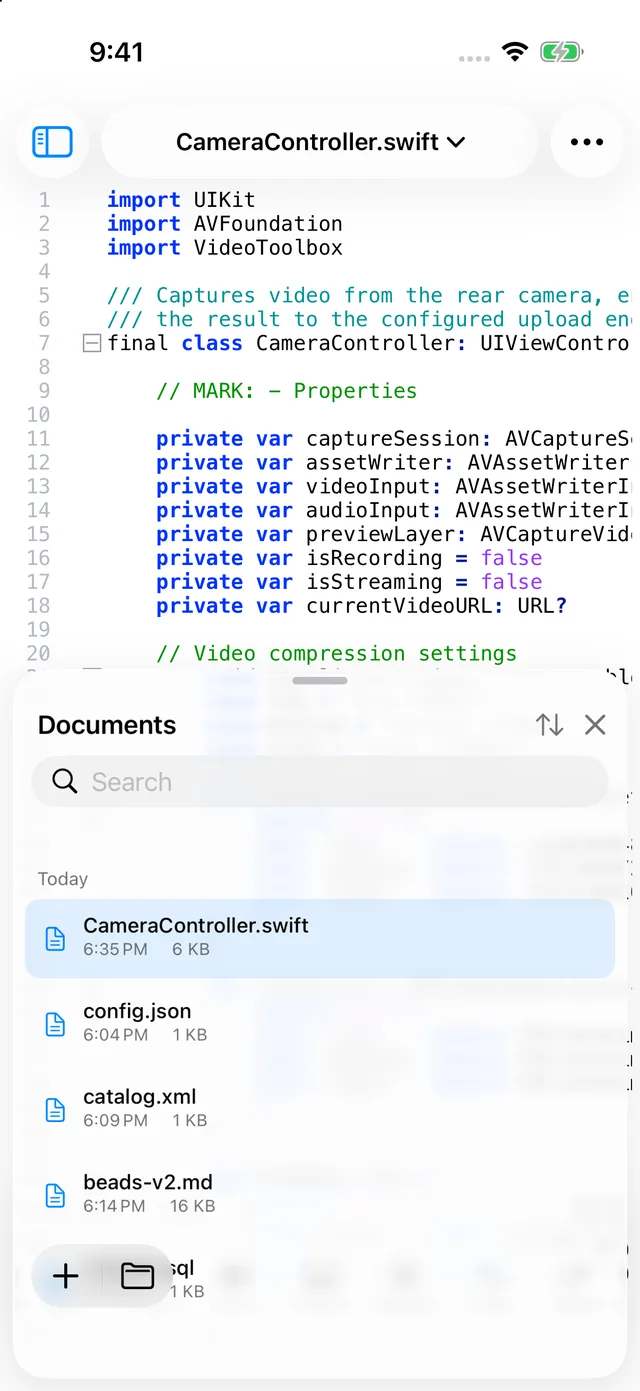
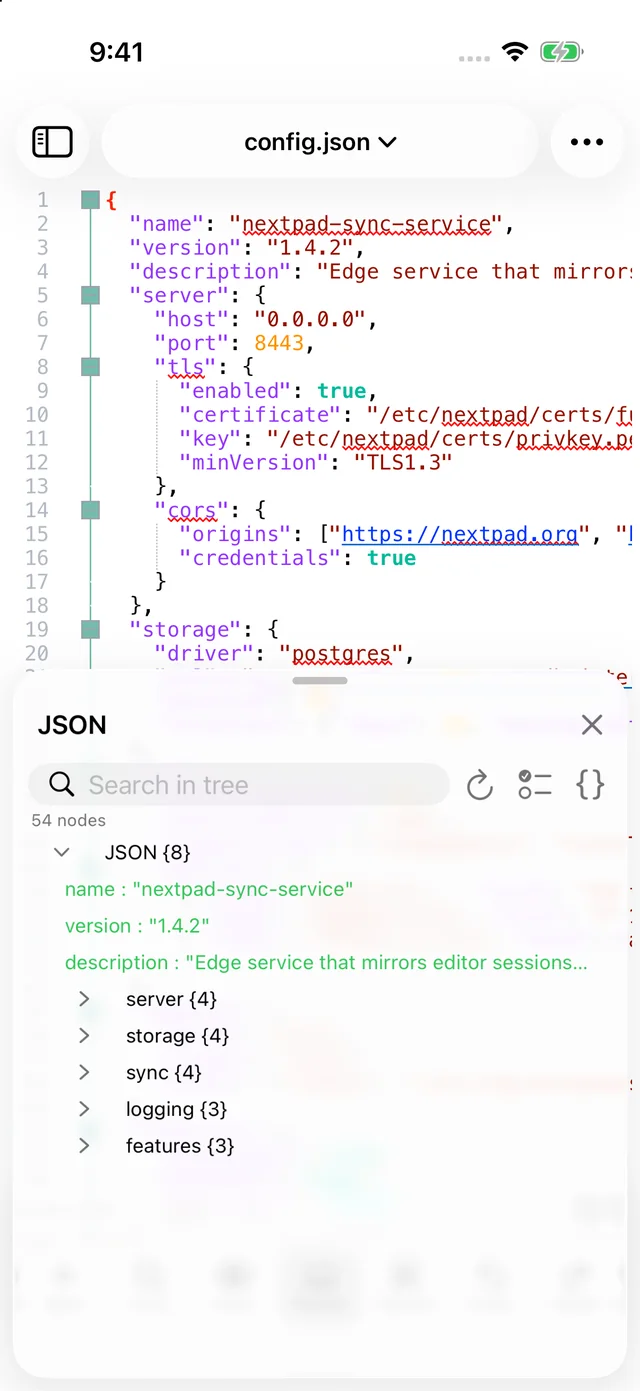
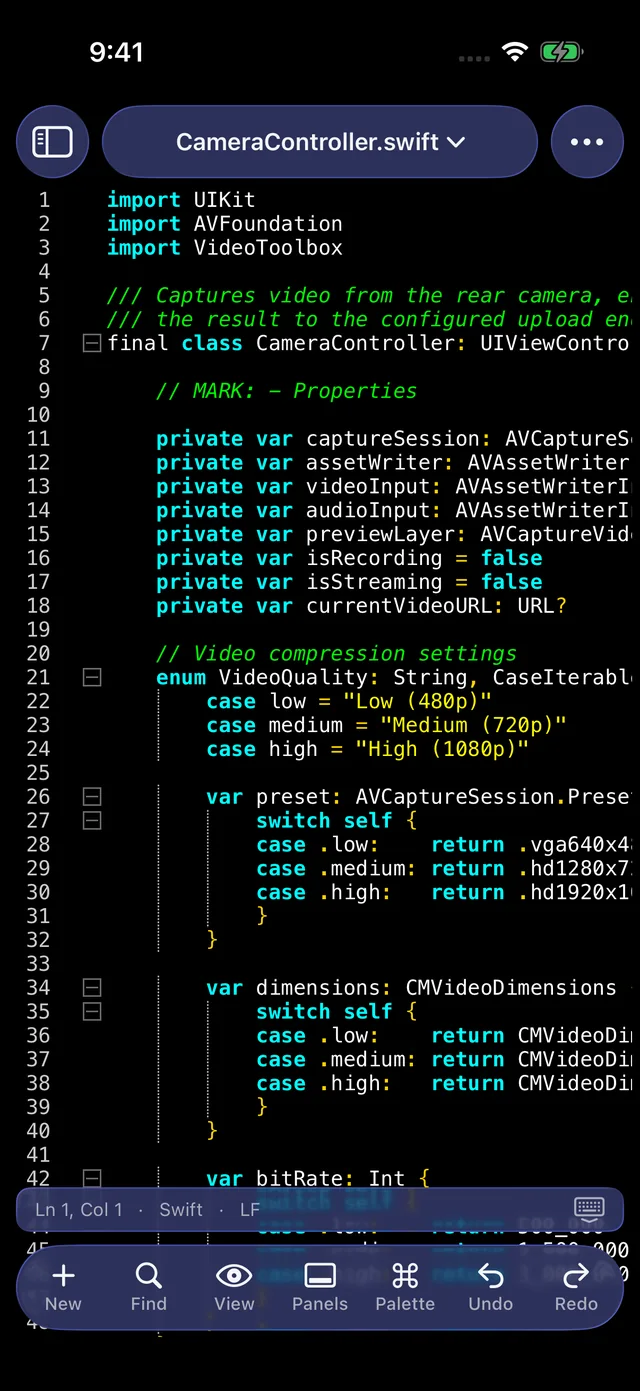
On iPhone the View ▸ Full Screen Editor toggle (on by default) lets the editor run edge to edge under the floating capsule and chip row. Turn it off if you prefer the chrome to take its own space.
5.Documents sidebar & tabs
Every open document is a tab. On iPad the tabs are listed in the Documents sidebar; on iPhone in the Documents sheet and in the title capsule switcher. The list shows the name, the time it was last opened and the file size; a red dot marks unsaved changes and a pin keeps a tab at the top.
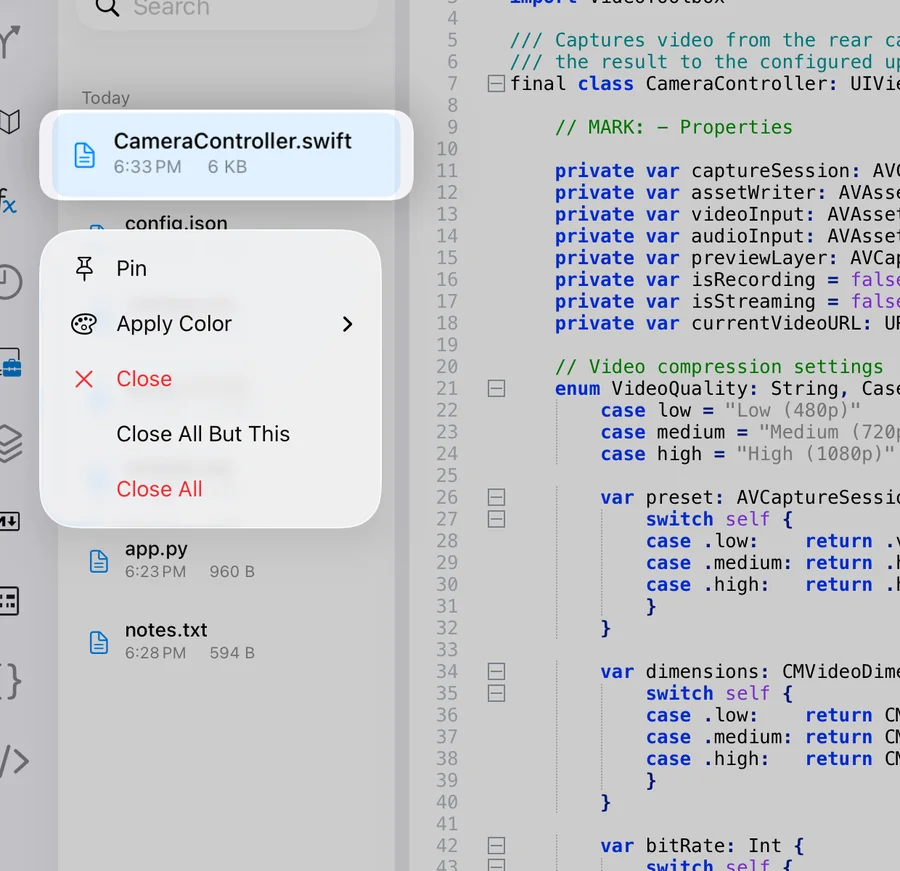
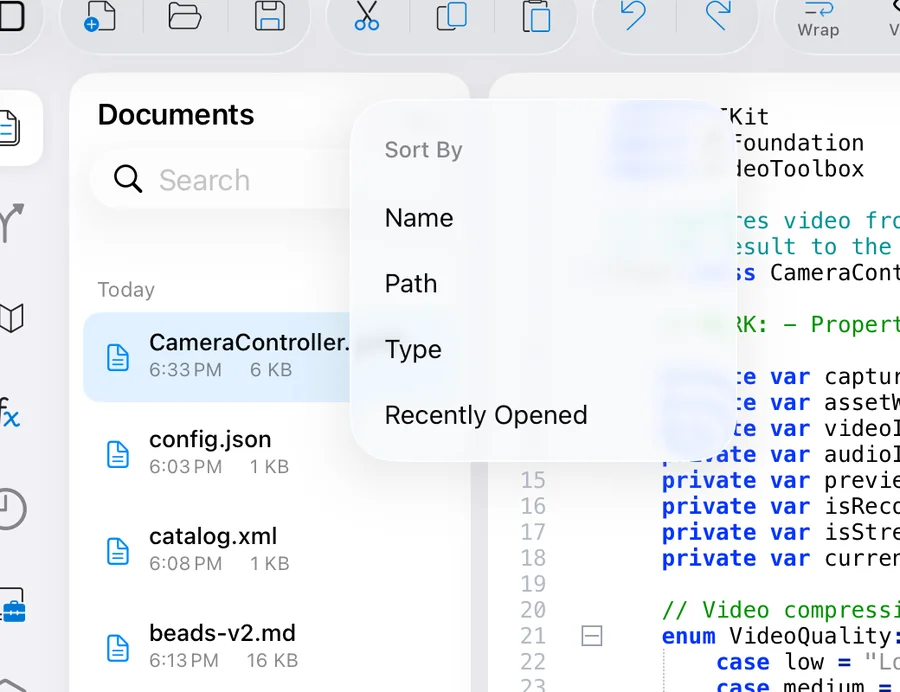
- Switching. Tap a tab. With a keyboard, ⌘⇧[ / ⌘⇧] are not used; instead open the Command Palette and type the file name.
- Pin. Pinned tabs stay at the top of the list and are protected from Close All But Pinned.
- Apply Color. Gives the tab one of five colour tags (red, orange, yellow, green, blue — the same tags Nextpad++ for Mac uses), shown as a tint behind the row. Colour tags roam with Device Sync.
- Closing. Close on a modified tab asks whether to save. The submenu adds Close All But Current, Close All to the Left / Right, Close All Unchanged and Close All But Pinned.
- Grouping. Tabs are grouped under Today / Earlier headings by the time they were opened (in Recently Opened order).
6.Editing
Touch & selection
The editor is the same Scintilla engine that powers Notepad++ and Nextpad++ for Mac, wired to native iOS text interaction — so dictation, the system keyboard, hardware keyboards, trackpads and Apple Pencil all work as you expect.
| Gesture | What it does |
|---|---|
| Tap | Places the caret. Tap the bookmark margin to toggle a bookmark on that line. |
| Double-tap | Selects the word. Triple-tap selects the line. |
| Long-press | Selects the word under your finger (with a haptic tick) and shows the edit menu. |
| Drag the selection handles | Extends the selection; a magnifier follows your finger for character-precise placement. |
| Pinch | Zooms the text in and out (same as View ▸ Zoom). ⌘0 restores the default size. |
| Two-finger scroll / flick | Scrolls with momentum in both directions; long lines scroll horizontally unless word wrap is on. |
| Tap the fold margin | Collapses or expands a code block. Fold markers follow the Margins preference (box tree, circle tree, arrow, simple +/−). |
| Tap a link | URLs in the text are underlined and open in Safari (can be turned off in Preferences ▸ MISC). |
While you edit, the editor helps quietly: the current line is highlighted, the matching brace is highlighted when the caret touches one, and every other occurrence of the selected word is marked (smart highlighting, configurable under Preferences ▸ Searching). Changed lines carry a coloured mark in the change-history margin until you save, and can jump between them.
The key row, undo/redo and auto-completion
When the on-screen keyboard is up, Nextpad++ adds a key row above it with the characters programmers need and iOS keyboards hide: Tab, { }, ( ), [ ], ; : | \ / < >, and on iPhone Undo/Redo. The keyboard button at the right end hides the keyboard. The round keys scroll sideways if the device is narrow.
- Undo / Redo — the toolbar buttons, the iPhone chips, ⌘Z / ⇧⌘Z. Each document keeps its own undo history for as long as it is open, so switching tabs never loses it.
- Auto-indent — a new line keeps the indentation of the previous one (Basic) or also indents after an opening brace (Advanced, the default). The Return key respects the document's line-ending style.
- Auto-insert pairs — typing
(,[or{inserts the closing character (quotes optional). With text selected, the Surround Selection plugin wraps the selection instead. - Auto-completion — after one character (configurable) a list of keywords for the current language (Function completion) and/or words already in the document (Word completion) appears; Tab or Return inserts the selection. Function-parameter hints show as you type an opening parenthesis. All of this is under Preferences ▸ Auto-Completion and the submenu triggers it on demand.
- Indentation — Tab inserts a tab character or spaces according to Preferences ▸ Indentation, with per-language overrides. Edit ▸ Indent / Unindent (⌘] / ⌘[) shifts whole selections.
Multi-select & column mode
Nextpad++ supports multiple carets. (⌘D) adds the next match of the selected word as another selection; Select All Occurrences (⇧⌘L) selects them all at once; Skip Occurrence and Undo Last Selection refine the set, and Cancel (or a tap) returns to a single caret. Typing then edits every selection simultaneously.
Column mode edits a rectangular block: offers Column Mode (toggle), Begin Select / End Select / End Select in Column Mode for touch-friendly block selection without a keyboard, and Column Editor…, which inserts the same text — or an incrementing number sequence — into every line of the block. With a keyboard, ⌥⇧ + arrow keys extend a rectangular selection directly.
7.Menu reference
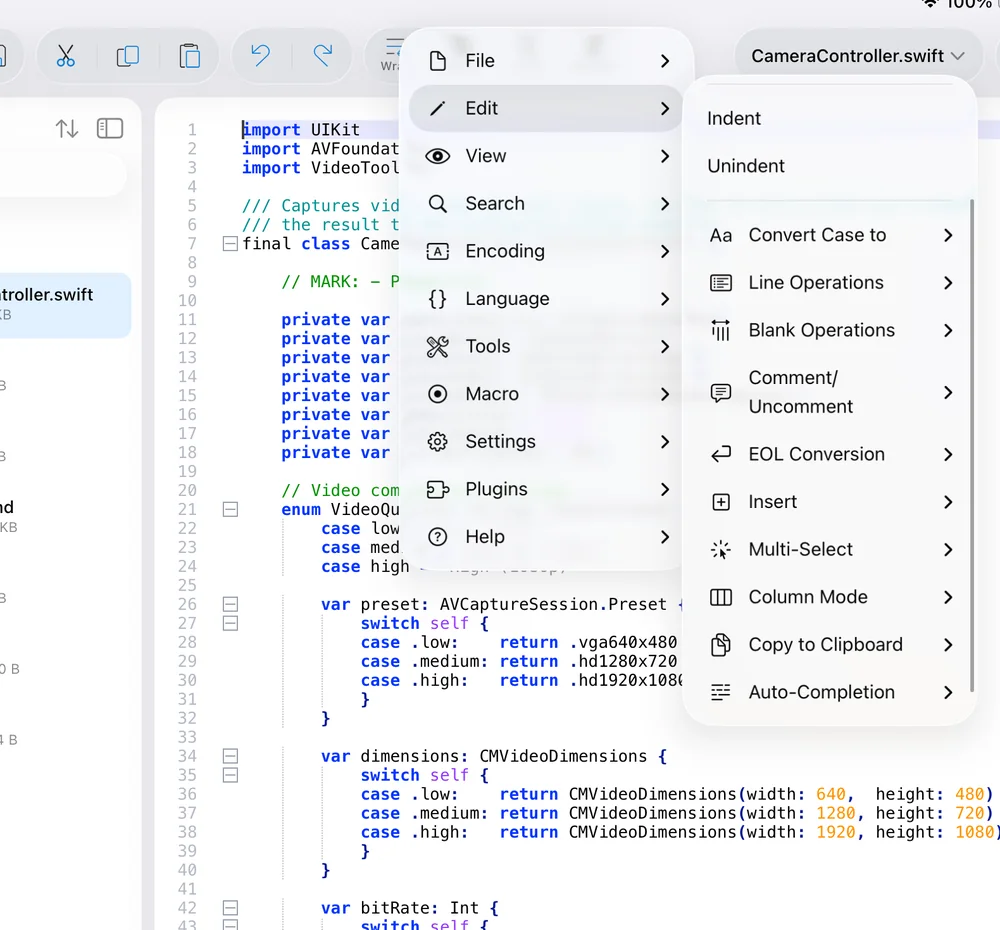
The ⋯ button opens the main menu. On iPad it is a cascading menu: the eleven top-level entries stay visible on the left while each submenu opens beside it, so you can move between File, Edit and View without going back. On iPhone each submenu replaces the list and a back chevron returns you. Items that cannot apply right now (for example Save on an untitled document, or Monitoring on a document without a file) are dimmed; items with a state show a check mark.
File
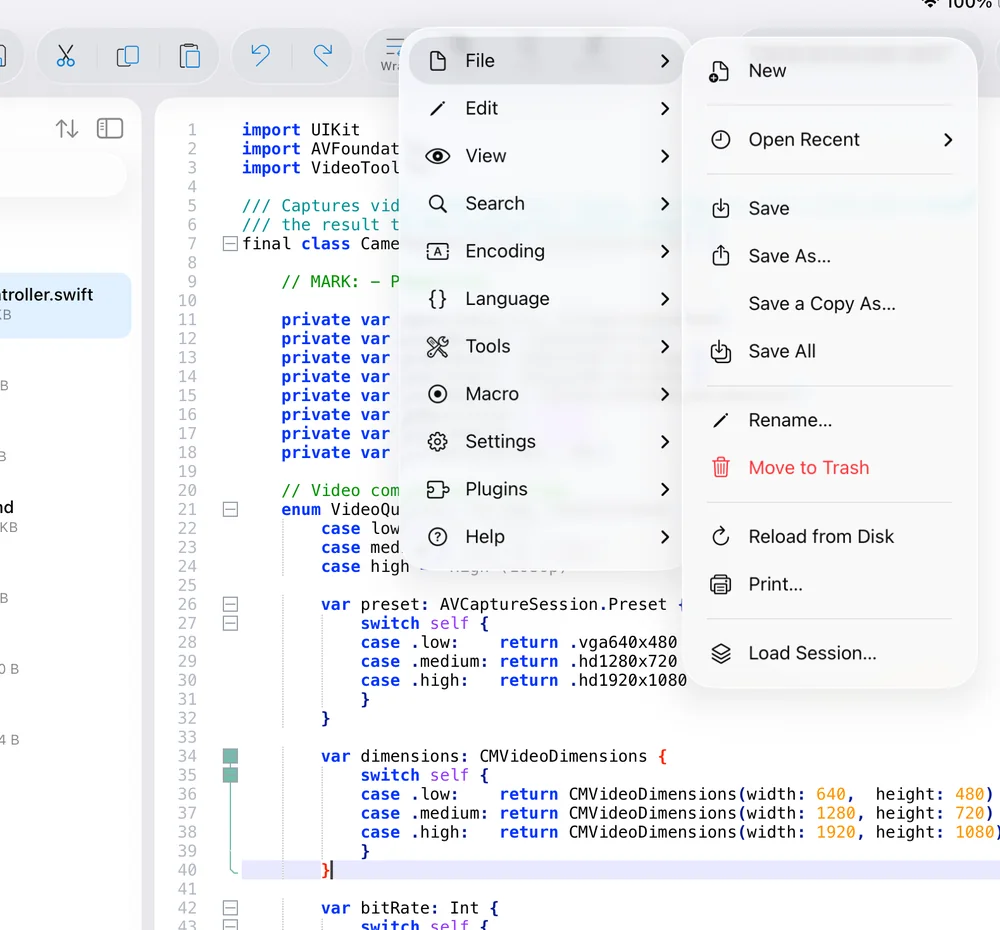
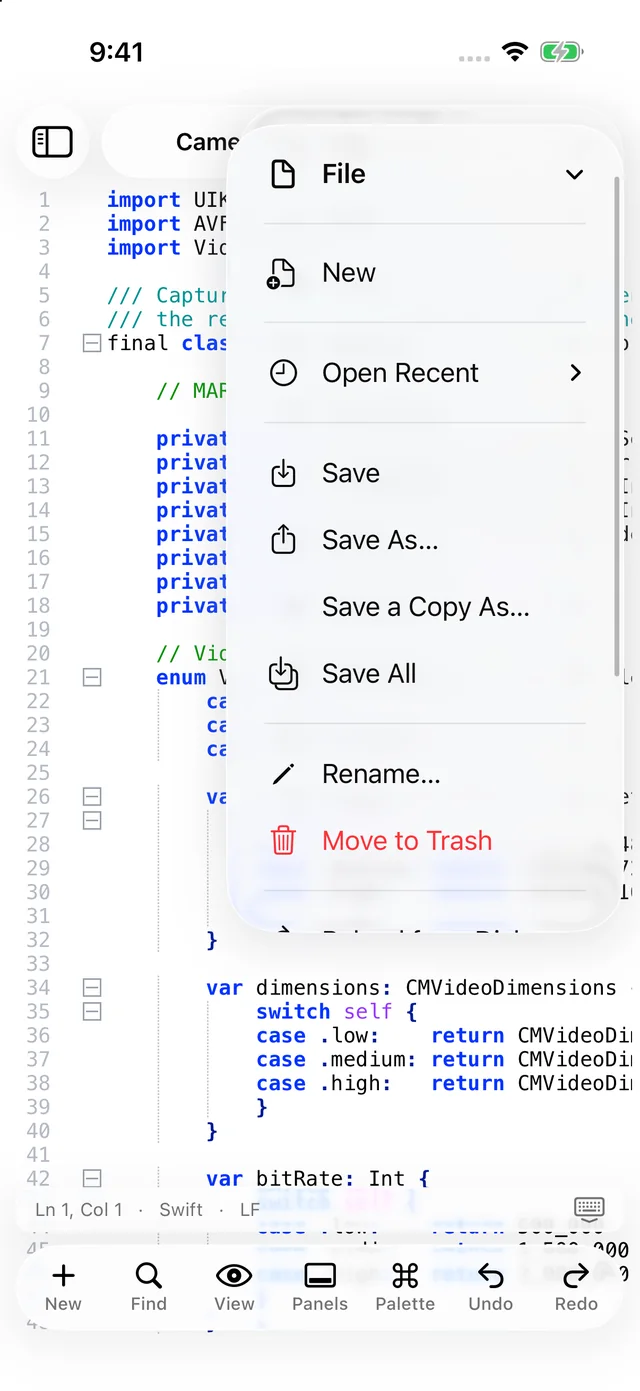
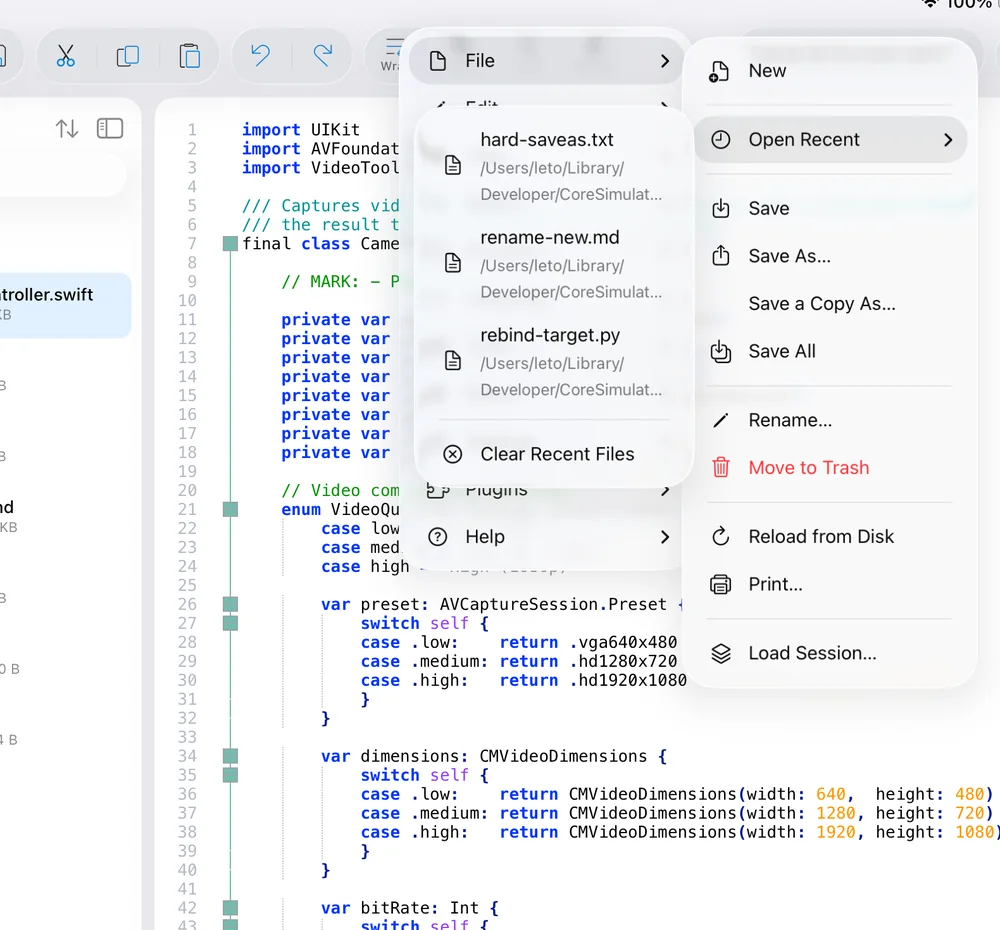
- New ⌘NCreates an Untitled tab with the default encoding and line endings from Preferences ▸ New Document.
- Open Recent ›The last ten files, with their folder as a subtitle, plus Clear Recent Files. Recent files are stored as security-scoped bookmarks, so they reopen even from external providers.
- Save ⌘SWrites the document in place using a coordinated write (safe with iCloud and other providers), re-baselines change history, and — if Device Sync is on — publishes the new state.
- Save As… ⌥⌘SPicks a new location, then re-binds the tab to the new file.
- Save a Copy As…Writes a copy to a chosen location; the tab keeps editing the original.
- Save All ⇧⌘SSaves every modified tab that has a file. Preferences ▸ MISC can require a confirmation first.
- Rename…Renames the file on disk and updates the tab.
- Move to TrashMoves the file to the Files app trash (Recently Deleted) and closes the tab. Shown in red; asks for confirmation.
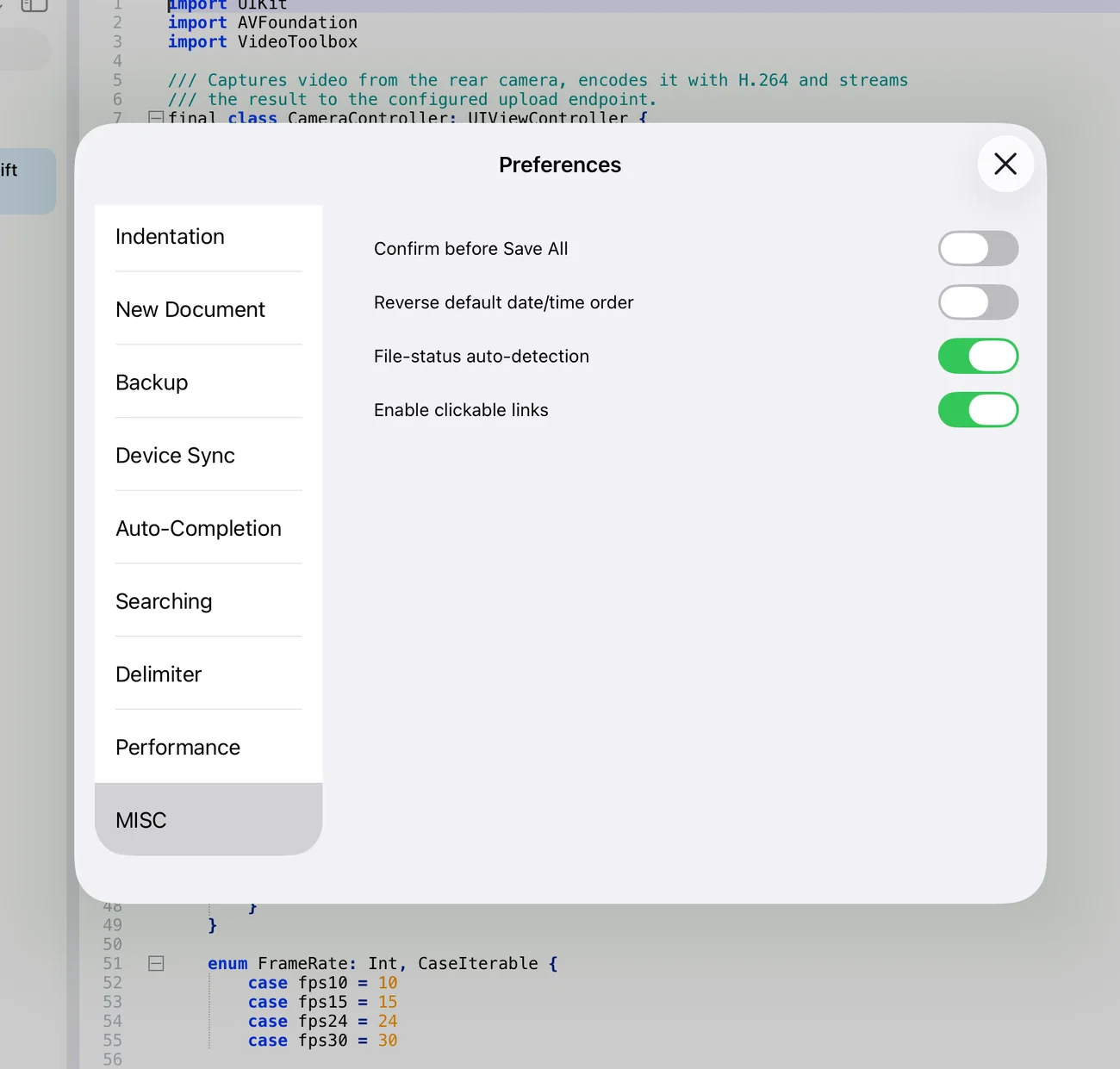
- Reload from Disk ⌘RDiscards unsaved changes and re-reads the file. With File-status auto-detection on (Preferences ▸ MISC) clean documents reload automatically when the file changes outside the app, and modified ones ask Reload / Keep Mine.
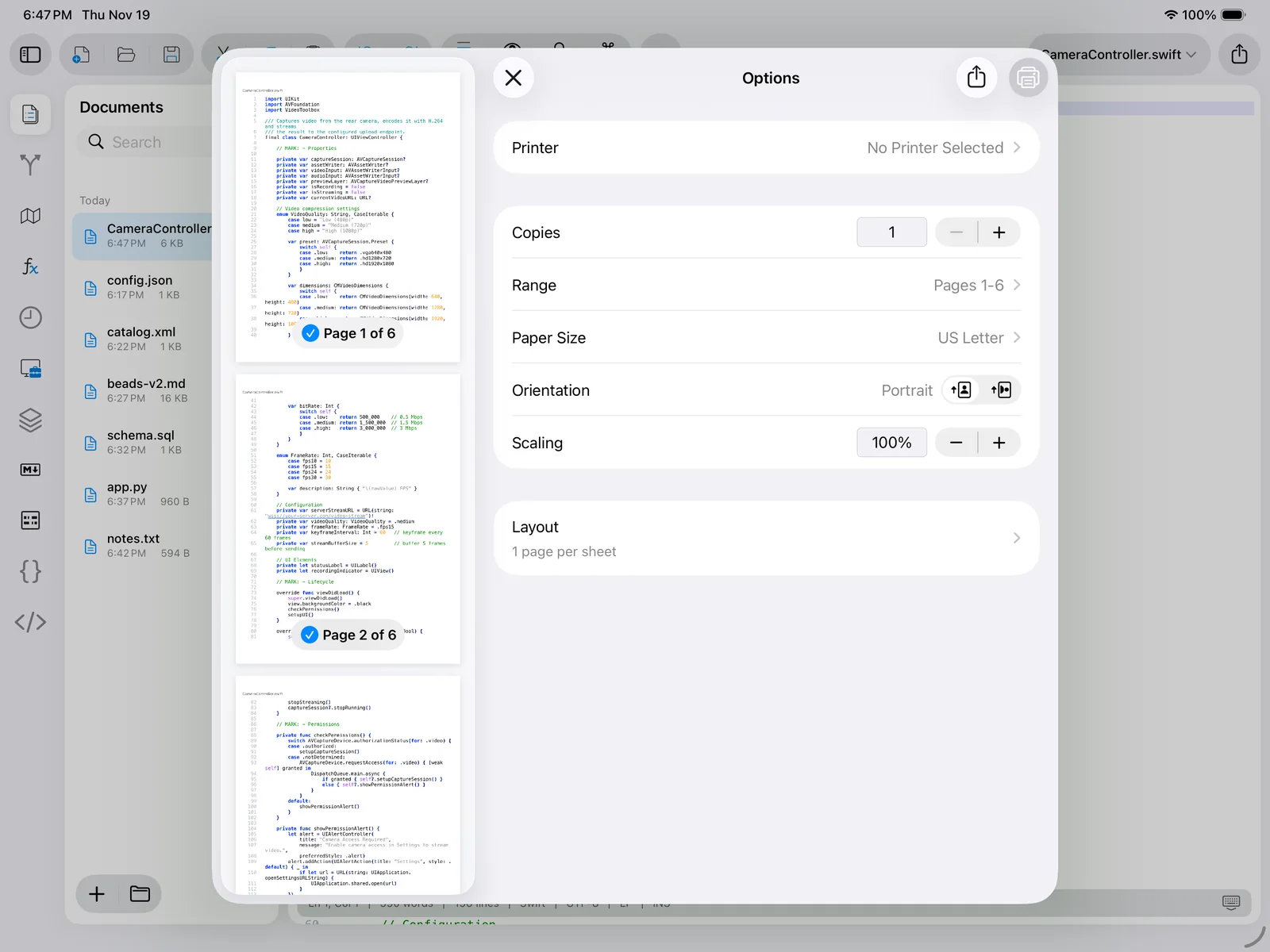
- Print… ⌘POpens the iOS print panel with a full preview. Long lines are wrapped and syntax colours are kept; AirPrint and Save as PDF are available.
- Load Session… / Save Session…Restores or stores a named session file (
Nextpad.session) listing a set of documents — see Saving, sessions & printing. - Continue from <device>…Only visible when Device Sync is on: one entry per other device that published a session, with the tab count and age. Review Edit from … entries appear when another device edited one of your tabs.
- Close ⌘WCloses the active tab (asks to save if modified).
- Close AllCloses every tab, prompting for each unsaved document.
- Close Multiple Documents ›Close All But Current, Close All to the Left, Close All to the Right, Close All Unchanged, Close All But Pinned.
Edit
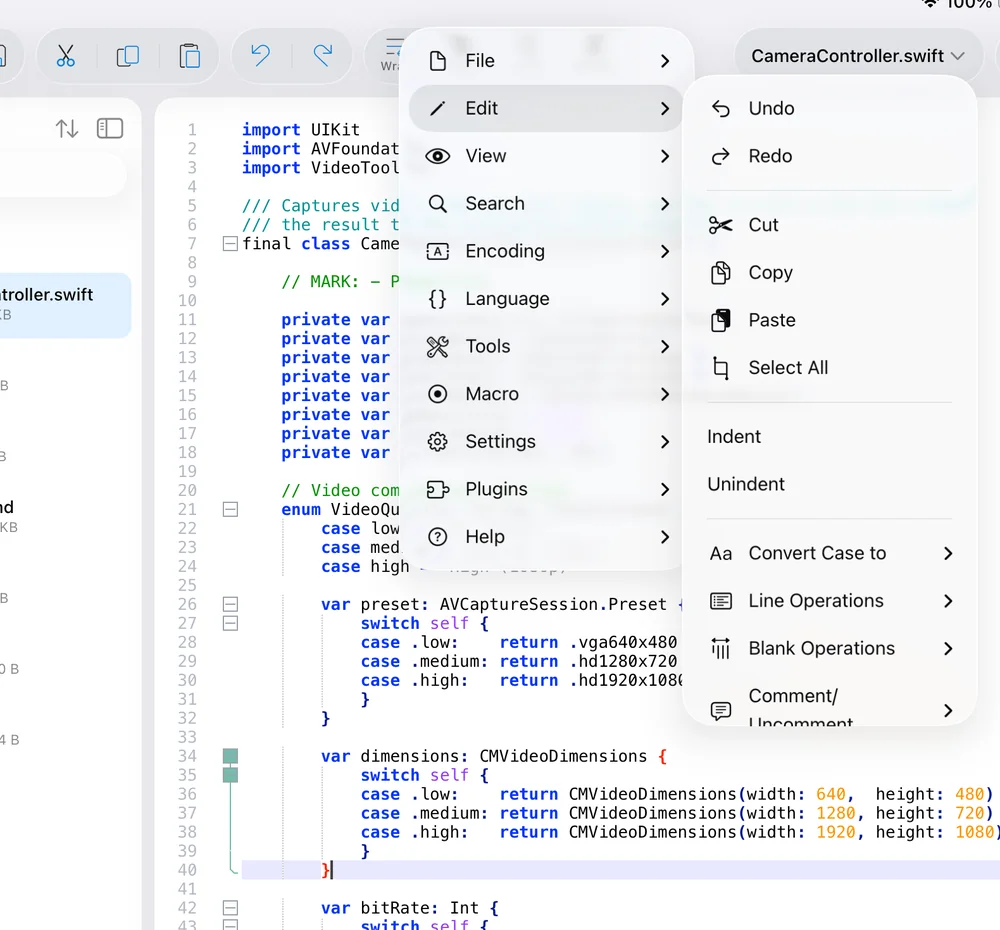
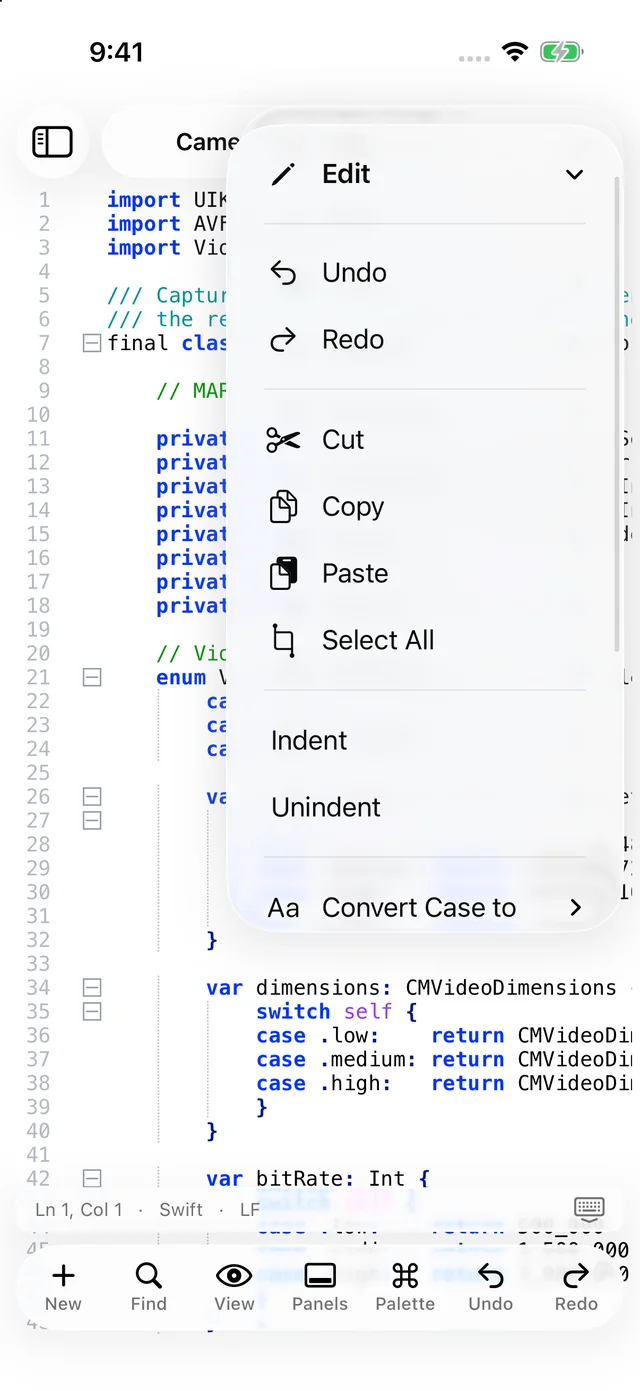
- Undo / Redo ⌘Z · ⇧⌘ZStep backwards and forwards through the edit history of the active document.
- Cut / Copy / Paste / Select AllStandard clipboard commands. With nothing selected, Cut and Copy take the whole line (Preferences ▸ Editor). Every copy is also recorded in the Clipboard History panel.
- Indent / Unindent ⌘] · ⌘[Shift the selected lines by one indent level.
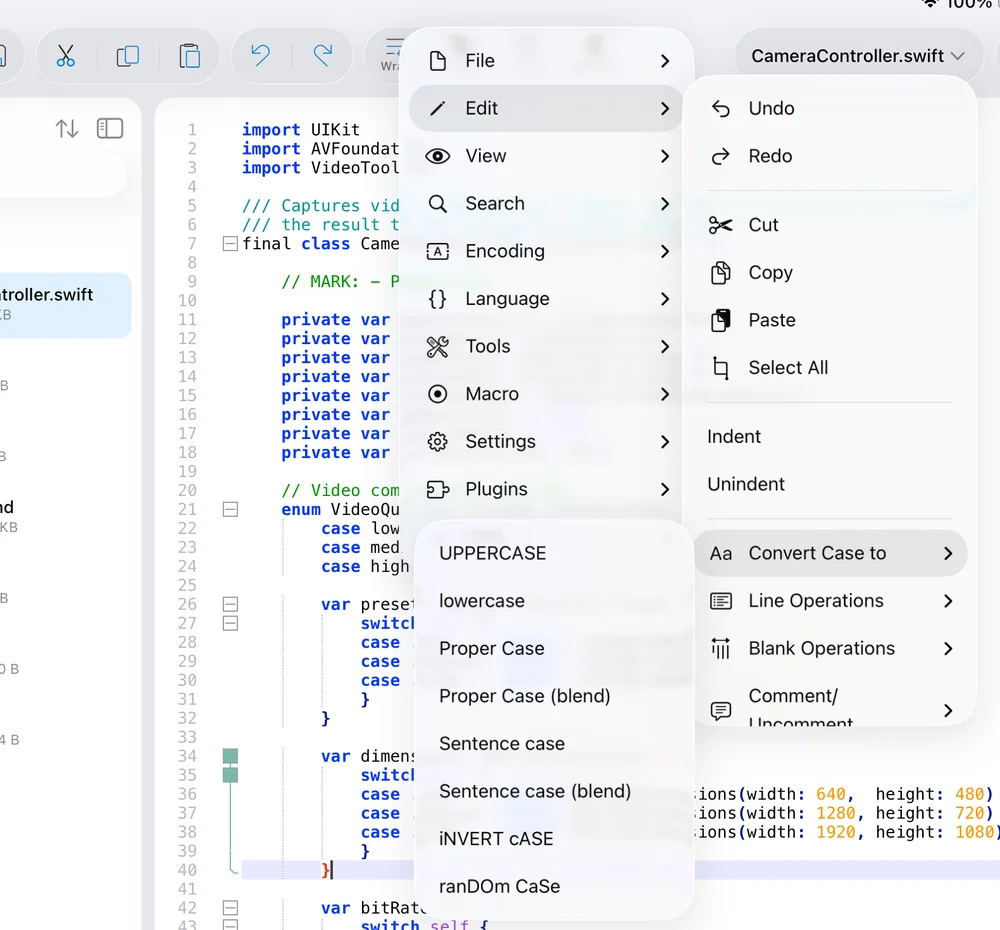
- Convert Case to ›UPPERCASE, lowercase, Proper Case, Proper Case (blend), Sentence case, Sentence case (blend), iNVERT cASE, ranDOm CaSe. The blend variants only change the first letter of each word/sentence and leave the rest untouched.
- Line Operations ›Duplicate Line, Delete Line, Move Line Up/Down, Join Lines, Split Lines (at the wrap width), Sort Lines › (ascending/descending, ignore case, by length, as integers, decimal dot, decimal comma, reverse order, randomly), Remove Duplicate Lines, Remove Consecutive Duplicates.
- Blank Operations ›Trim Trailing Space, Trim Leading Space, Trim Leading and Trailing, EOL to Space, Trim Both and EOL to Space, TAB to Space, Space to TAB (All), Space to TAB (Leading), Remove Unnecessary Blank and EOL, Remove Blank Lines, Merge Blank Lines.
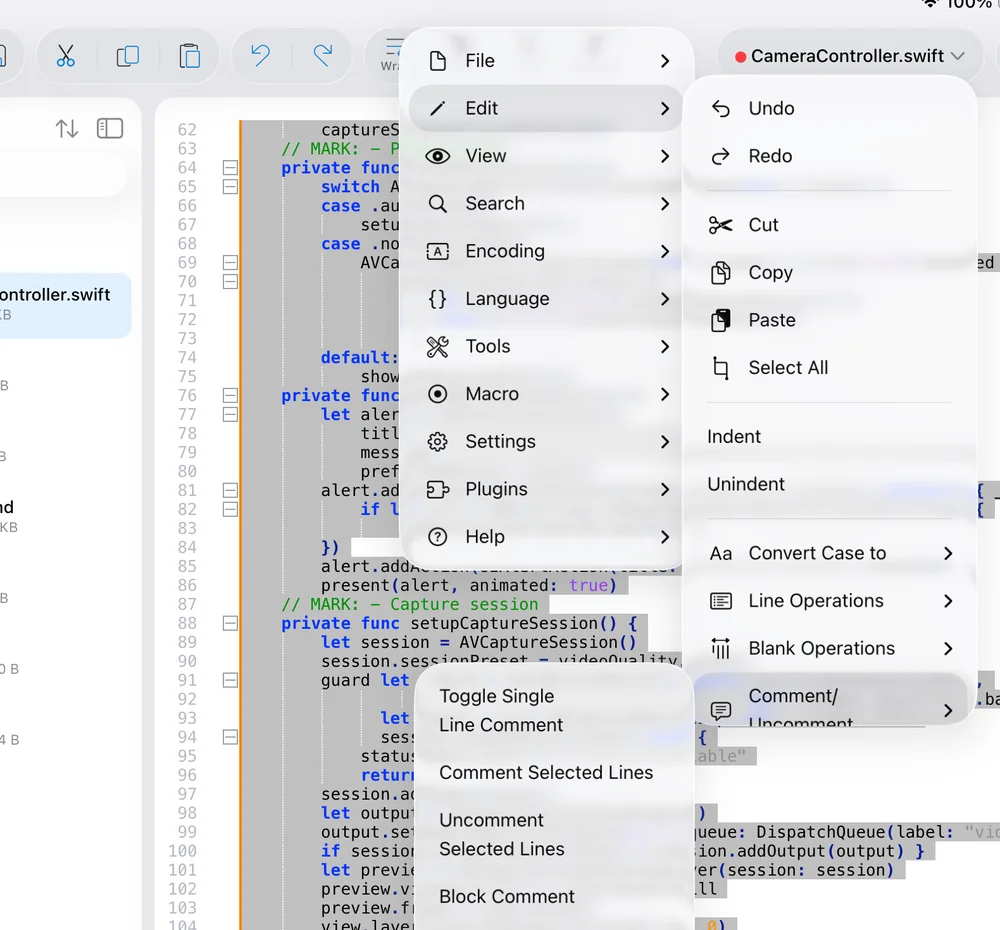
- Comment/Uncomment ›Toggle Single Line Comment (⌘/), Comment Selected Lines, Uncomment Selected Lines, Block Comment, Block Uncomment — using the comment syntax of the current language.
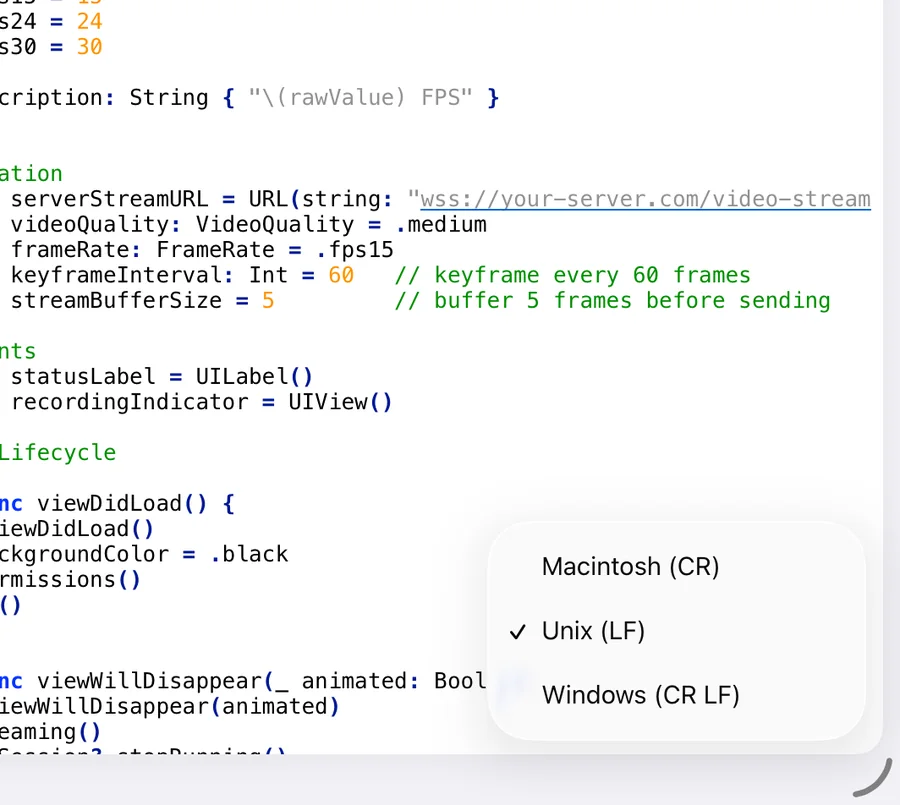
- EOL Conversion ›Converts every line ending to Windows (CR LF), Unix (LF) or Macintosh (CR). The status bar EOL segment offers the same.
- Insert ›Date Time (short), Date Time (long), Date Time (Custom Format…), Blank Line Above, Blank Line Below. Preferences ▸ MISC can reverse the default date/time order.
- Multi-Select ›Select Next Occurrence (⌘D), Select All Occurrences (⇧⌘L), Skip Occurrence, Undo Last Selection, Cancel. See Multi-select.
- Column Mode ›Column Mode (toggle), Begin Select, End Select, End Select in Column Mode, Column Editor….
- Copy to Clipboard ›Full File Path, File Name, Directory Path, Copy All File Names, Copy All File Paths (of all open tabs).
- Auto-Completion ›Function Completion, Word Completion, Function Parameters Hint — invoke the completion popups on demand.
View
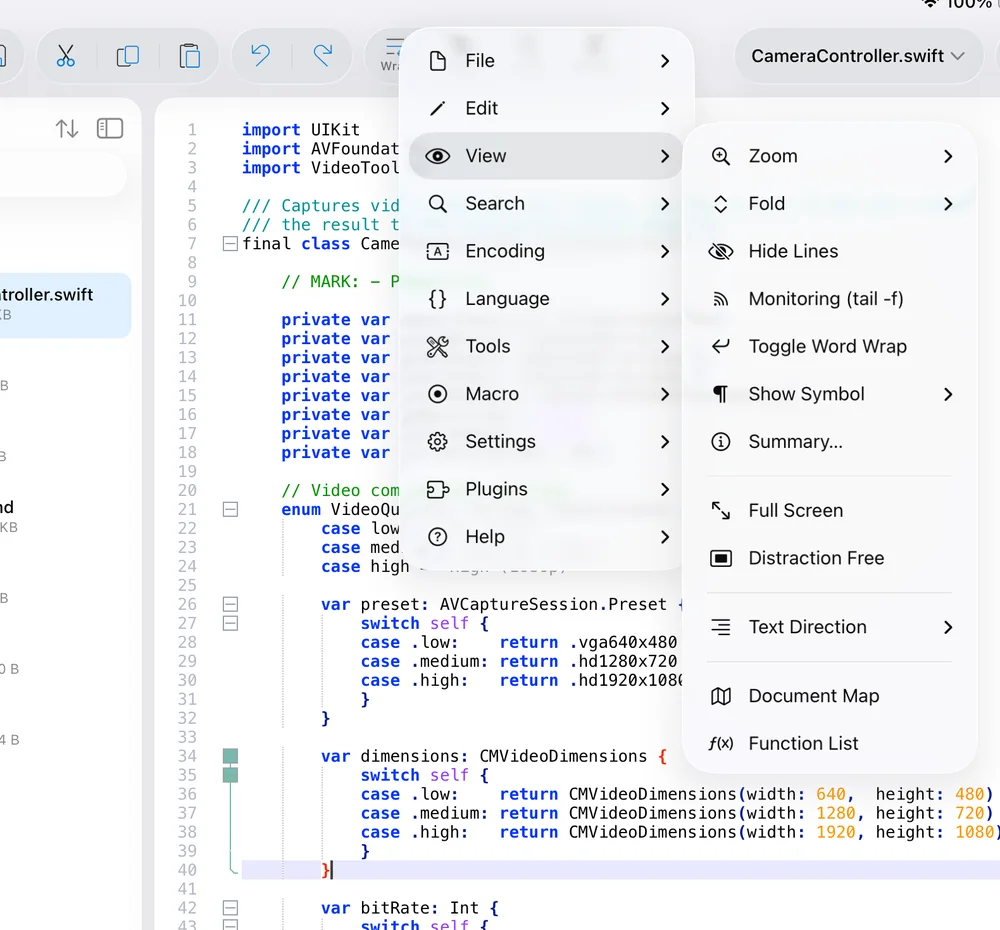
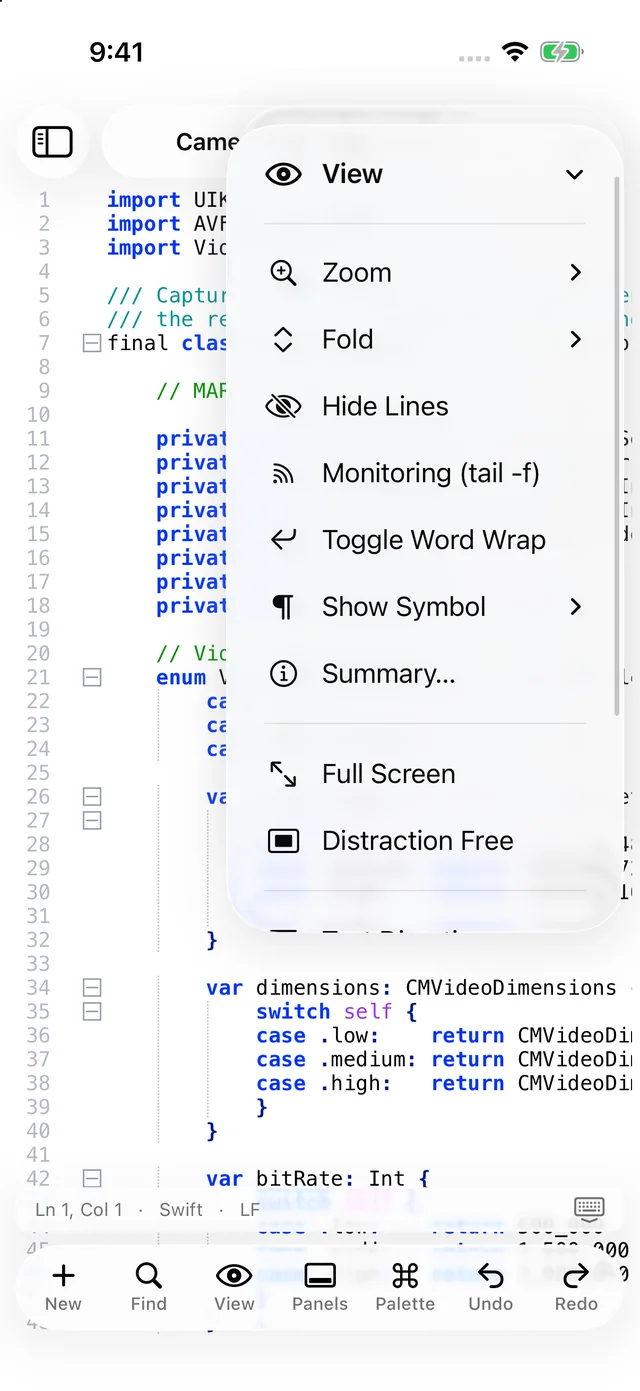
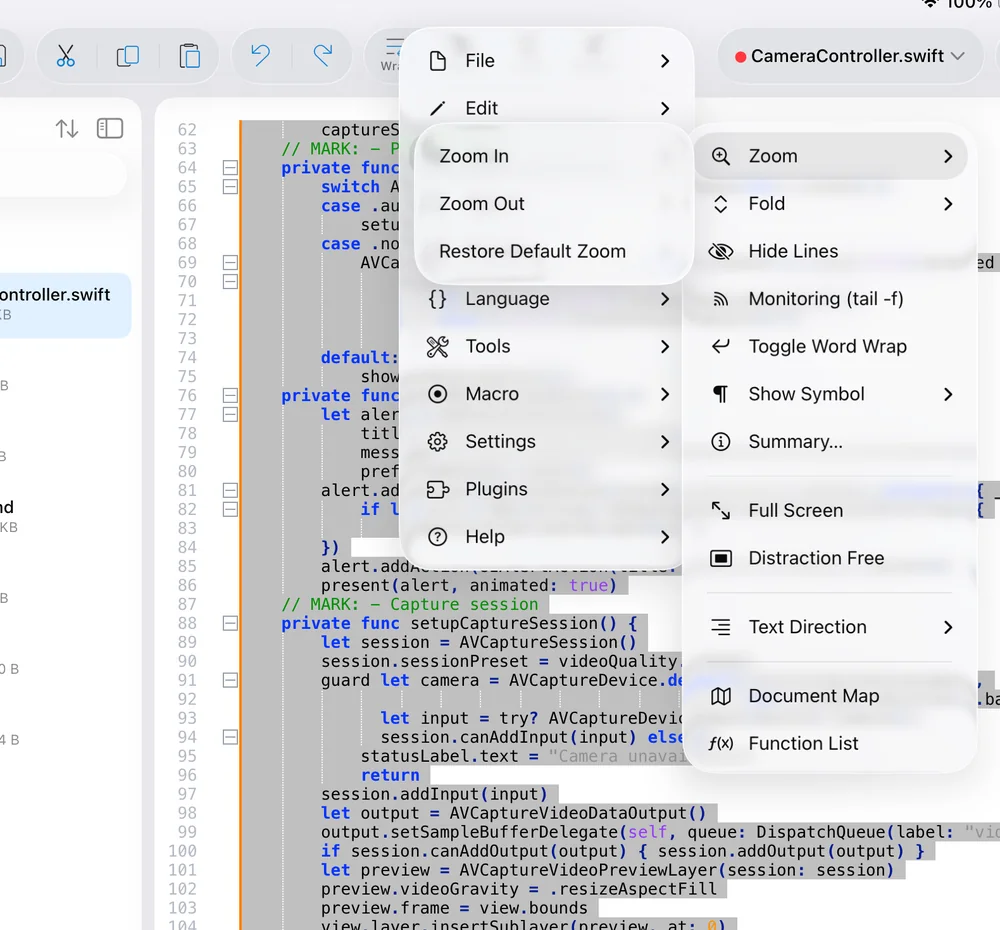
- Zoom ›Zoom In (⌘+), Zoom Out (⌘−), Restore Default Zoom (⌘0). Pinching does the same.
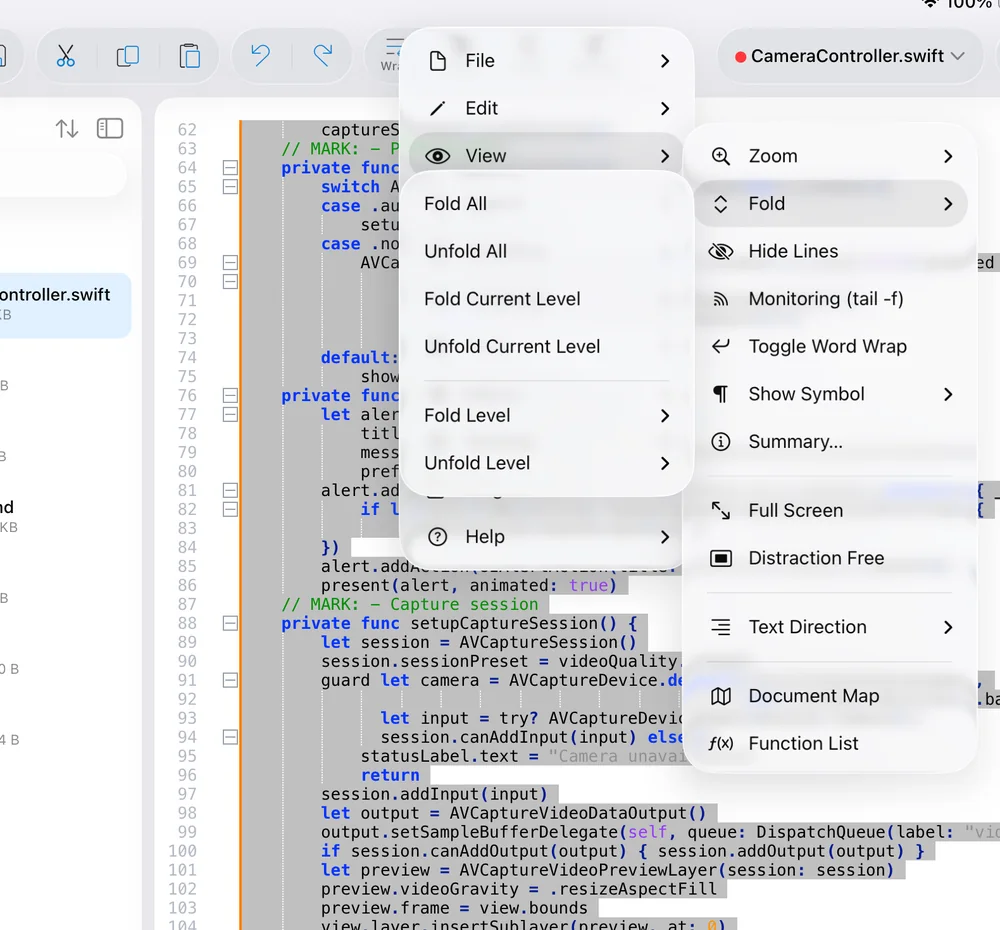
- Fold ›Fold All, Unfold All, Fold Current Level, Unfold Current Level, and Fold Level › / Unfold Level › for levels 1–8.
- Hide LinesHides the selected lines so you can read what surrounds a long block. They stay hidden until you expand all folds or reload the document.
- Monitoring (tail -f)Follows a growing file (a log, for example): the document reloads as new data is appended and scrolls to the end. Checked while active; needs a file-backed document.
- Toggle Word WrapWraps long lines at the editor width. The Wrap chip is the same toggle. Large files disable wrap by default (Preferences ▸ Performance).
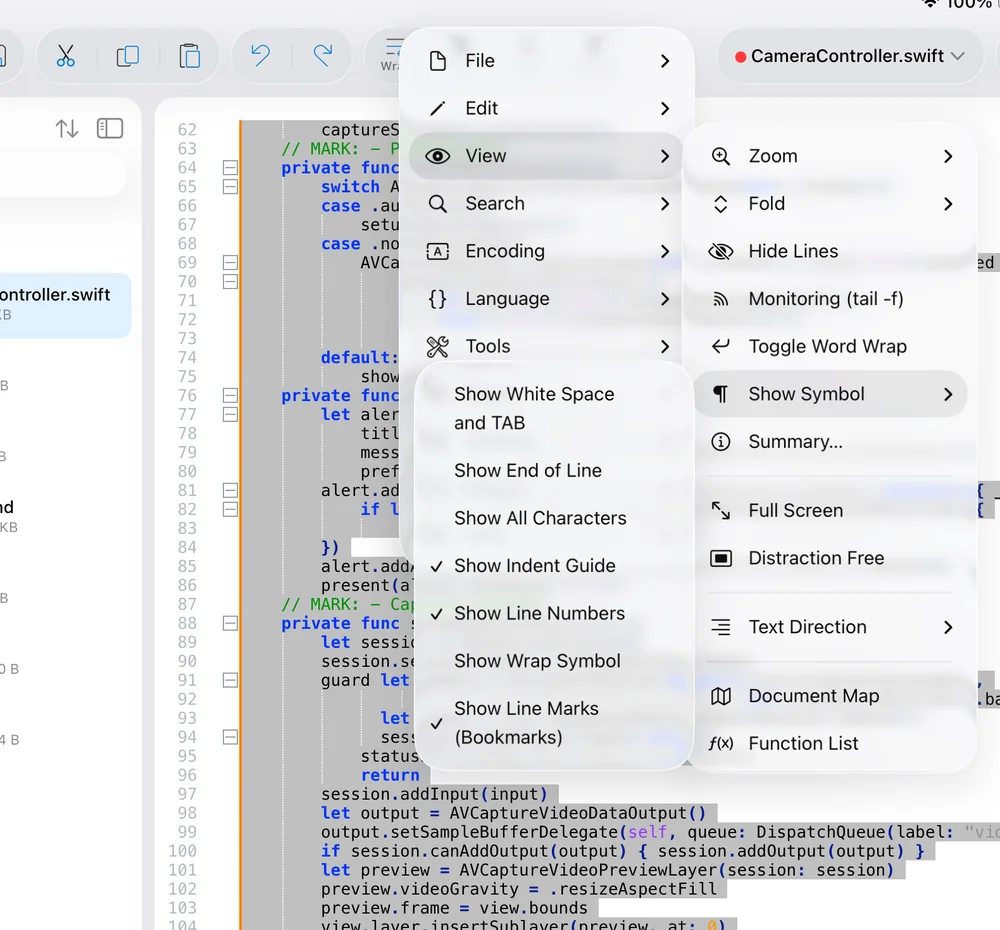
- Show Symbol ›Show All Characters — renders spaces, tabs and line endings visibly. (Show Whitespace and Indent Guides are also in the View chip.)
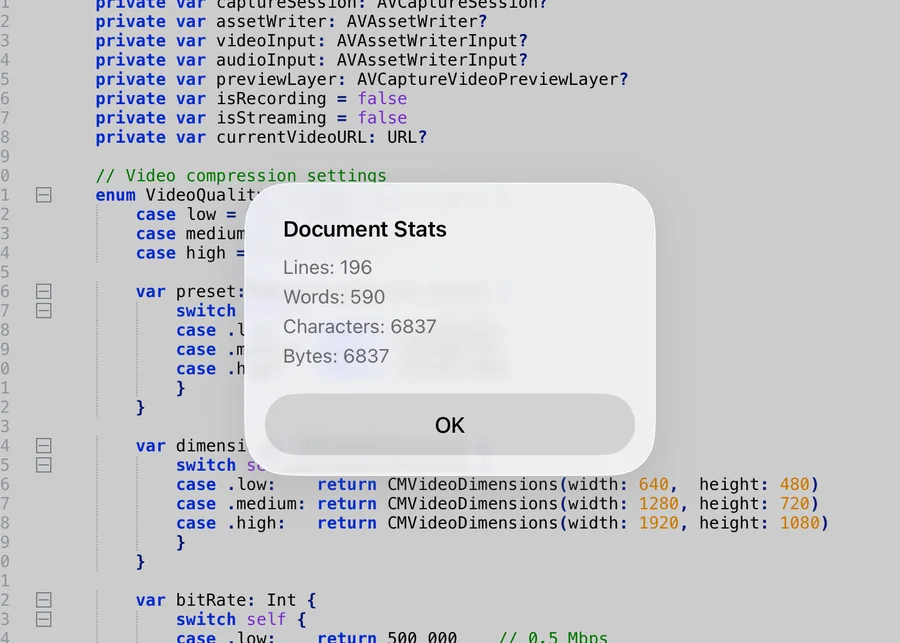
- Summary…Document statistics: lines, words, characters and bytes.
- Full Screen ⌃⌘FHides the chrome and shows only the editor; choose again to leave.
- Distraction FreeFull screen plus no status bar and no margins.
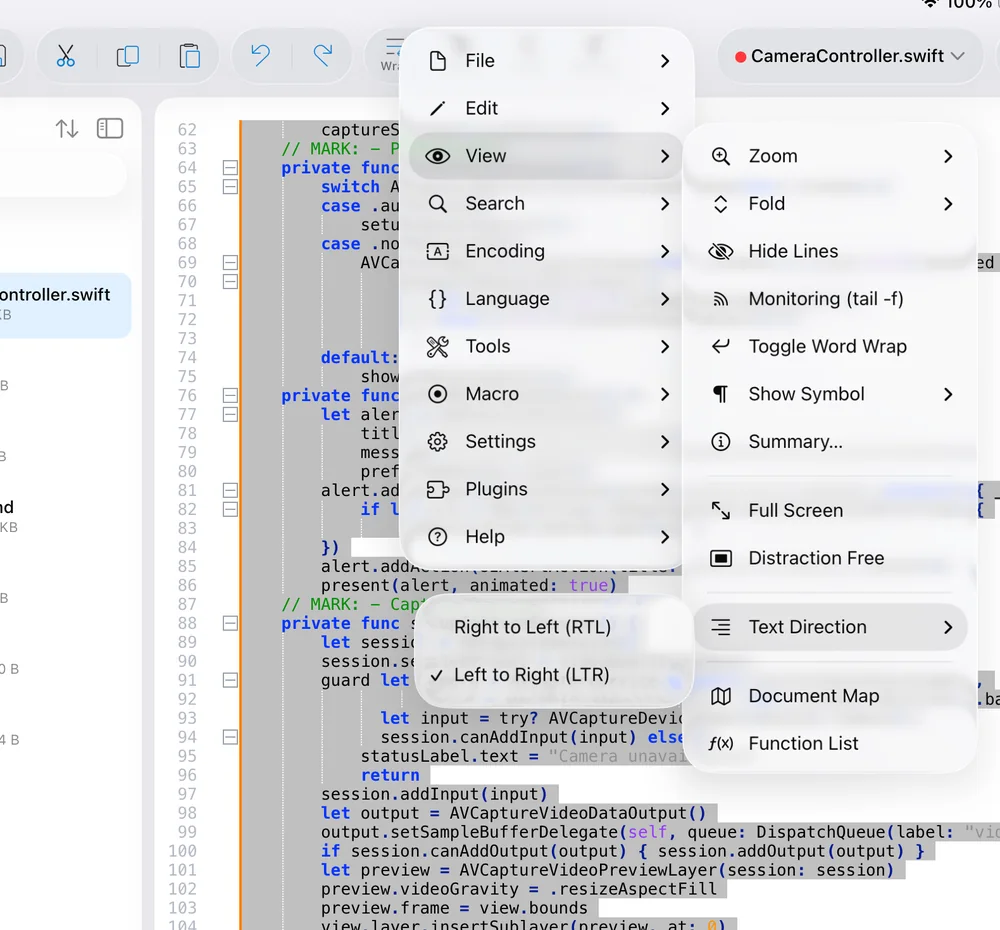
- Text Direction ›Right to Left (RTL) / Left to Right (LTR) — for Arabic, Hebrew and other RTL scripts; margins move to the right side in RTL mode.
- Document MapOpens the Document Map panel (a miniature of the whole file with the visible region highlighted).
- Function ListOpens the Function List panel (functions, classes and methods of the current document).
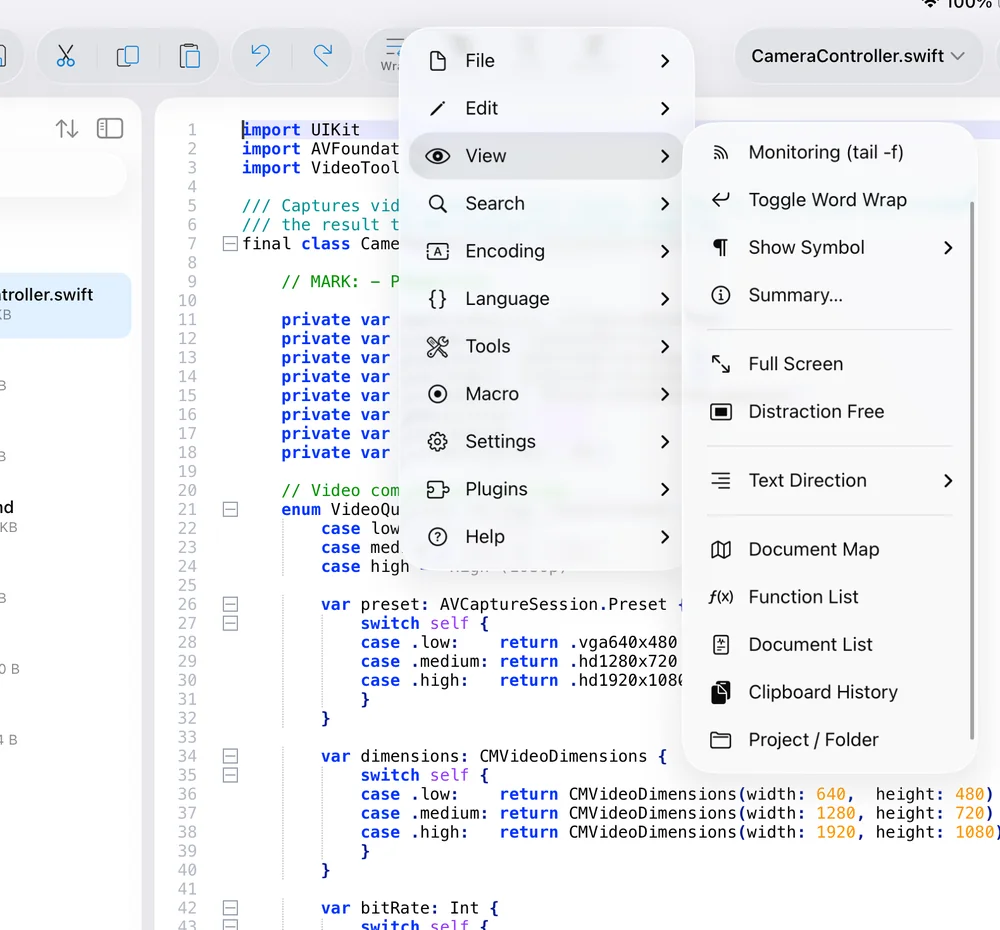
- Document ListA flat list of open documents.
- Clipboard HistoryEverything you copied this session; tap an entry to paste it.
- Project / FolderOpens the Project panel. See Panels & views.
Search
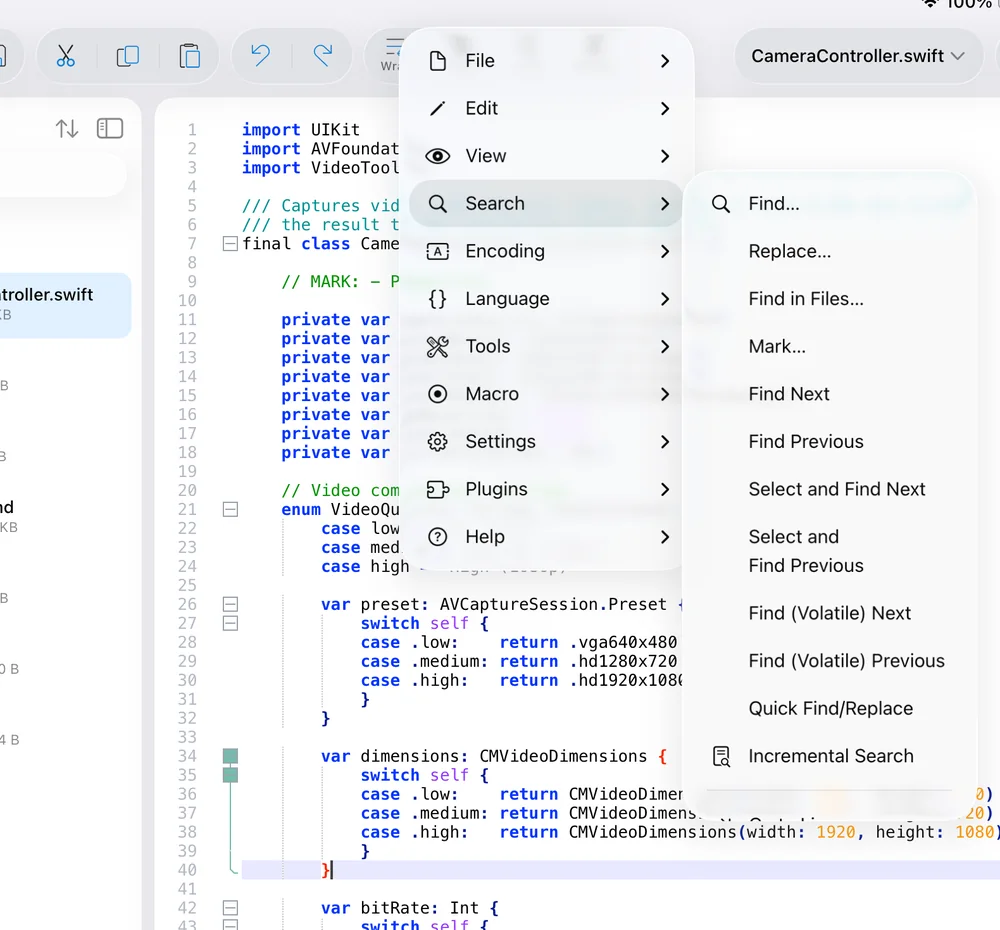
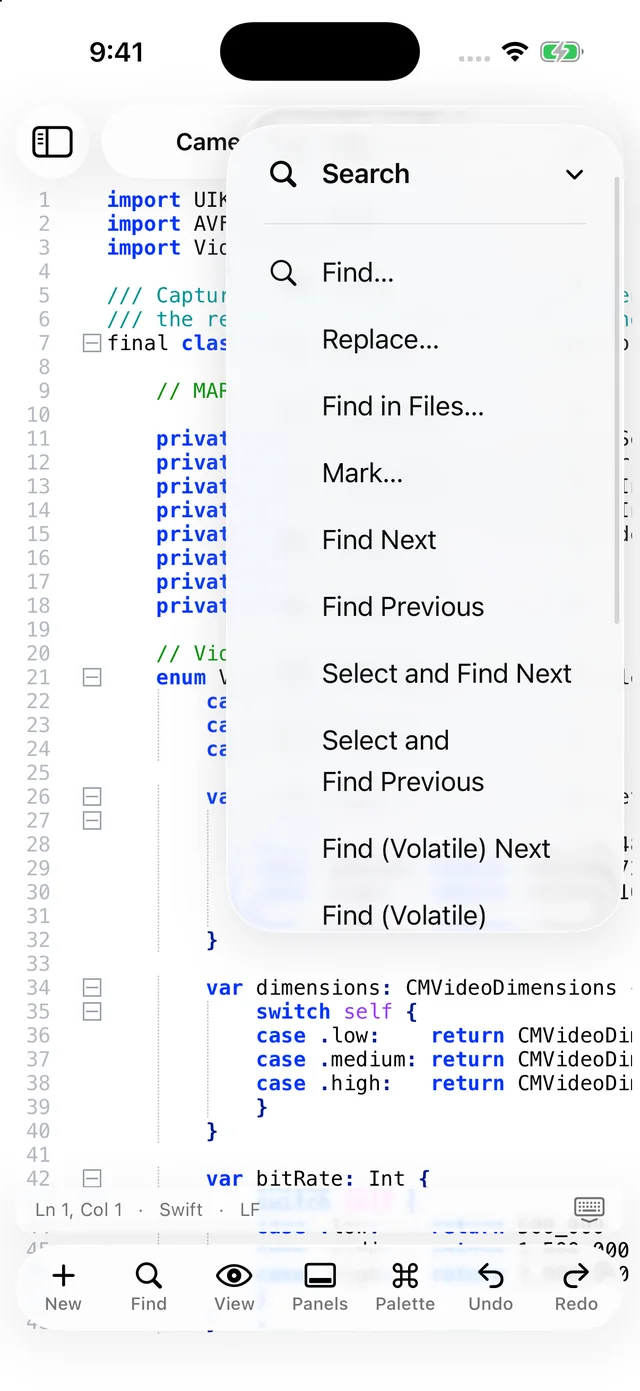
- Find… ⌘FOpens the Find window on the Find tab, pre-filled with the selection.
- Replace… ⌥⌘FThe Replace tab.
- Find in Files…The Find in Files tab — search (and replace) across a folder.
- Mark…The Mark tab — highlight all matches and optionally bookmark their lines.
- Find Next / Find Previous ⌘G · ⇧⌘GRepeat the last search forwards or backwards.
- Select and Find Next / PreviousUse the current selection as the search text and jump to its next/previous occurrence.
- Find (Volatile) Next / PreviousSame, but without changing the search history.
- Quick Find/ReplaceA compact find/replace bar instead of the full window.
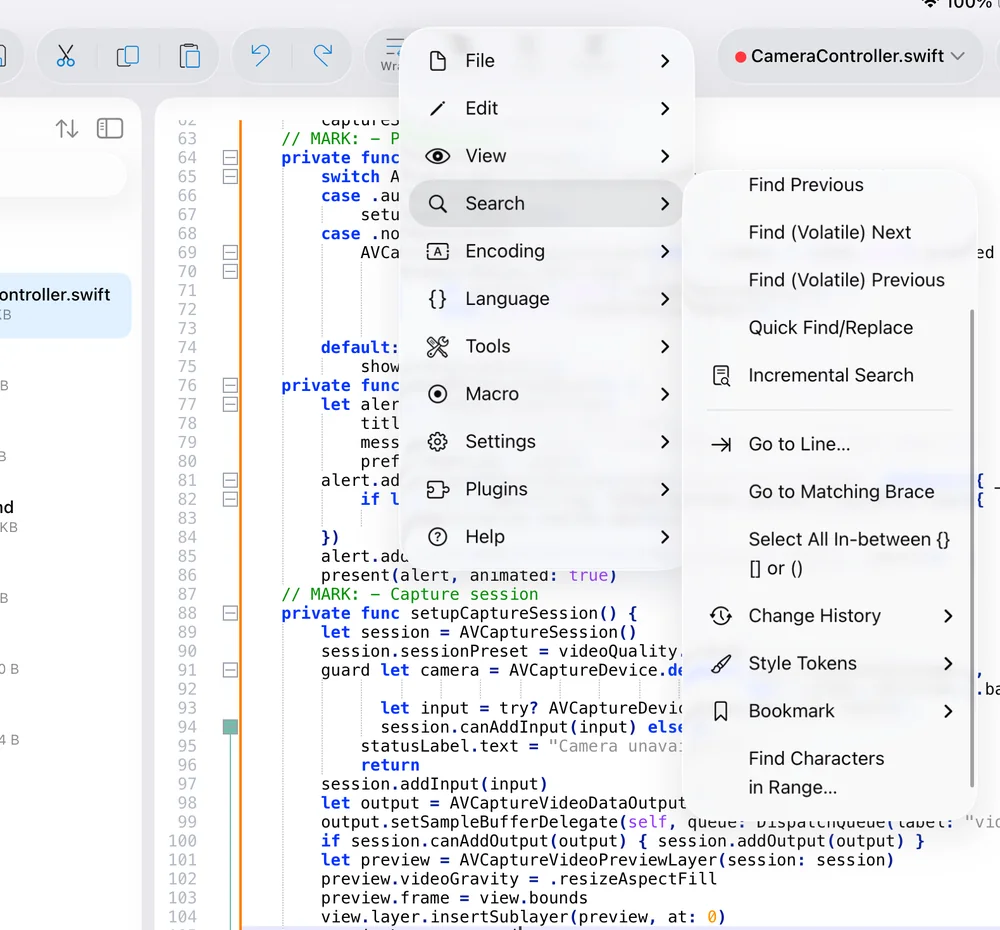
- Incremental Search ⌘IA search bar that jumps to the first match as you type.
- Go to Line… ⌃GJumps to a line number.
- Go to Matching BraceMoves the caret to the brace that matches the one at the caret.
- Select All In-between {} [] or ()Selects the contents of the innermost bracket pair around the caret.
- Change History ›Go to Next Change, Go to Previous Change, Clear All Changes.
- Style Tokens ›Style All Occurrences of Token / Style One Token using one of five colours, Clear Style (one or all), Jump Up / Jump Down to the next styled token or bookmark, and Copy Styled Text — collect every piece of text marked with a given colour.
- Bookmark ›Toggle Bookmark (⌘F2), Next (F2) / Previous Bookmark (⇧F2), Clear All Bookmarks, Cut / Copy Bookmarked Lines, Paste to (Replace) Bookmarked Lines, Remove Bookmarked Lines, Remove Non-Bookmarked Lines, Inverse Bookmark. Tap the bookmark margin to toggle a bookmark by touch.
- Find Characters in Range…Finds the next character outside the ASCII range (or inside a range you specify) — the quick way to locate stray non-ASCII characters.
Encoding
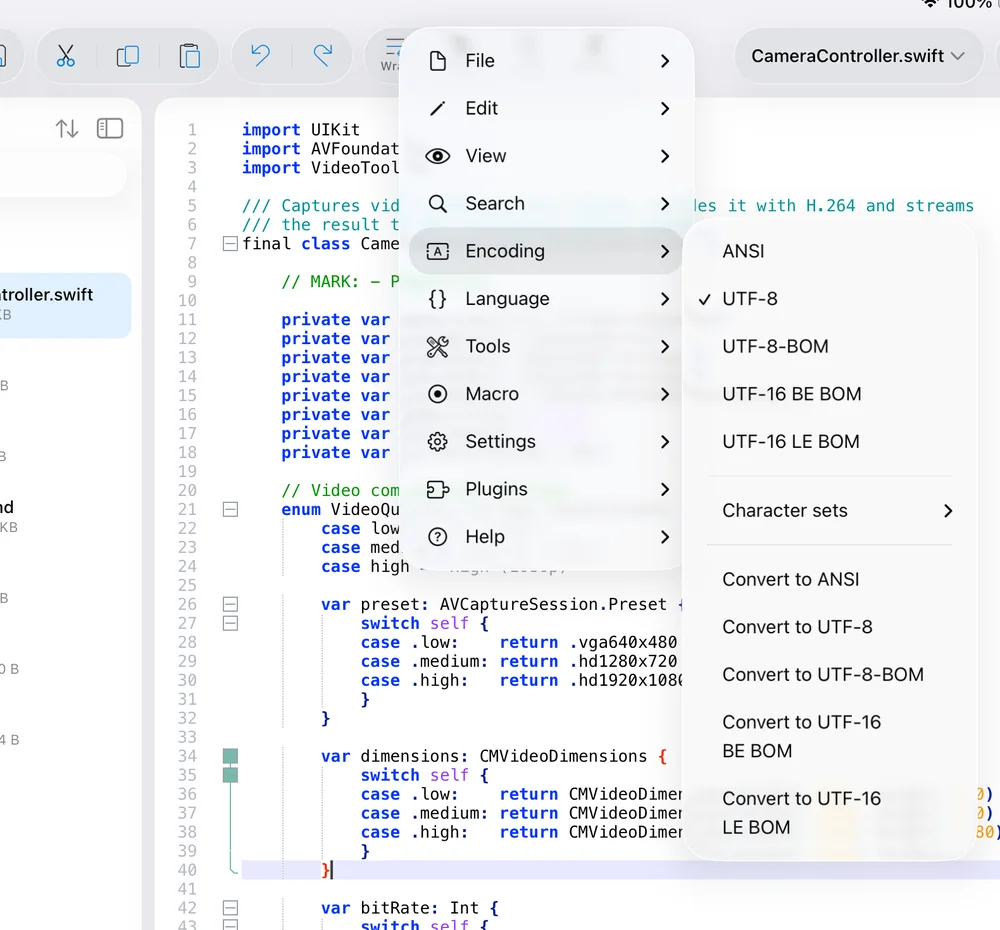
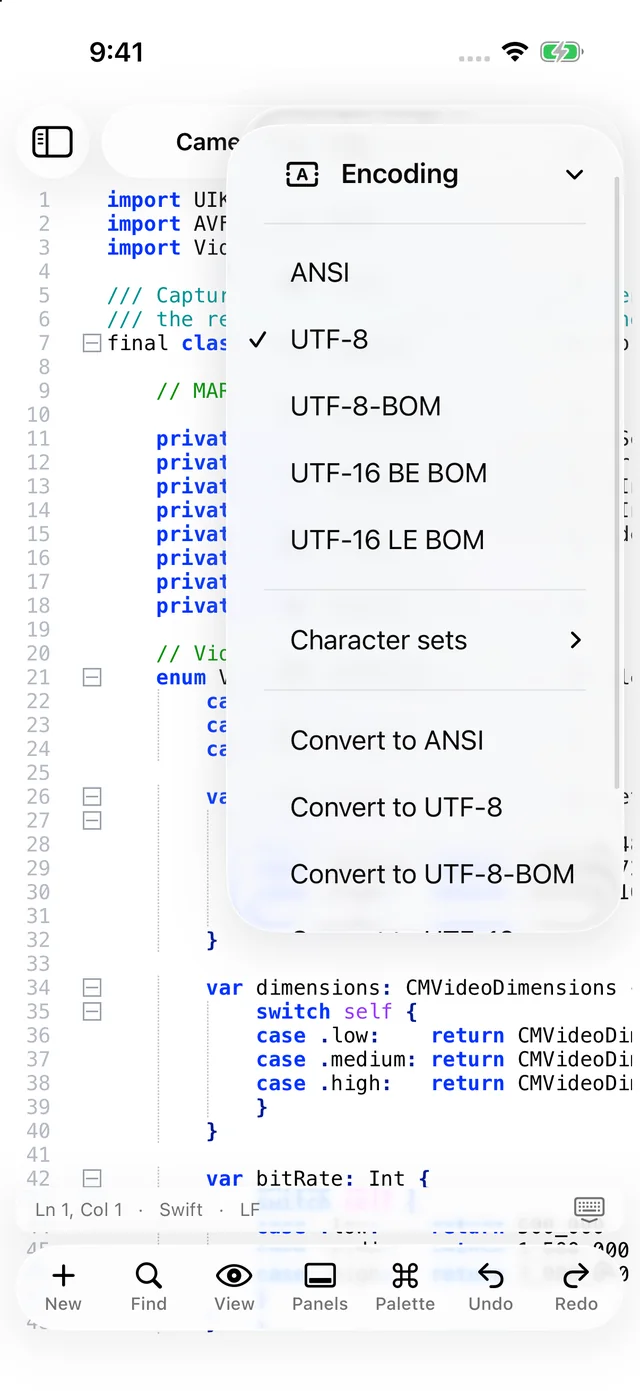
- ANSI · UTF-8 · UTF-8-BOM · UTF-16 BE BOM · UTF-16 LE BOMInterpret as: re-reads the file's bytes under the chosen encoding. If the document has unsaved changes you are warned first.
- Character sets ›Legacy code pages grouped by script: Arabic, Baltic, Celtic, Cyrillic, Central European, Chinese, Eastern European, Greek, Hebrew, Japanese, Korean, North European, Thai, Turkish, Western European and Vietnamese. Only encodings the device can actually convert are listed.
- Convert to ANSI / UTF-8 / UTF-8-BOM / UTF-16 BE BOM / UTF-16 LE BOMConvert: re-encodes the text in memory and marks the document modified; the next Save writes the new encoding. Characters that cannot be represented in the target encoding are reported when you save.
Language
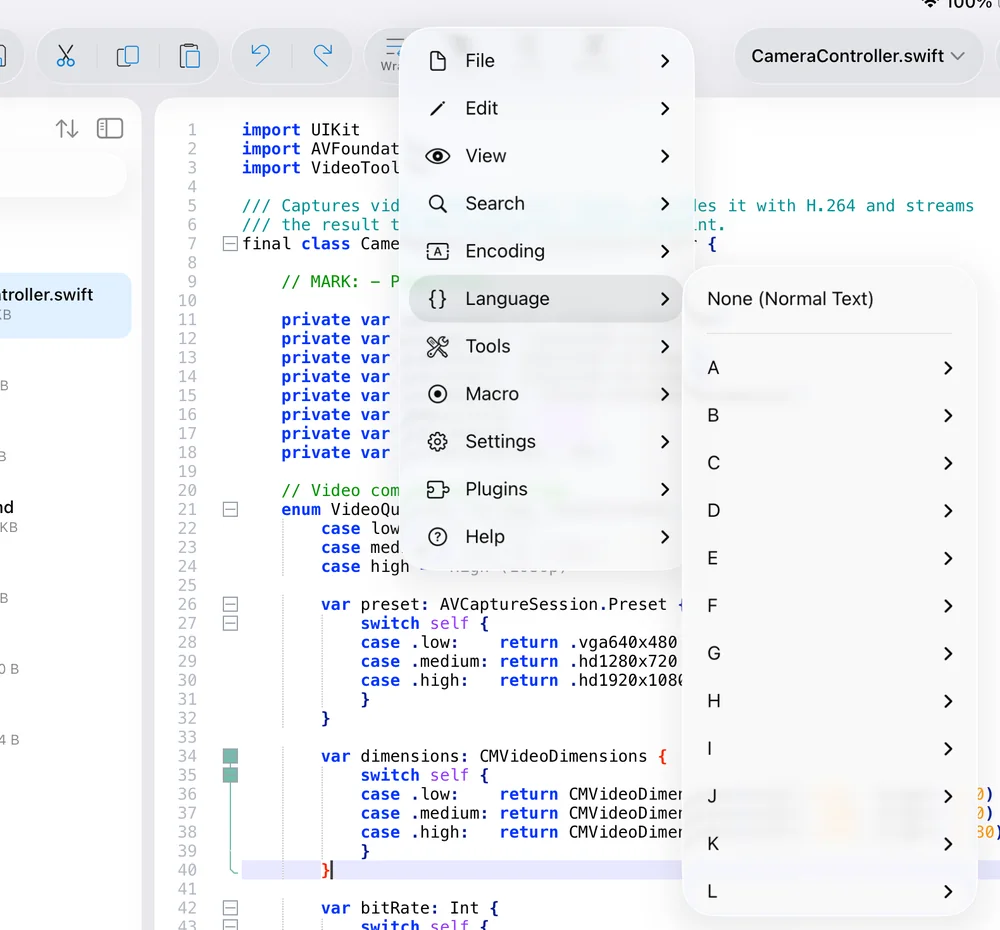
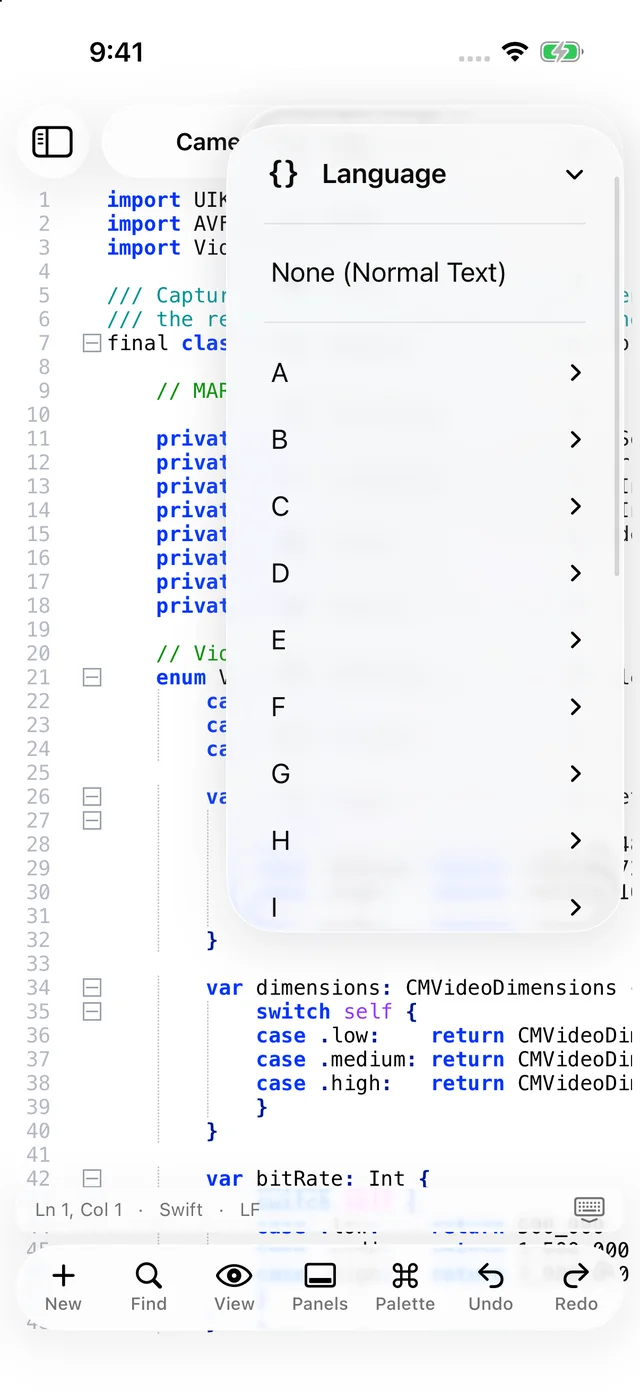
- None (Normal Text)Plain text, no highlighting.
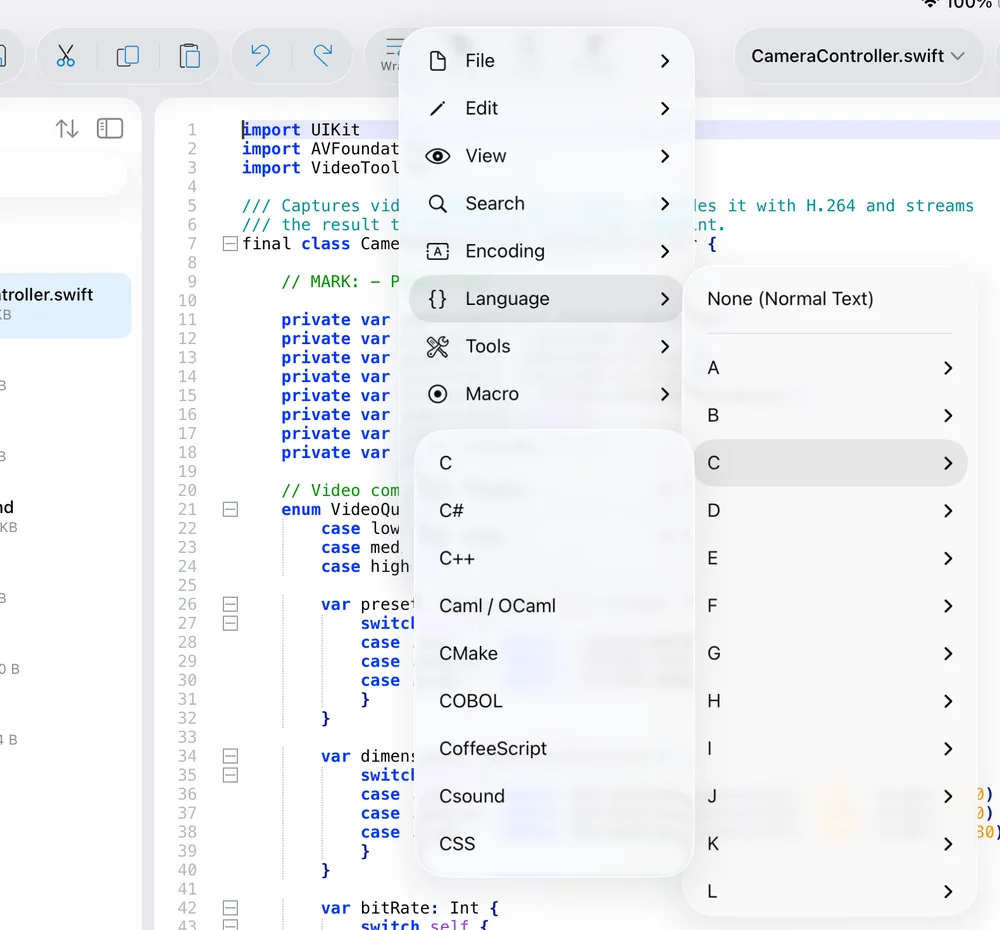
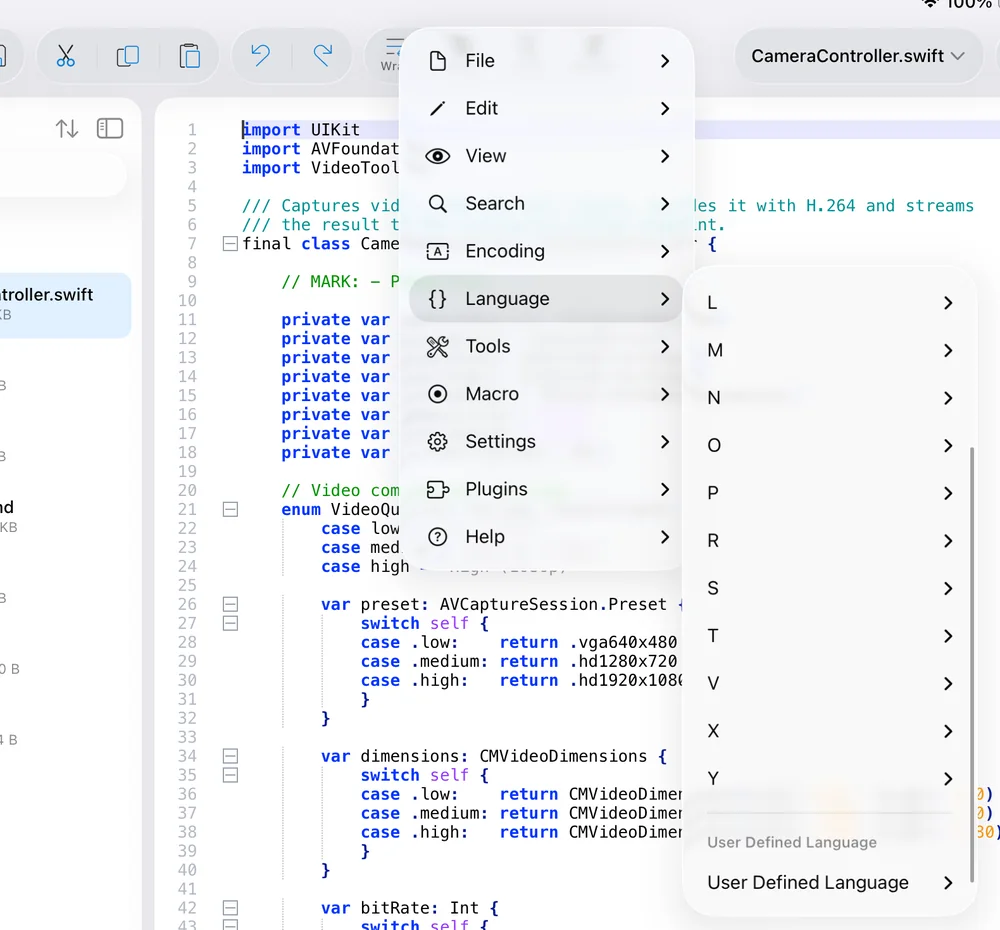
- A … Z ›The 94 built-in languages, grouped by first letter (ActionScript, Ada, Apache Config, ASN.1, ASP, Assembly, AutoIt, … C, C#, C++, Caml/OCaml, CMake, COBOL, CoffeeScript, Csound, CSS … Swift … YAML and more). The current language is checked.
- User Defined Language ›Every installed UDL by name, and Define your language… to open the UDL editor. See Languages & highlighting.
Tools
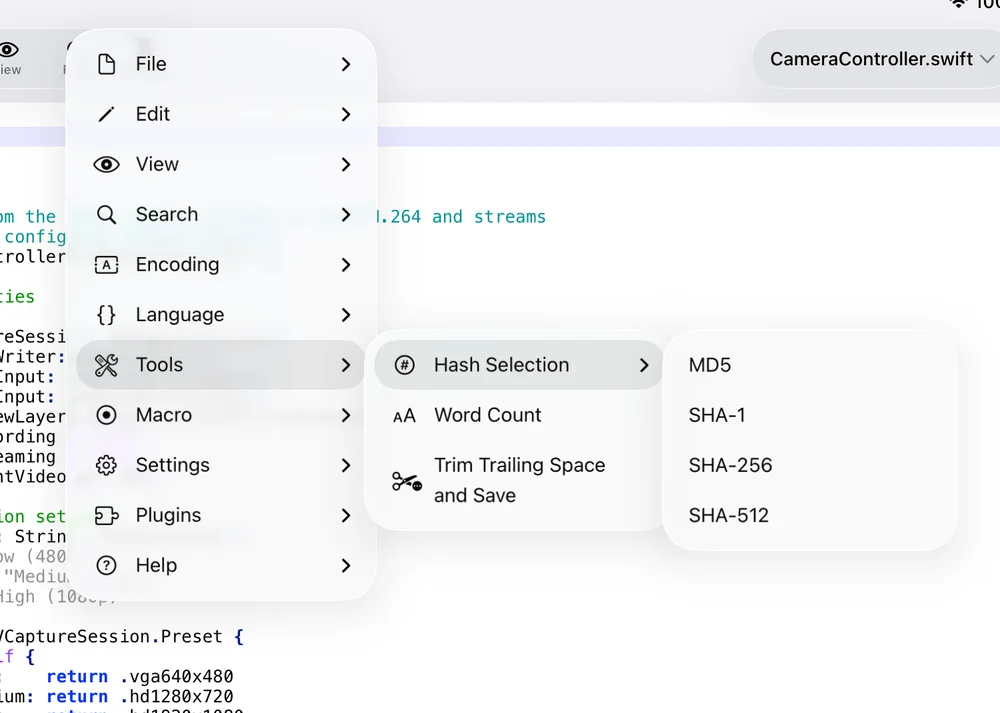
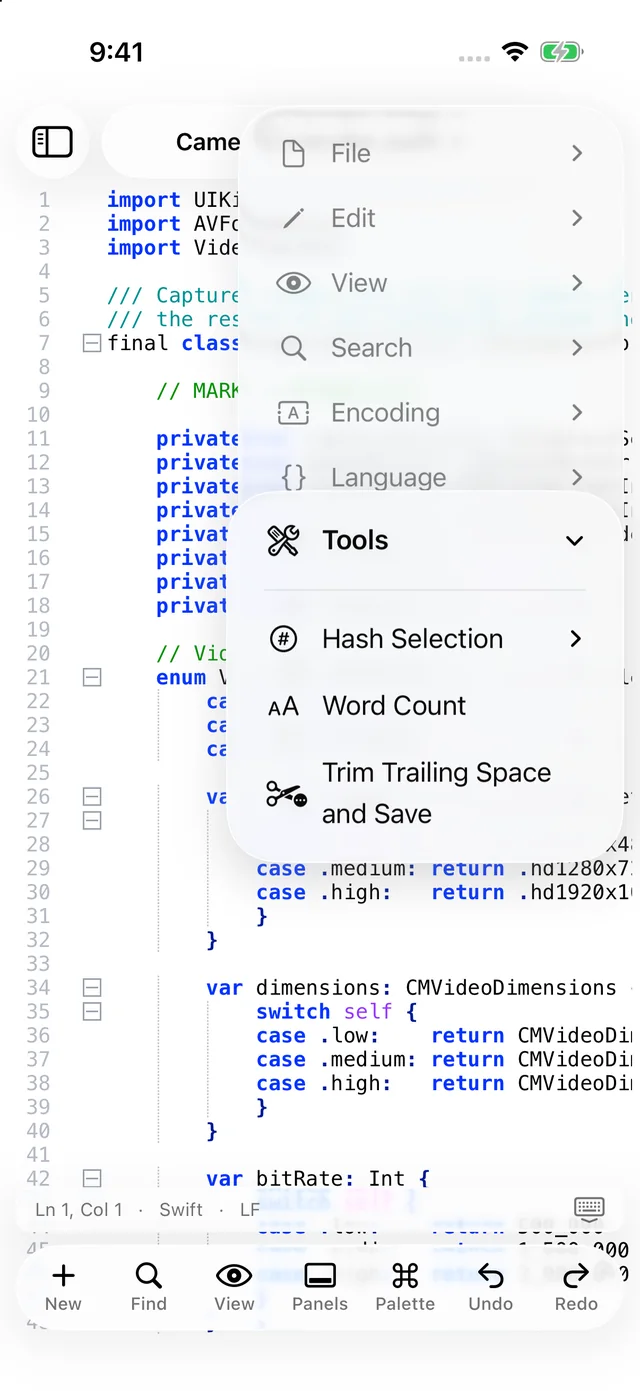
- Hash Selection ›MD5, SHA-1, SHA-256, SHA-512 — computes the digest of the selected text (or the whole document when nothing is selected) and puts it on the clipboard.
- Word CountLines, words, characters and bytes of the current document.
- Trim Trailing Space and SaveRemoves trailing whitespace on every line, then saves.
Macro
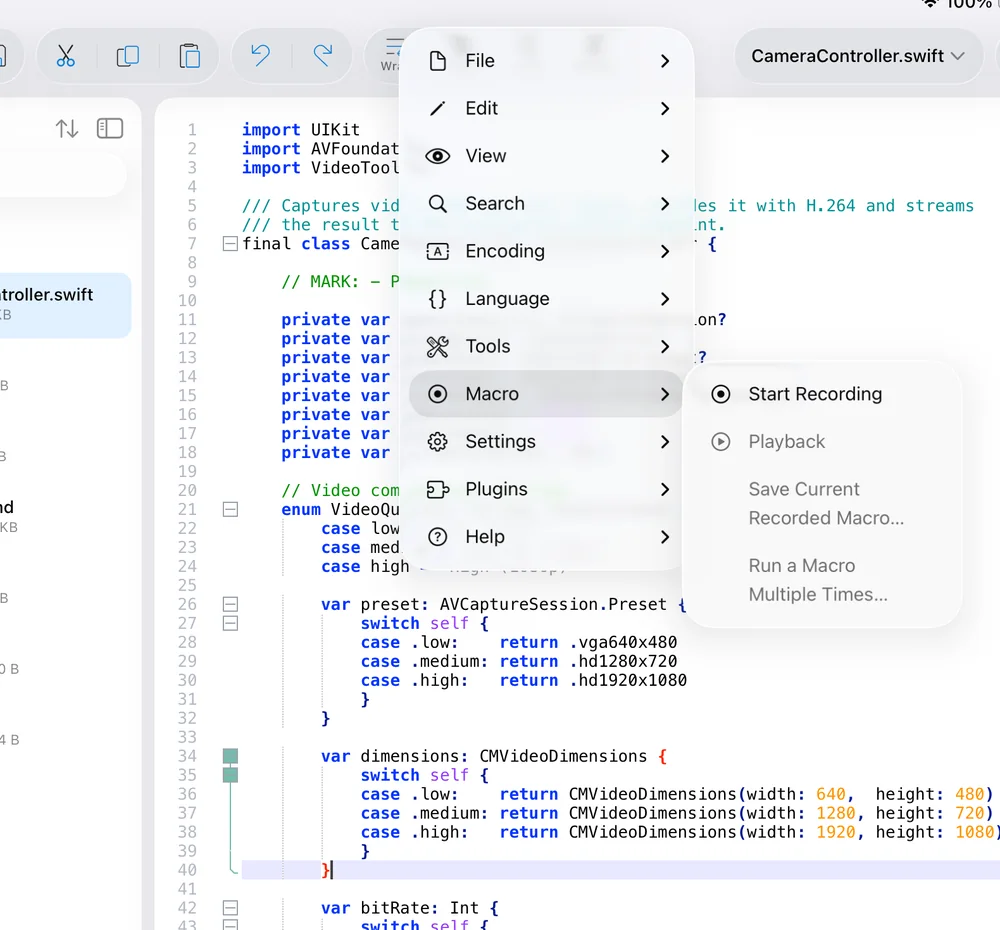
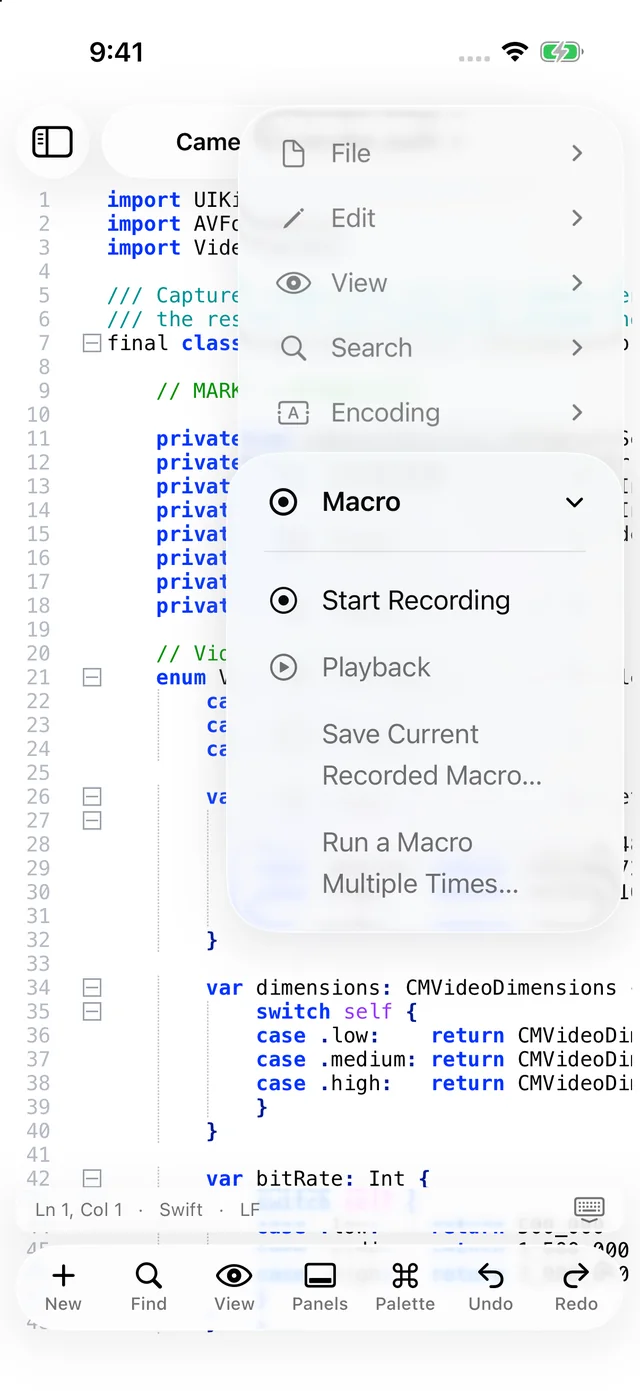
- Start Recording / Stop RecordingRecords every editing command and typed character until you stop. The status bar shows Recording macro… while active.
- PlaybackReplays the last recording at the caret.
- Save Current Recorded Macro…Names the recording; saved macros appear below as a Saved Macros section with Run and Delete.
- Run a Macro Multiple Times…Runs a macro N times, or until the end of the file when the count is left empty.
Settings
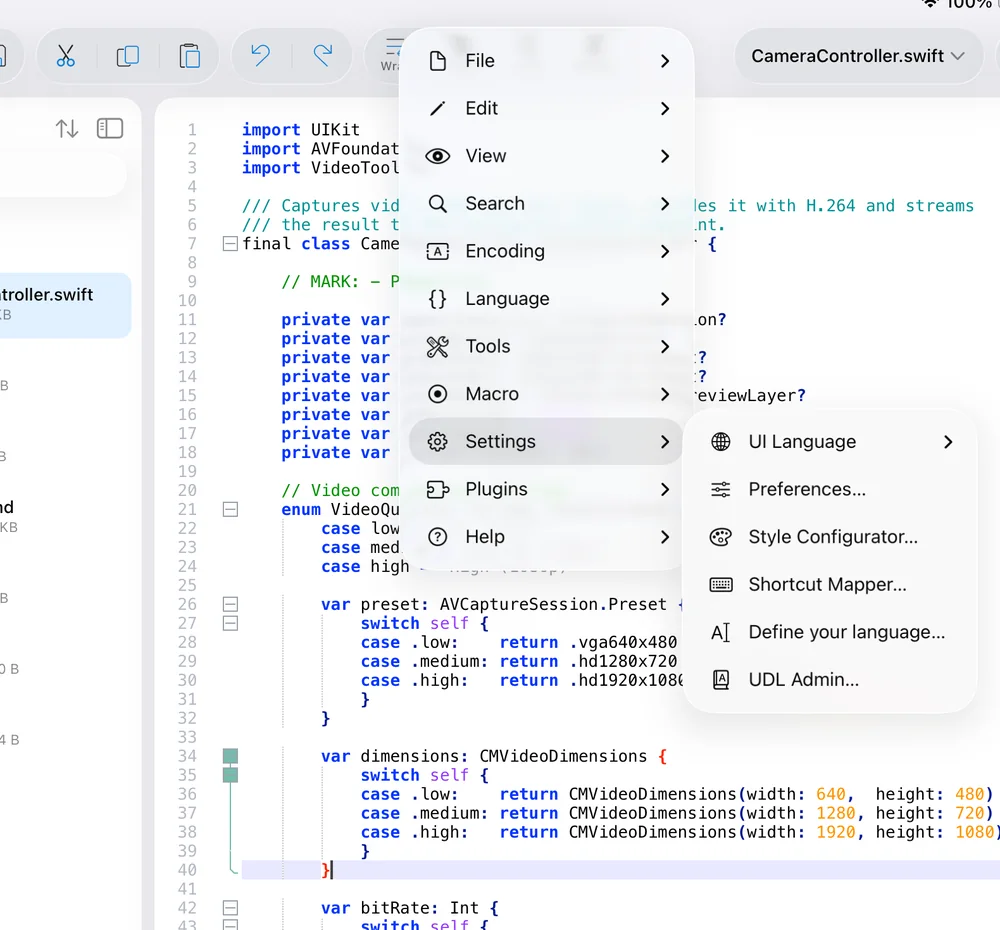
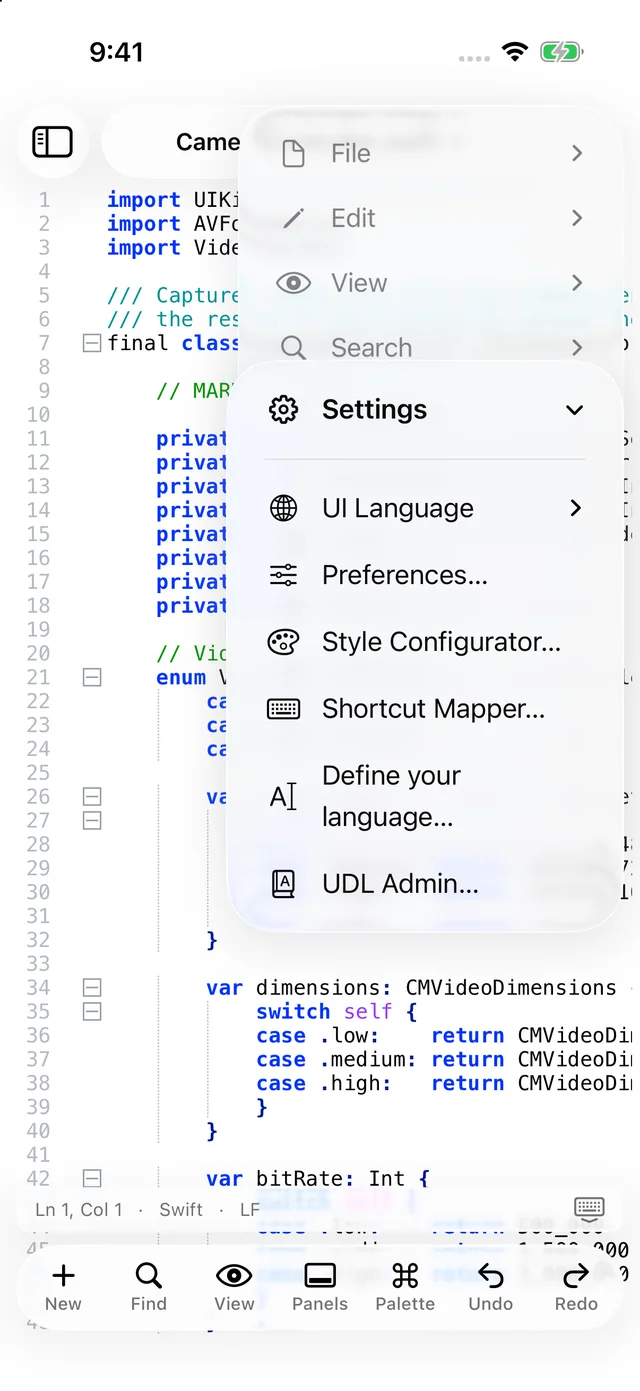
- UI Language ›The language of the app's menus and dialogs — 52 languages, from English and Spanish to Japanese, Arabic and Hindi, each shown in its own script. The first launch follows the device language.
- Preferences…The thirteen-page preferences sheet — see Preferences.
- Style Configurator…Themes, fonts and per-language colours — see Themes & appearance.
- Shortcut Mapper…Shows every keyboard shortcut and lets you change them — see shortcuts.
- Define your language…The User Defined Language editor.
- UDL Admin…The UDL Collection: install any of 1,369 community-contributed language definitions.
Plugins
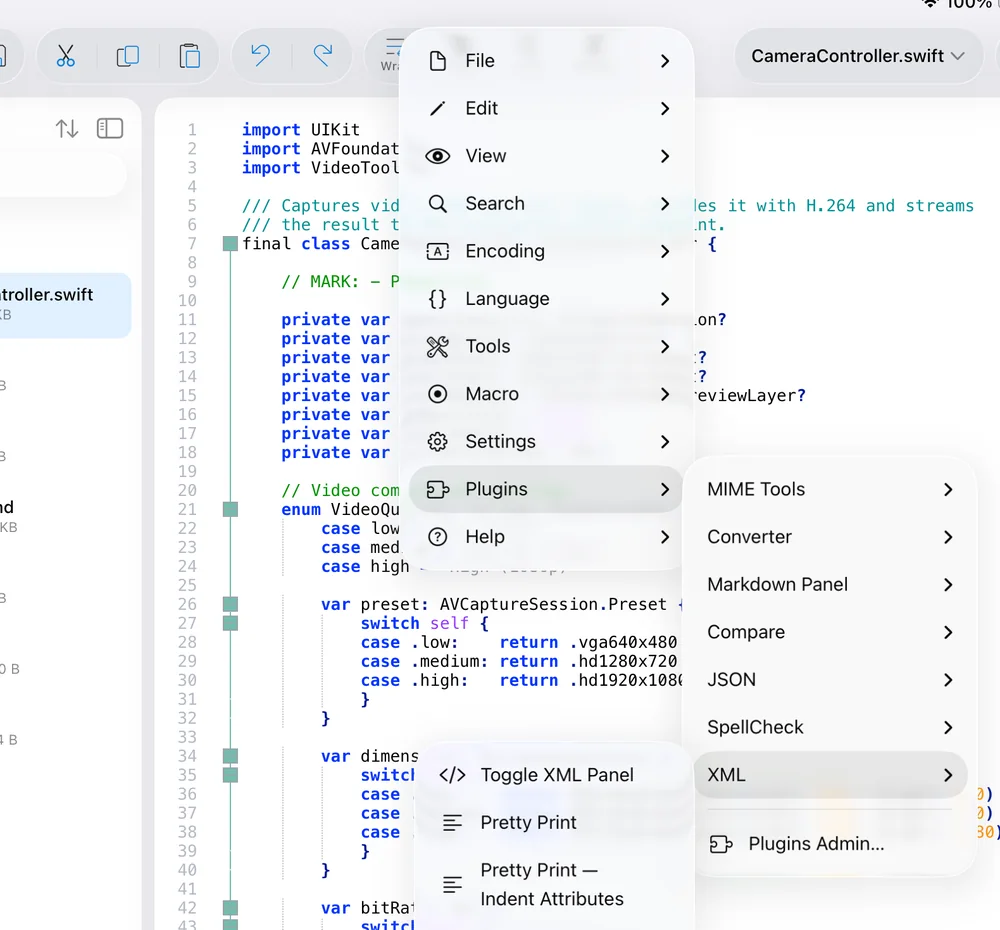
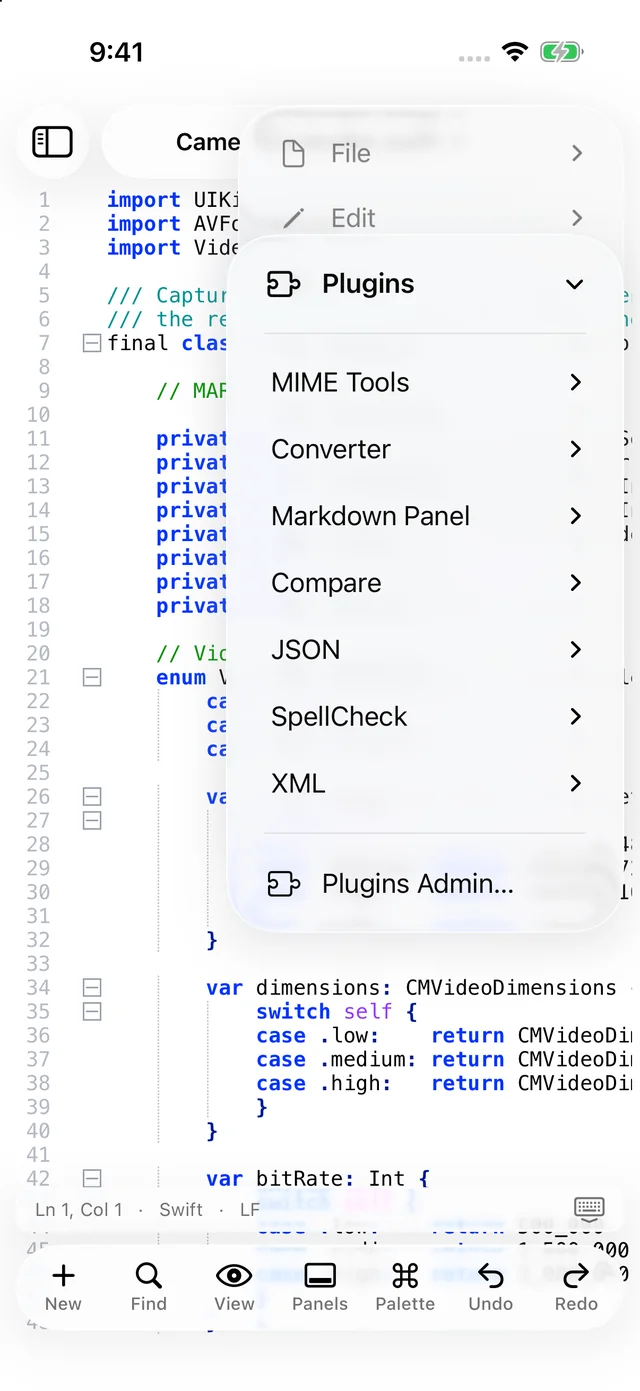
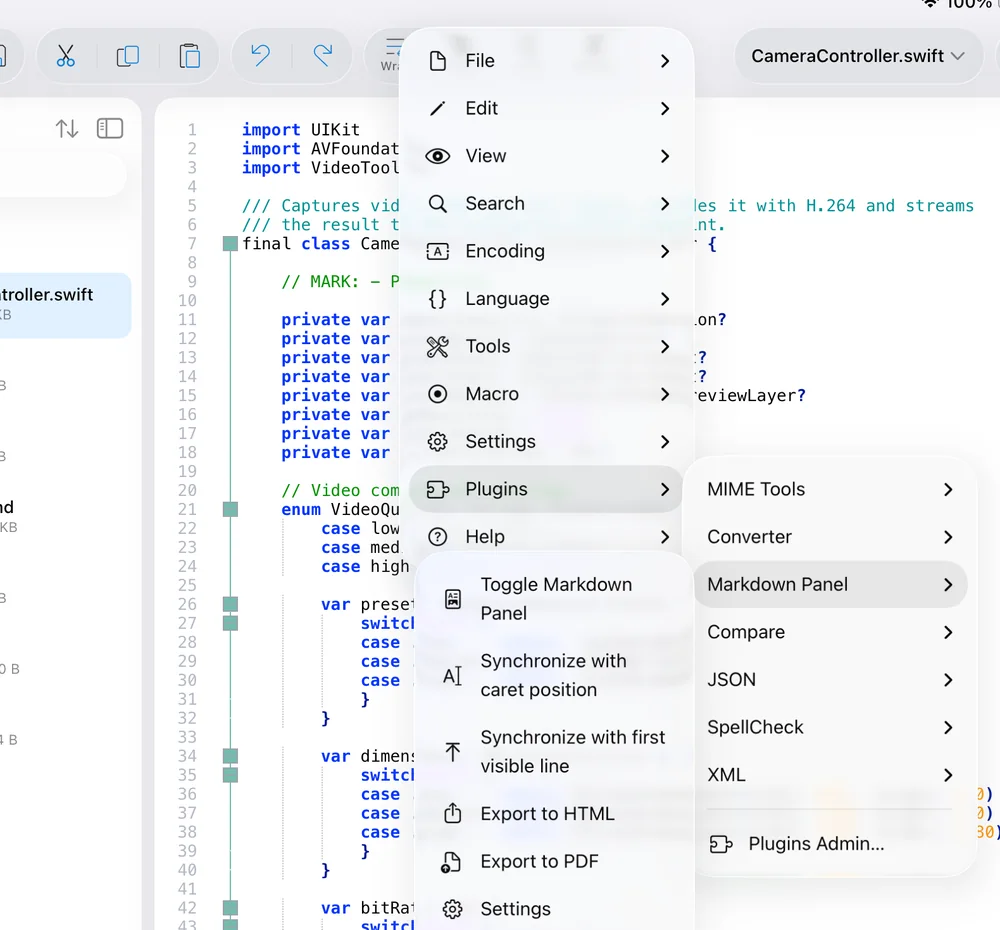
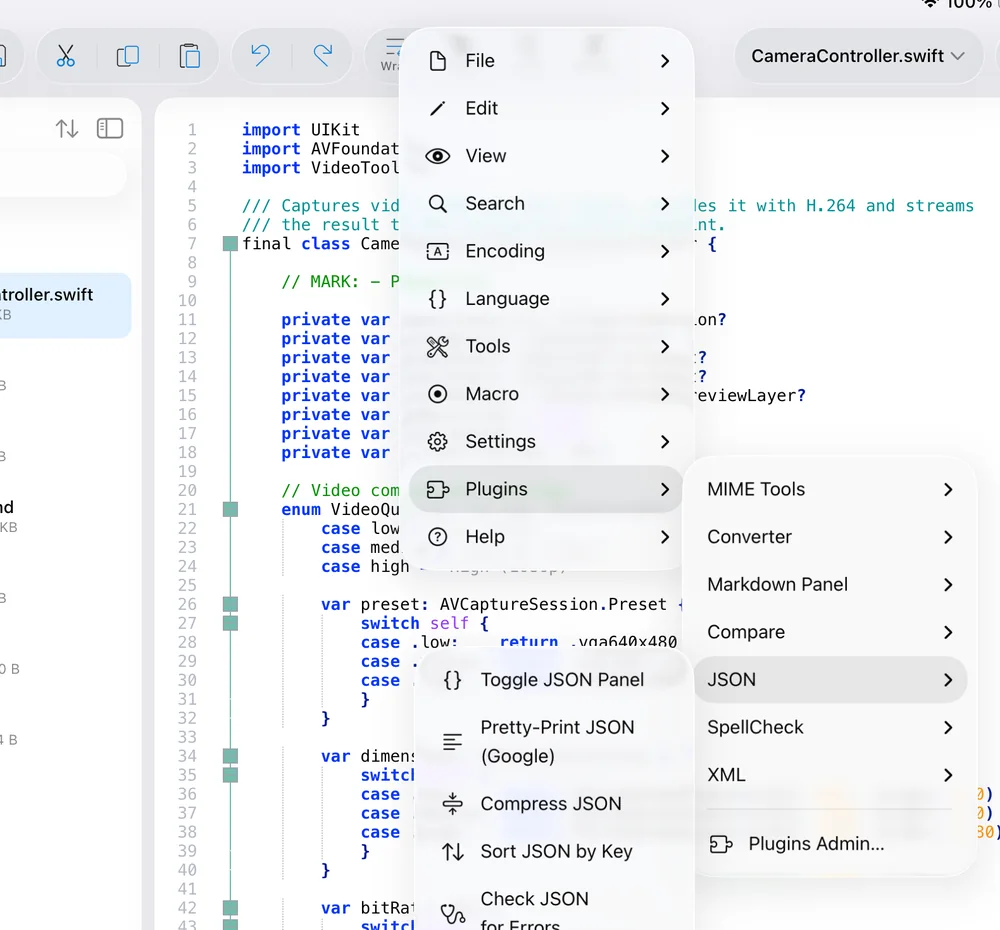
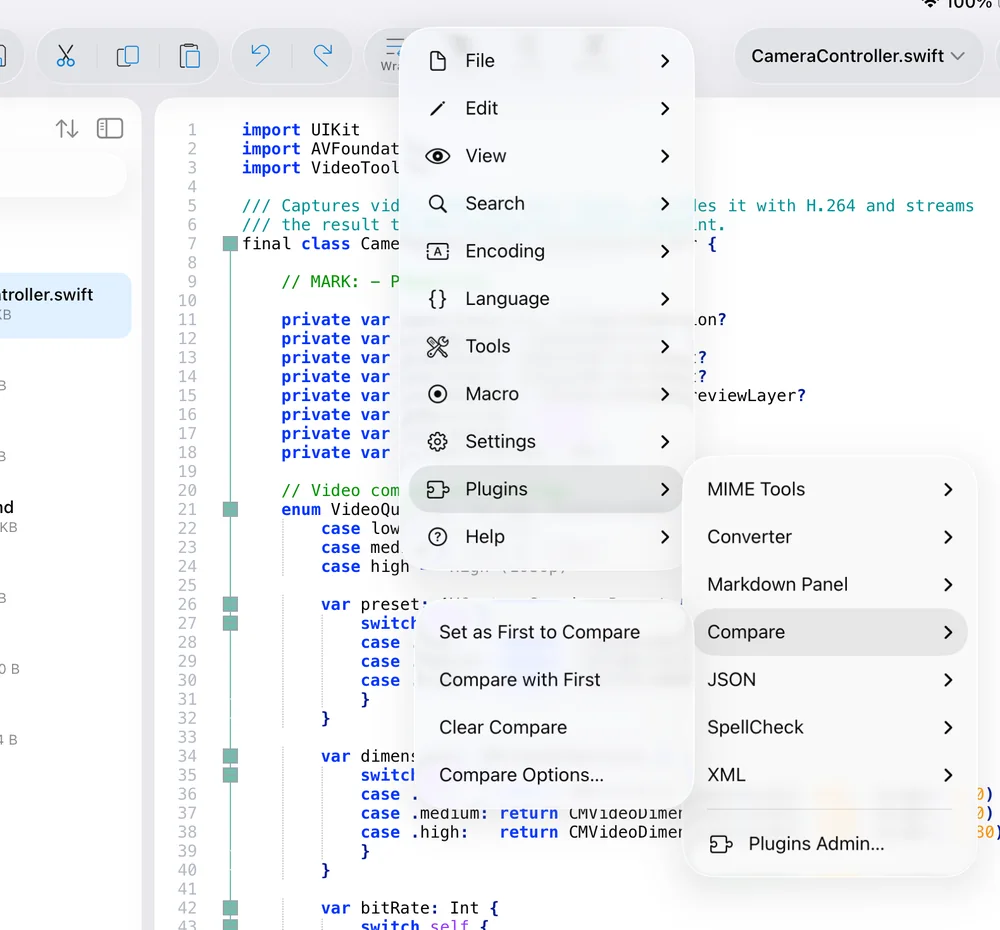
One submenu per enabled plugin — MIME Tools, Converter, Markdown Panel, Compare, JSON, SpellCheck, XML — followed by Plugins Admin…. The commands are described in Plugins.
Help
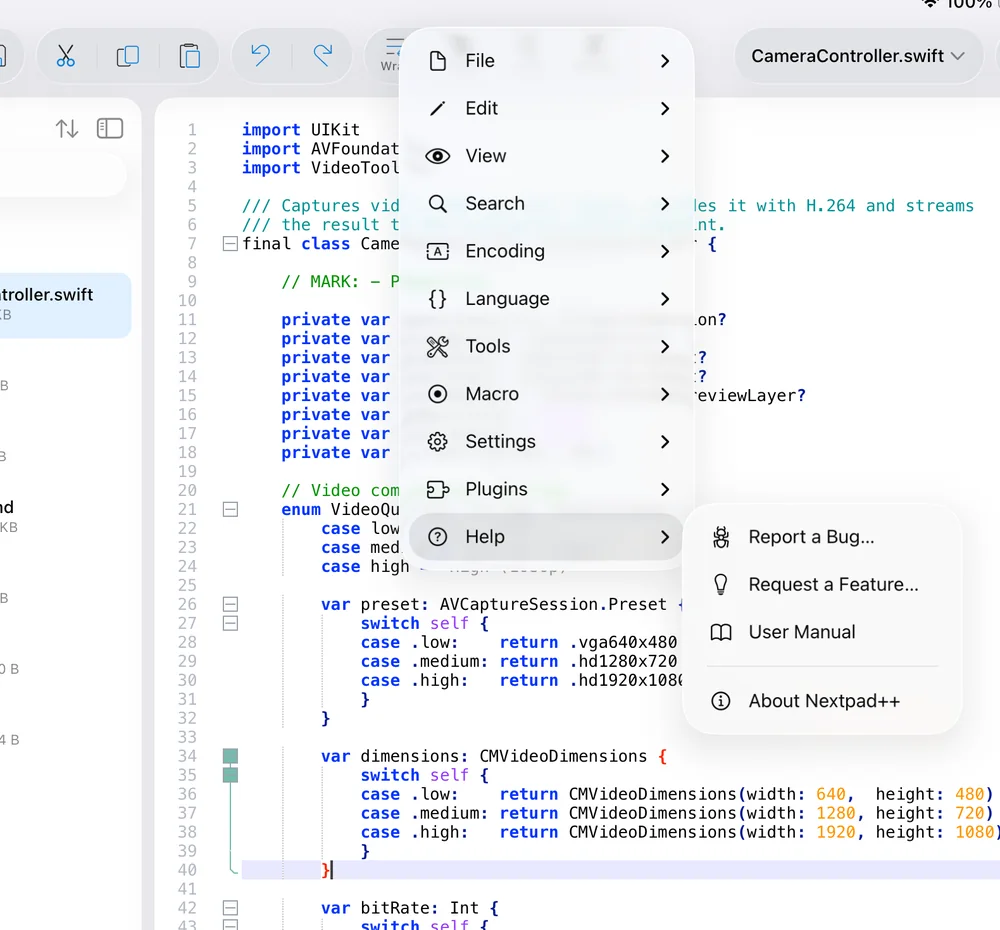
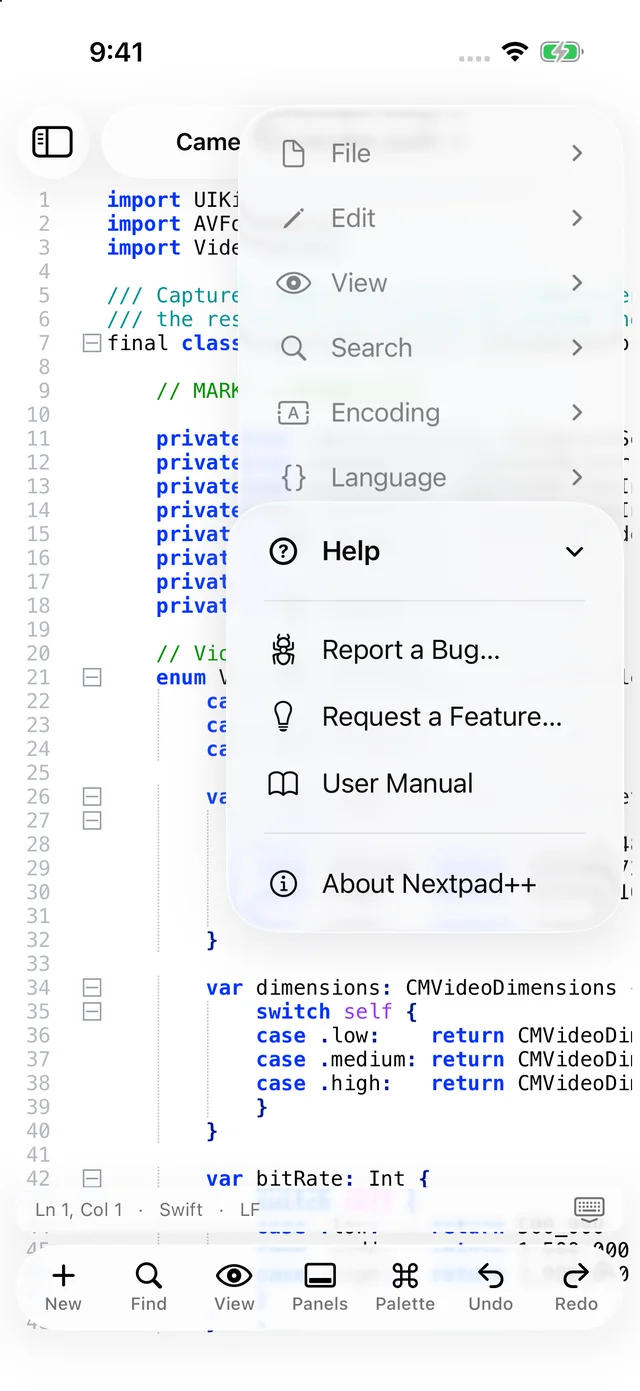
- Report a Bug…Opens a pre-filled e-mail to [email protected] with a What happened / Steps / Expected template and your app version, iOS version and device model already filled in.
- Request a Feature…The same, with a The feature / Why it helps template.
- User ManualOpens this page.
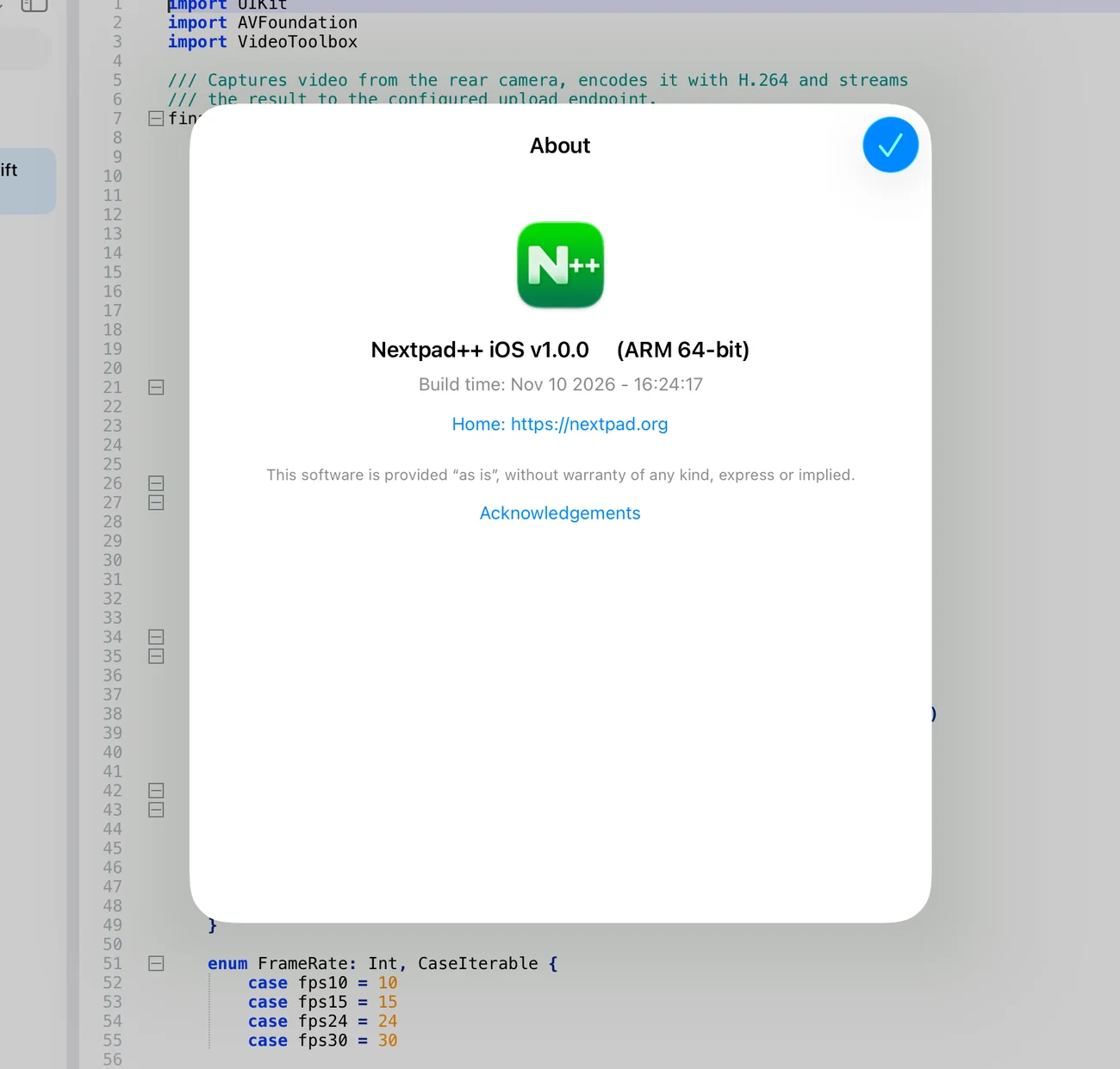
- About Nextpad++Version, build date, architecture, a link to nextpad.org and the Acknowledgements (open-source components).
8.Find, Replace & Mark
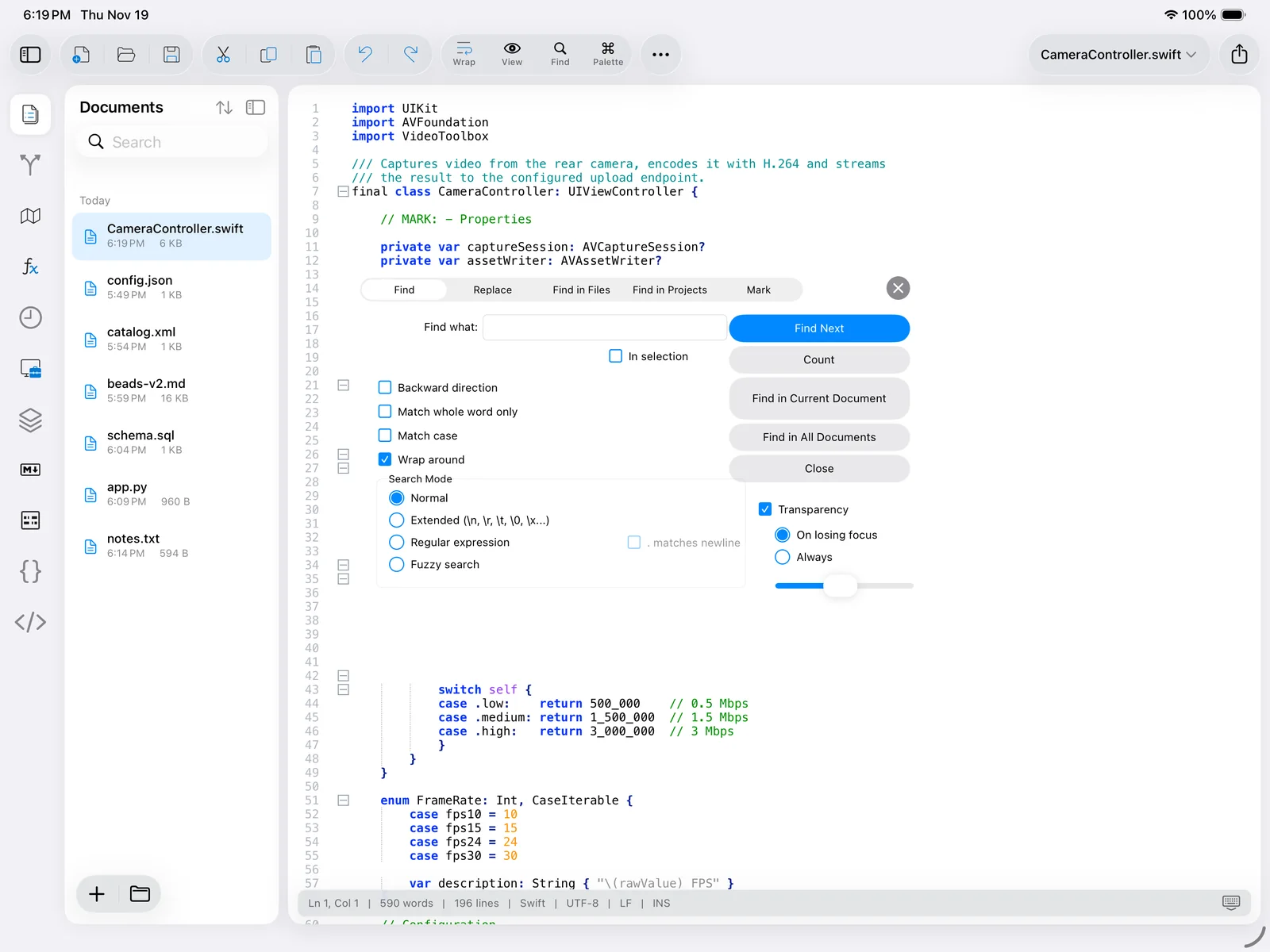
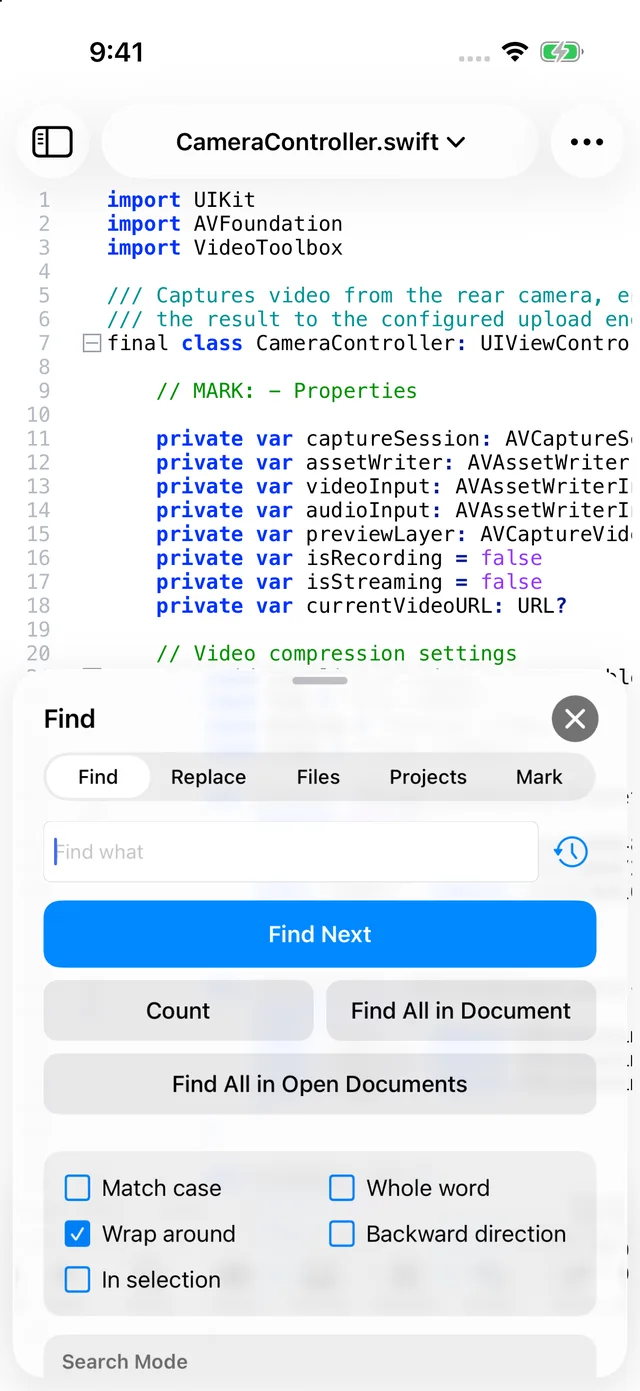
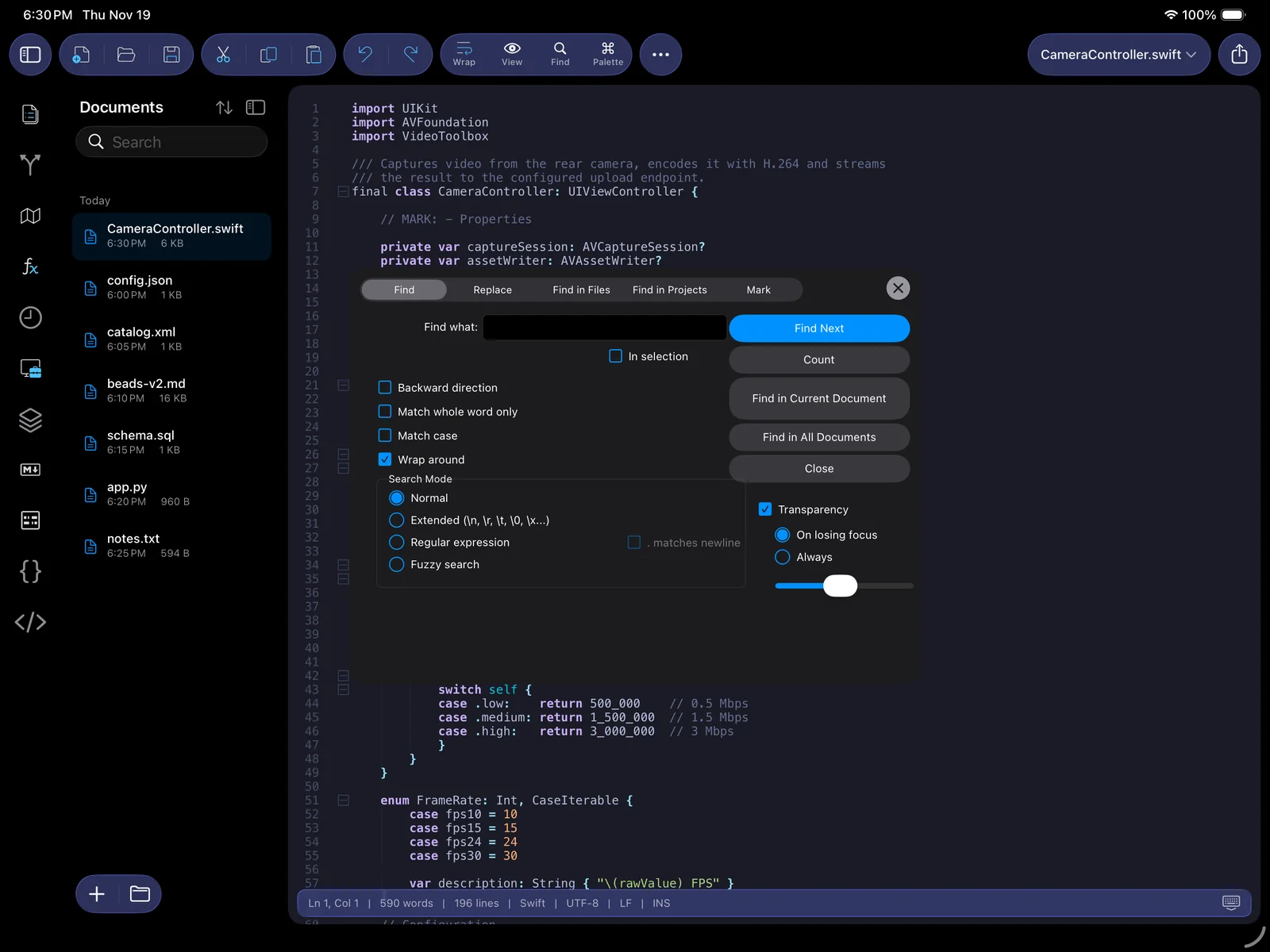
The Find window is the heart of Notepad++-style editing, and Nextpad++ keeps it intact: one window with five tabs — Find, Replace, Find in Files, Find in Projects and Mark. On iPad it is a floating, translucent card that leaves the editor interactive underneath; on iPhone it is a half-height sheet that you can pull up to full height.
Find
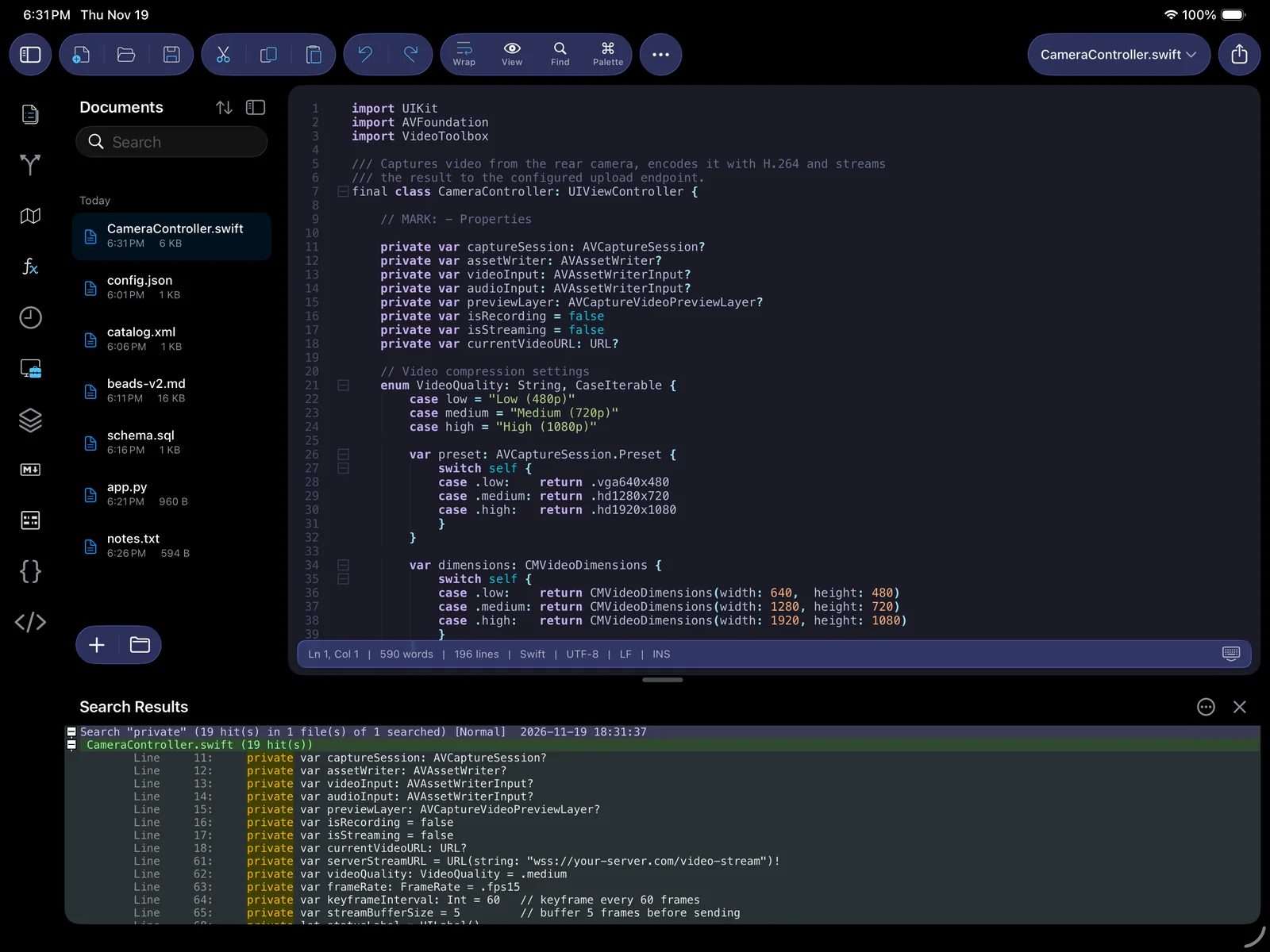
Type in Find what (the clock button recalls previous searches) and tap Find Next, or Return on a hardware keyboard. Count reports the number of matches, Find in Current Document and Find in All Documents list every match in the Search Results dock (below). The options are the ones you know:
- Backward direction, Match whole word only, Match case, Wrap around (continue from the top when the end is reached), In selection (automatically checked when a large selection exists — the threshold is a preference).
- Search Mode — Normal; Extended (interprets
\n,\r,\t,\0,\xHH); Regular expression with the . matches newline option; and Fuzzy search, which finds approximate matches — handy for a half-remembered identifier. - Transparency — make the window translucent On losing focus or Always, with a slider for the opacity. iPad
Two regex engines. By default Nextpad++ uses Scintilla's fast built-in regular expressions. Turn on Use Boost Regex mode in Preferences ▸ Searching for the full Boost engine Notepad++ users expect: multi-line patterns, look-behind, \K, recursion, named groups and backreferences in the replacement ($1, \1, ${name}).
Replace
The Replace tab adds a Replace with field and three buttons: Replace (replaces the current match and finds the next — unless Replace: don't move to next is set in preferences), Replace All (in the document, or inside the selection when In selection is checked) and Replace in All Documents. Replace All asks for confirmation when it is about to touch other documents (Preferences ▸ Searching).
Find in Files and Find in Projects
Find in Files searches a folder: pick the Directory with the folder button, optionally restrict with Filters (*.swift *.h), choose In all sub-folders and In hidden folders, then Find All or Replace in Files. Files are read in their own encoding, so searching a mixed UTF-8/Windows-1251 tree works. Find in Projects does the same for the files listed in the three Project Panels (see Panels). Results open in the dock; tapping a hit opens the file at that line.
Mark
Mark All highlights every match with a coloured style and, with Bookmark line checked, bookmarks the lines too — a two-step way to collect lines: mark, then Search ▸ Bookmark ▸ Copy Bookmarked Lines. Purge for each search clears old marks first; Clear all marks and Copy Marked Text do what they say. Marks persist until cleared and are independent of the five Style Tokens colours.
The Search Results dock
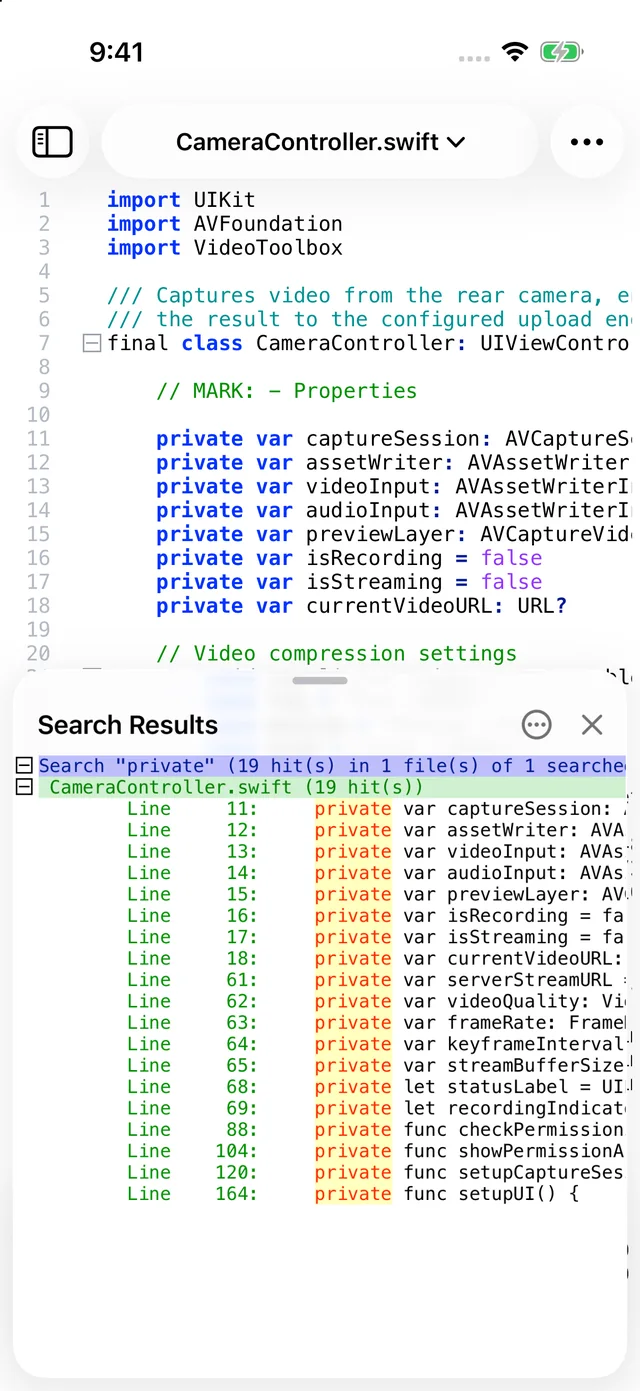
The dock collects results of Find All, Find in Files, Find in Projects and Mark. Each search is a collapsible group headed by the pattern, hit and file counts and the time; each file is a sub-group. Tap a line to jump to it; the match is selected in the editor. The ⋯ button offers a filter field (narrow thousands of hits to the ones containing a word), collapse/expand all, and clearing. On iPad the dock sits below the editor and can be resized by dragging its grip; on iPhone it is a sheet.
Quick ways to navigate
- Incremental Search (⌘I) — a one-line bar; the editor jumps as you type.
- Go to Line… (⌃G) — type a line number. Tapping the line/column segment of the status bar opens the same dialog.
- Bookmarks — toggle with ⌘F2 or a tap in the margin, move with F2 / ⇧F2.
- Change History — Go to Next / Previous Change walk through everything you edited since the last save.
- Document Map and Function List panels — see the next section.
9.Panels & views
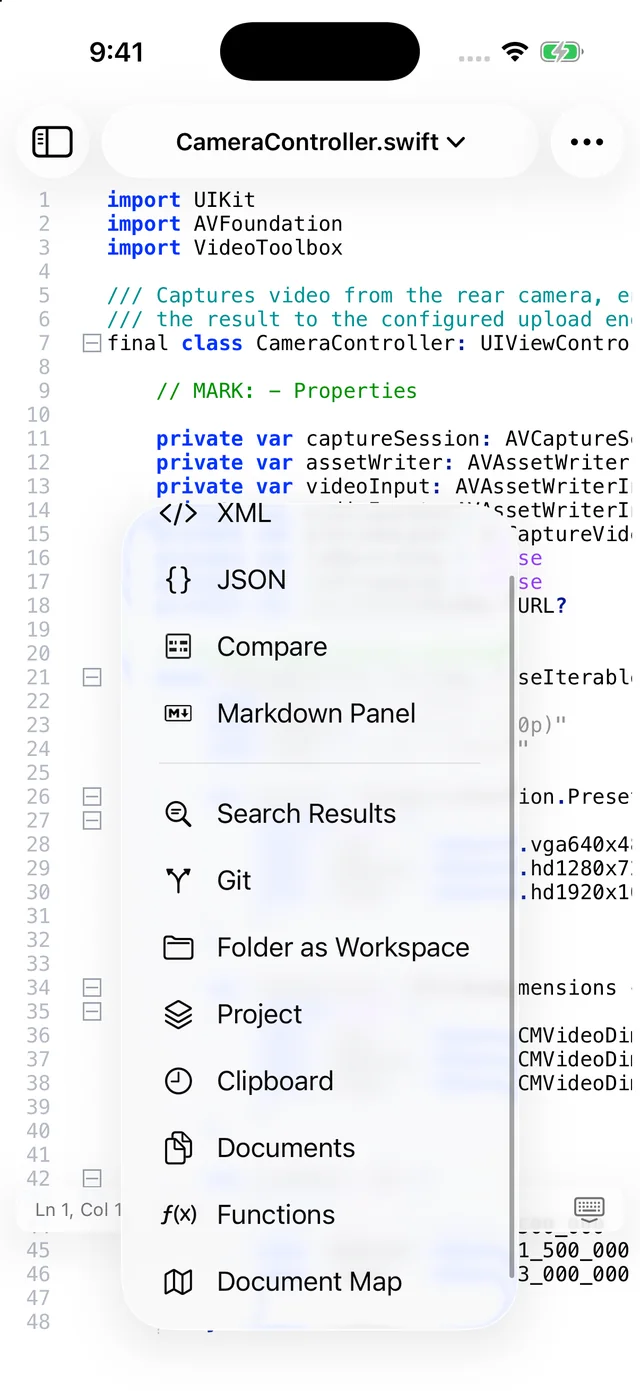
Panels are the side (iPad) or sheet (iPhone) views that complement the editor. Open them from the rail, the View menu or the Panels chip; close with the ✕ in their header or by tapping their rail button again. Their width is remembered.
Document Map
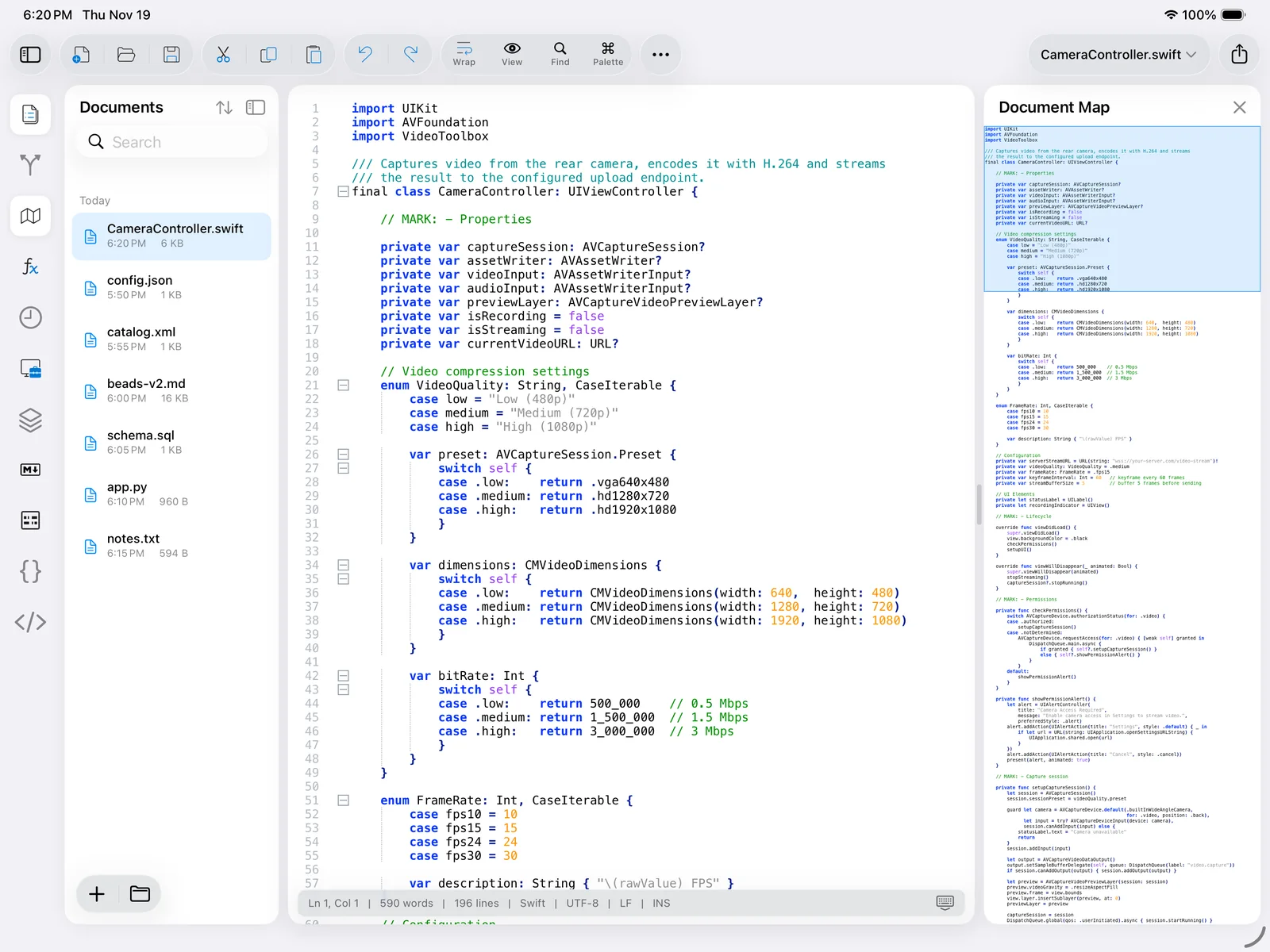
Drag the band or tap anywhere in the map to scroll the editor there. The map mirrors the editor's language, keyword lists and theme, so a glance tells you where the big functions, comment blocks and data tables are.
Function List
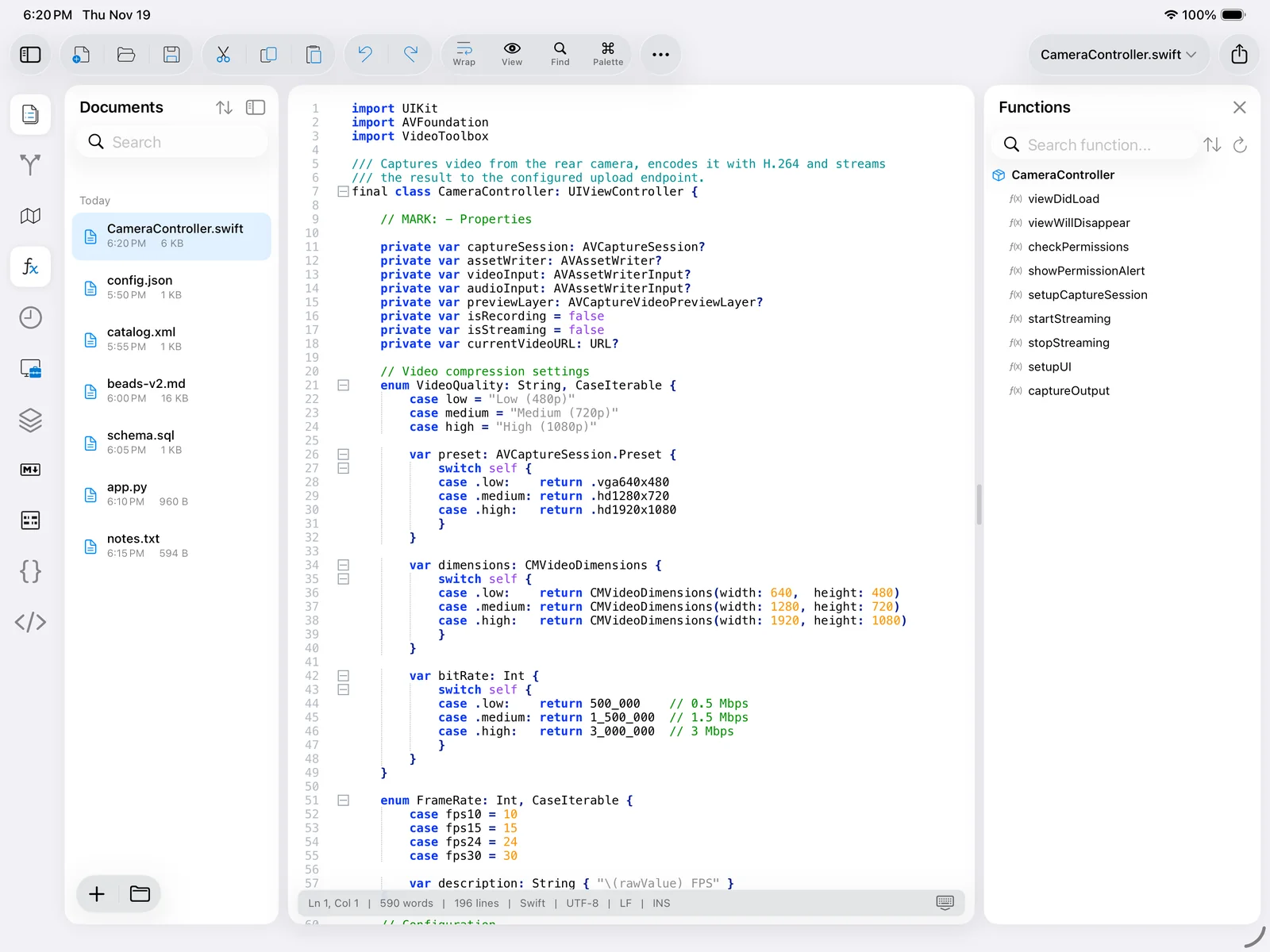
The list is rebuilt as you edit (the refresh button forces it) and can be sorted alphabetically or in document order. Language rules cover the common languages — C-family, Swift, Python, JavaScript/TypeScript, PHP, Ruby, Java, C#, Go, Rust, shell, SQL, XML/HTML headings, Markdown headings and more.
Clipboard History
Every Cut or Copy in the session is kept in the Clipboard History panel; tap an entry to paste it at the caret. The panel is per-session (it empties when the app is quit) and never leaves the device.
Folder as Workspace
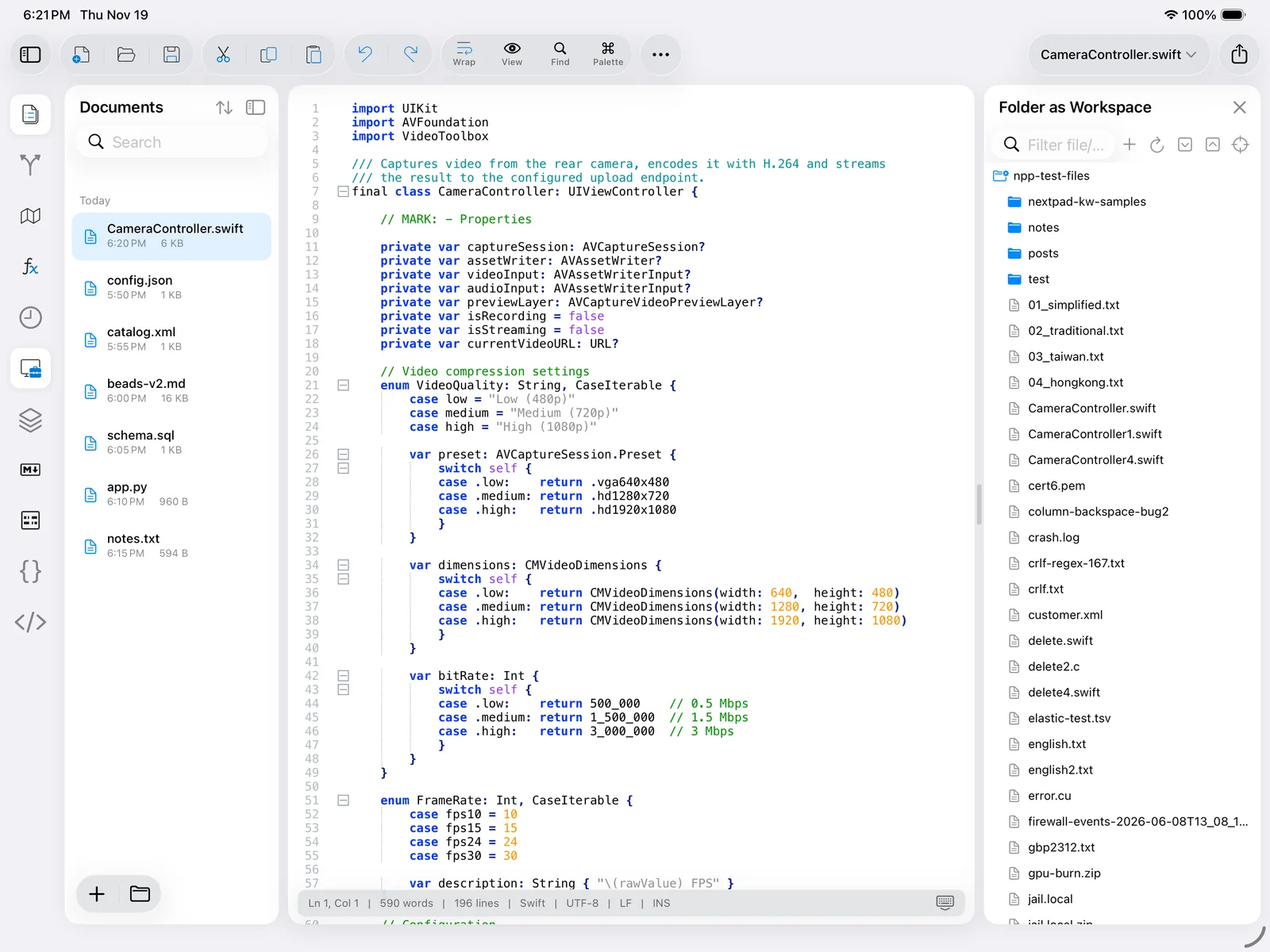
Tap the + button to add a folder (any Files location, including iCloud Drive and external providers); it is remembered across launches. Files open on tap; long-press a file for Open, Copy Path, Copy File Name, Find in Files (pre-filled with that folder) and more. The tree refreshes itself when files change on disk.
Project
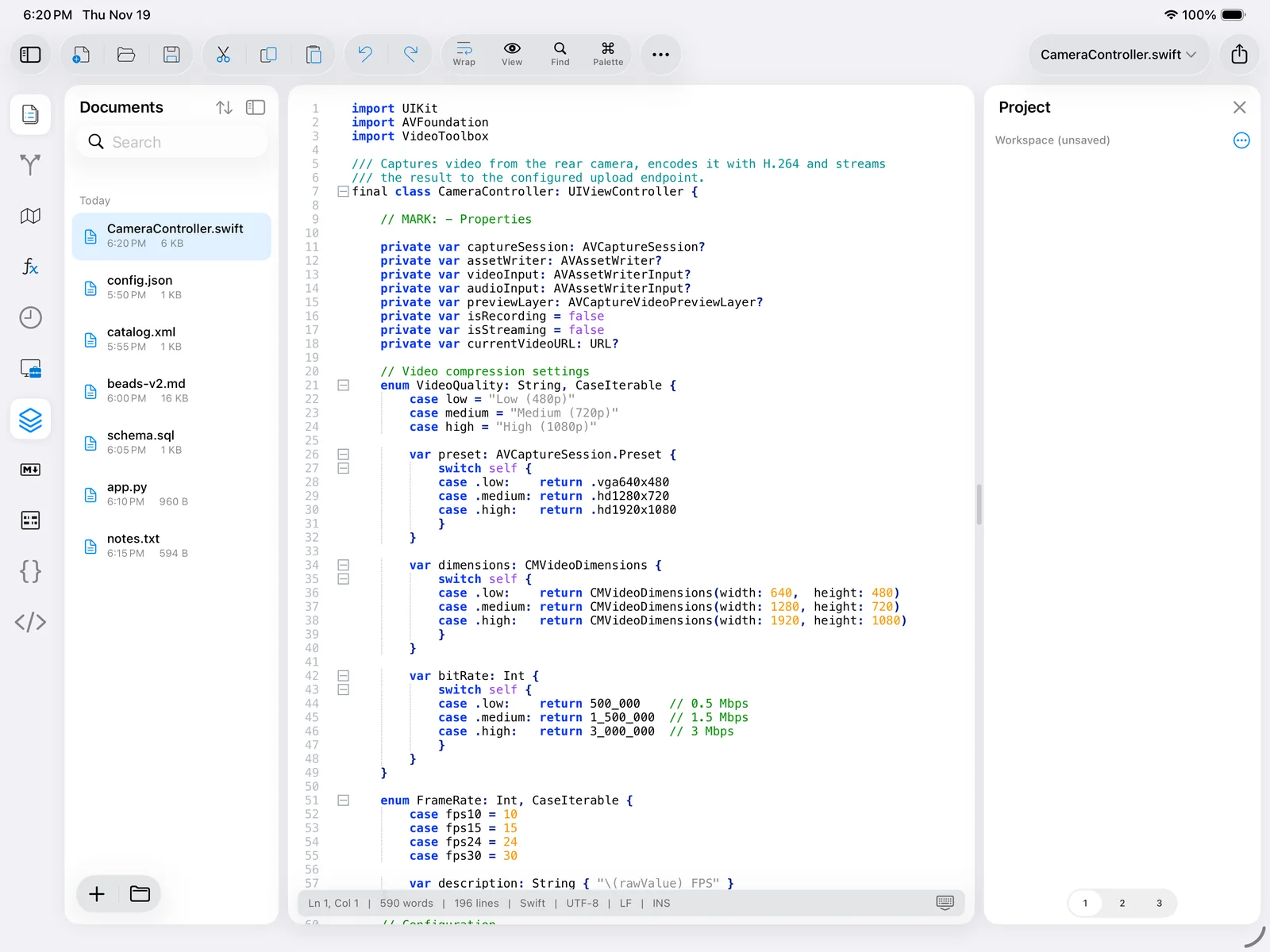
A workspace is a hand-picked list rather than a folder: use the ⋯ menu for New Workspace, Open Workspace…, Save Workspace As…, Add New Project, and the project menu for Add Files…, Add Folder, Rename, Remove, Move Up / Down, Modify File Path. Workspaces are saved as .workspace files, compatible with Notepad++'s format, and feed the Find in Projects tab of the Find window.
Git
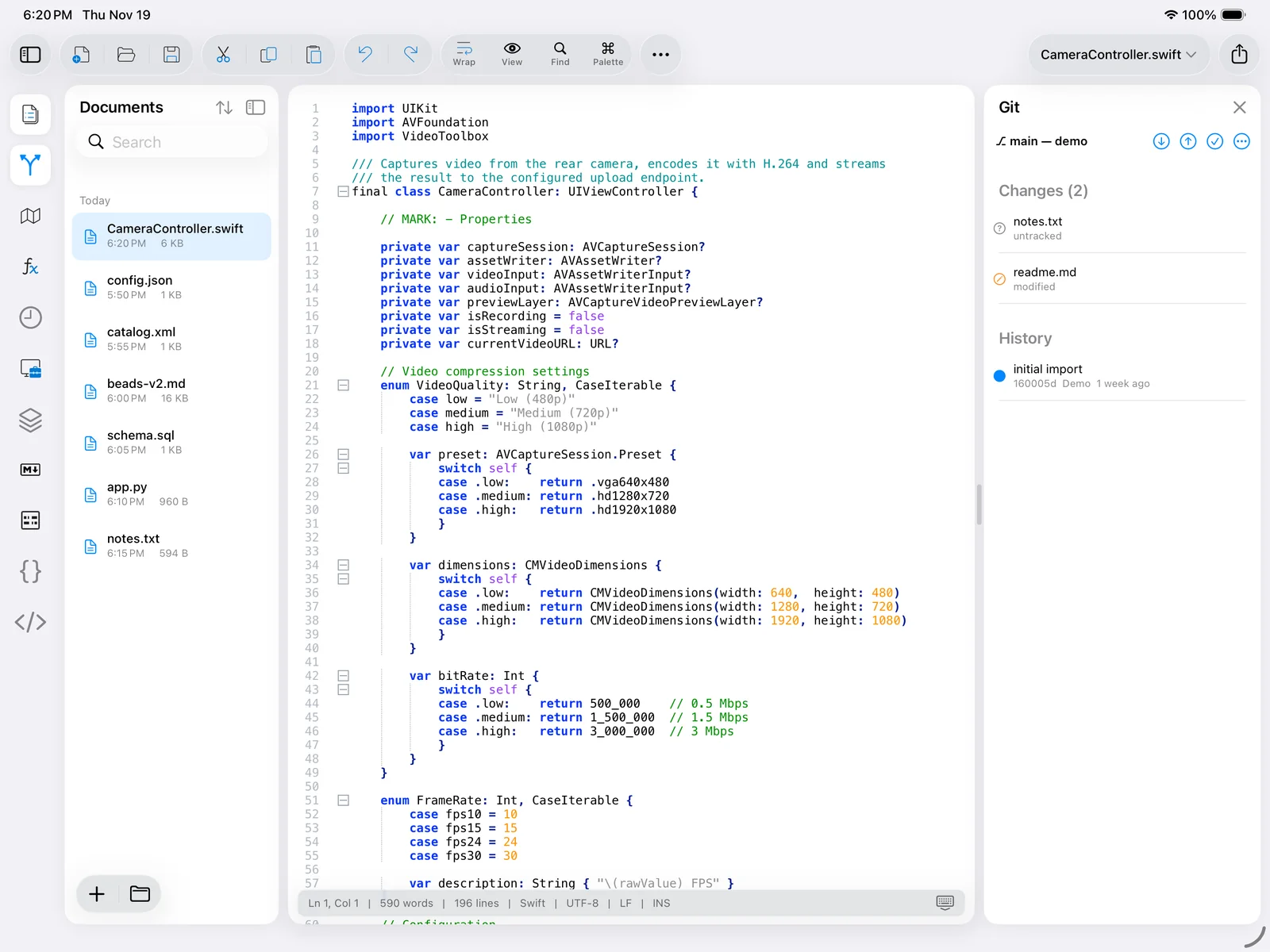
See Git for the full description.
Plugin panels
The Markdown Panel, JSON, XML and Compare plugins each own a panel; they are described in Plugins.
10.Languages & syntax highlighting
Nextpad++ highlights 94 languages out of the box with the same Lexilla lexers and keyword lists as Notepad++ — from ActionScript, Ada and Assembly through C, C++, C#, CSS, D, Erlang, Fortran, Go, HTML, Java, JavaScript, JSON, Kotlin, LaTeX, Lisp, Lua, Makefile, Markdown, MATLAB, Objective-C, Pascal, Perl, PHP, PowerShell, Python, R, Ruby, Rust, Shell, SQL, Swift, TypeScript, VB, XML and YAML. Markdown gets a dedicated definition with proper emphasis, headings and code-span styling.
Choosing the language
- Automatically from the file extension; files without a known extension are sniffed (a shebang line, an XML prologue, a JSON object…). If an installed User Defined Language claims the extension, it wins.
- From the status bar — tap the language name (Swift, Markdown, …) to open the searchable Language picker.
- From the Language menu — alphabetical groups, as described in the menu reference.
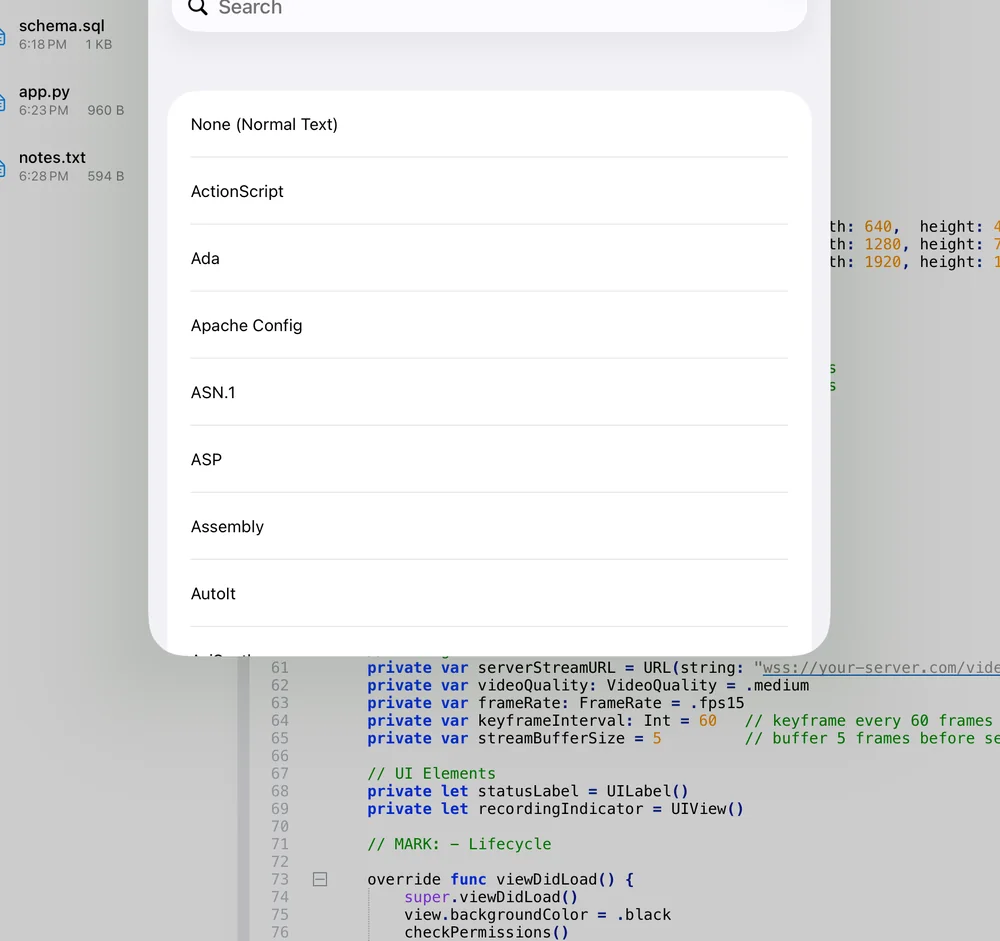
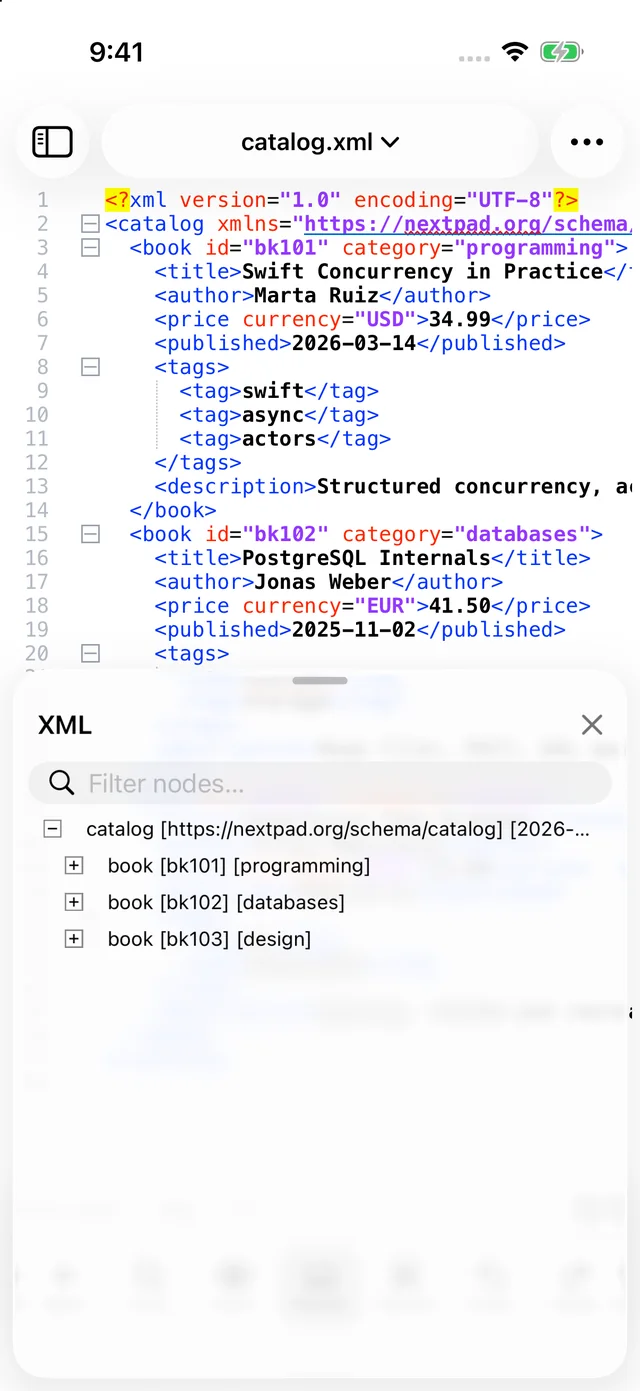
A manually chosen language sticks to that tab (and is restored with the session); Save As to a different extension re-detects.
User Defined Languages
For file formats Nextpad++ does not know, define your own: opens the User Defined Language editor (v2.1 format — the same dialog and the same .udl.xml files as Notepad++, so definitions move freely between platforms).
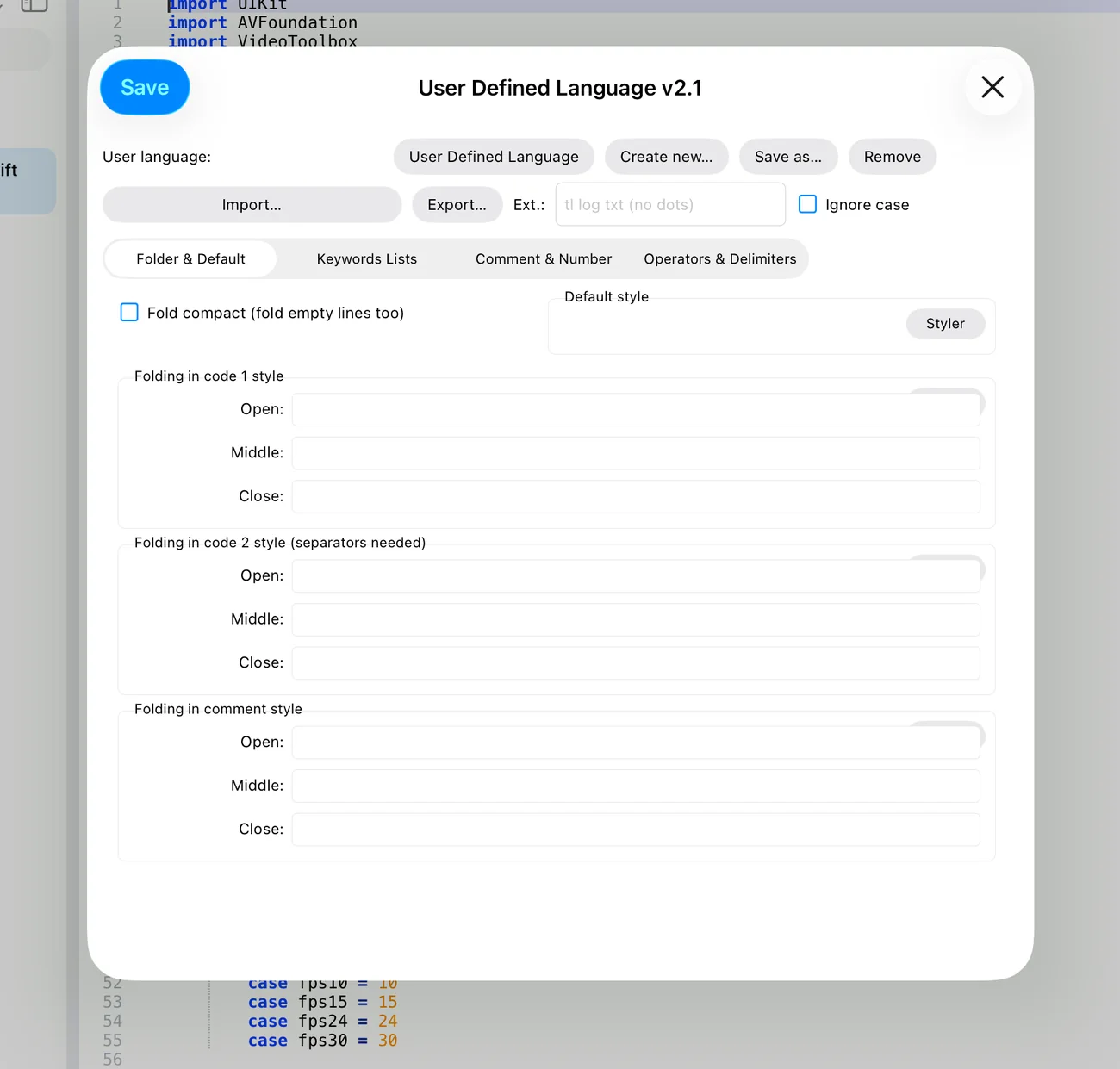
- Folder & Default — default style, fold compact, and up to three folding styles (open / middle / close keywords for code and comments).
- Keywords Lists — eight keyword groups, each with its own style (colour, bold, italic, underline, background) and optional prefix matching.
- Comment & Number — line and block comment delimiters, number formats (prefixes, suffixes, ranges).
- Operators & Delimiters — operator lists and up to eight delimiter pairs with their own styles.
Each UDL is bound to a list of extensions (Ext.); files with those extensions pick it automatically. Definitions are stored in userDefineLangs/ inside the app's container (reachable in the Files app under On My iPad ▸ Nextpad++), and Export… shares a copy.
UDL Collection
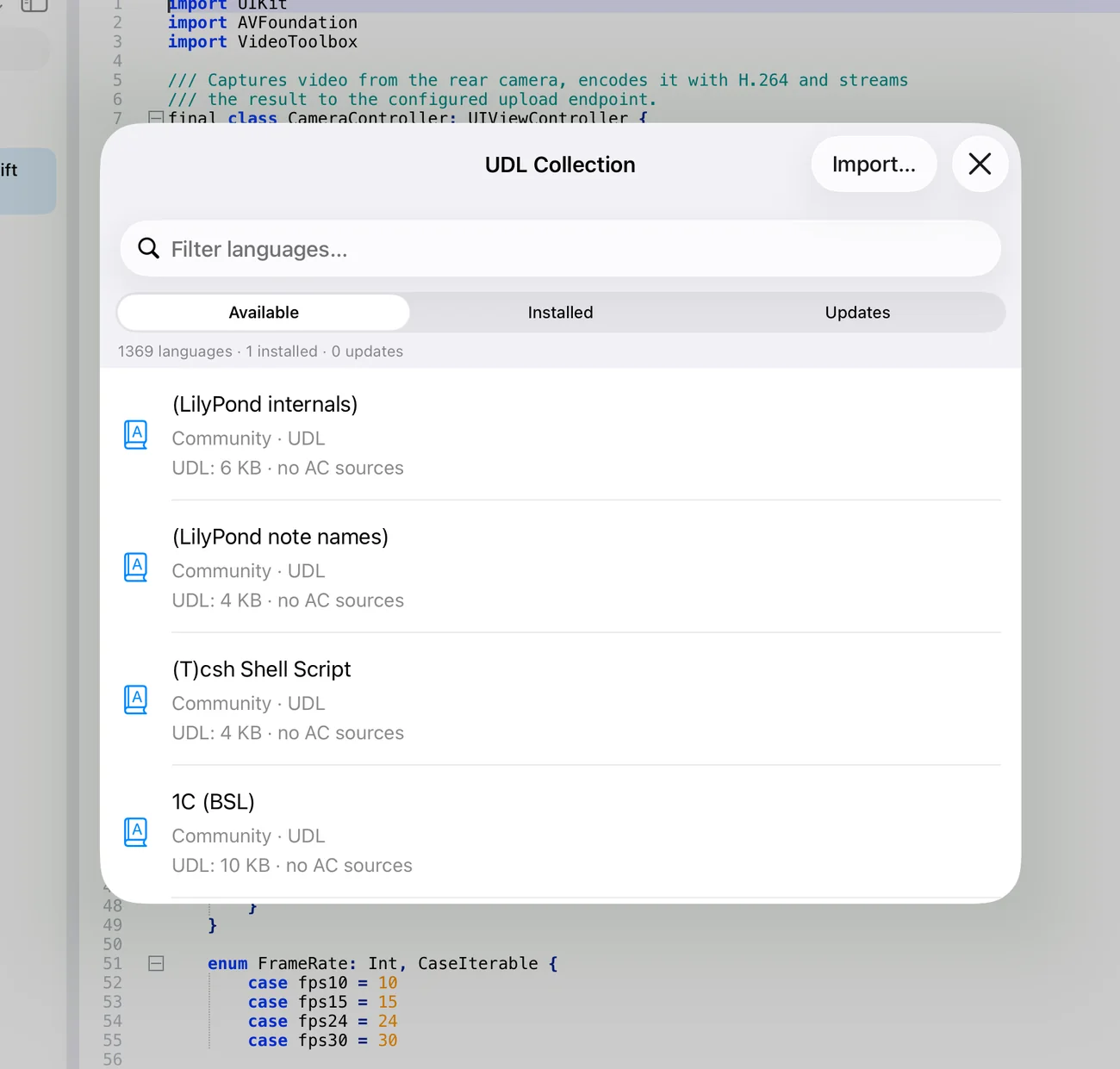
The UDL Collection mirrors the Notepad++ User Defined Language Collection. Filter the list, tap a definition to read its description and install it; installed ones appear in the Language menu immediately and can be removed from the Installed tab. The catalog is fetched on demand; the definitions themselves are plain XML.
UDL highlighting is done by a Rust re-implementation of Notepad++'s UDL lexer that produces byte-identical styling and runs about seven times faster — large log files in a custom format stay smooth.
11.Encodings & line endings
Every document has an encoding (how bytes map to characters), an optional BOM, and a line-ending style. All three are detected when a file opens and shown in the status bar — e.g. UTF-8 · LF. Tap a segment to change it.
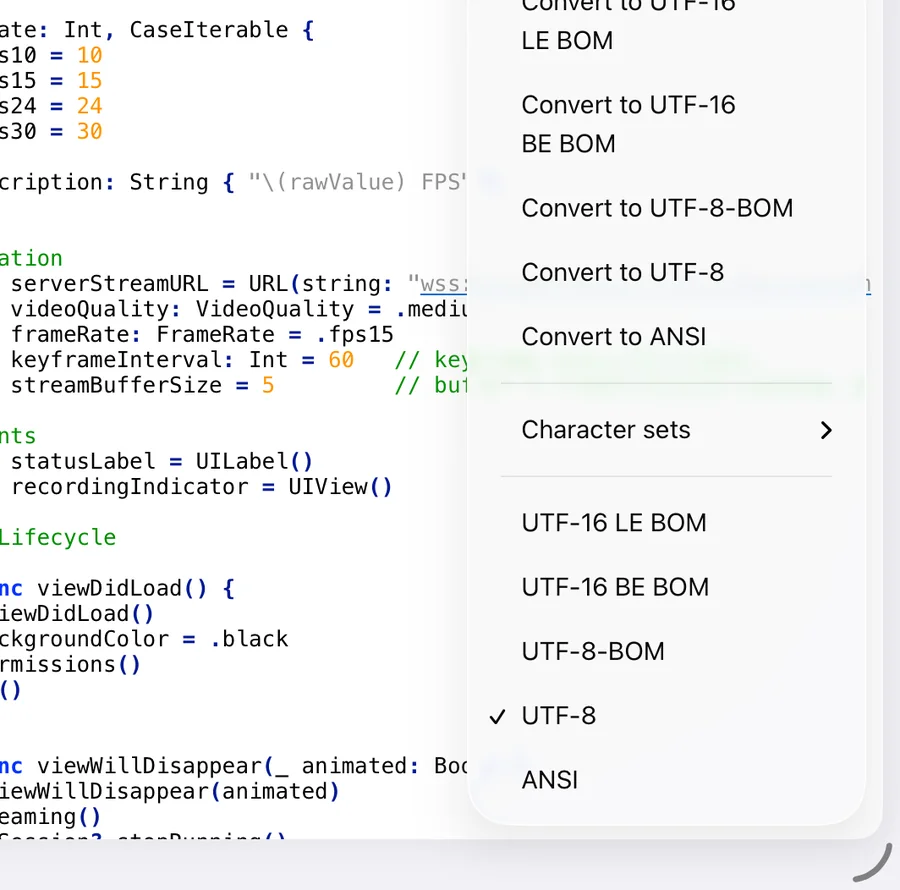
| Term | Meaning |
|---|---|
| Interpret as | Re-read the same bytes with another encoding. Use it when a file opens with garbled accents. Nothing is written until you save. |
| Convert to | Change the encoding the file will be saved in. The text stays the same; the document becomes modified. |
| ANSI | The legacy single-byte encoding (Windows-1252 / Latin-1 style). Choose a specific code page under Character sets for other scripts. |
| UTF-8 / UTF-8-BOM | Unicode; the default for new documents. BOM adds the three-byte marker some Windows tools expect. |
| UTF-16 BE/LE BOM | Two-byte Unicode with a byte-order mark, big- or little-endian. |
| Character sets | Arabic, Baltic, Celtic, Cyrillic, Central and Eastern European, Chinese (GB 18030, Big5), Greek, Hebrew, Japanese (Shift-JIS, EUC-JP), Korean, North European, Thai, Turkish, Western European and Vietnamese code pages. |
| CR LF / LF / CR | Windows, Unix/macOS and classic Mac line endings. Mixed files are shown with the dominant style; Edit ▸ EOL Conversion normalises all of them. |
If a save would lose characters (for example a Cyrillic letter in a Latin-1 file) Nextpad++ stops and tells you which encoding to switch to, rather than silently writing ?. Files containing NUL bytes are preserved byte-for-byte. The defaults for new documents are set in Preferences ▸ New Document.
12.Themes & appearance
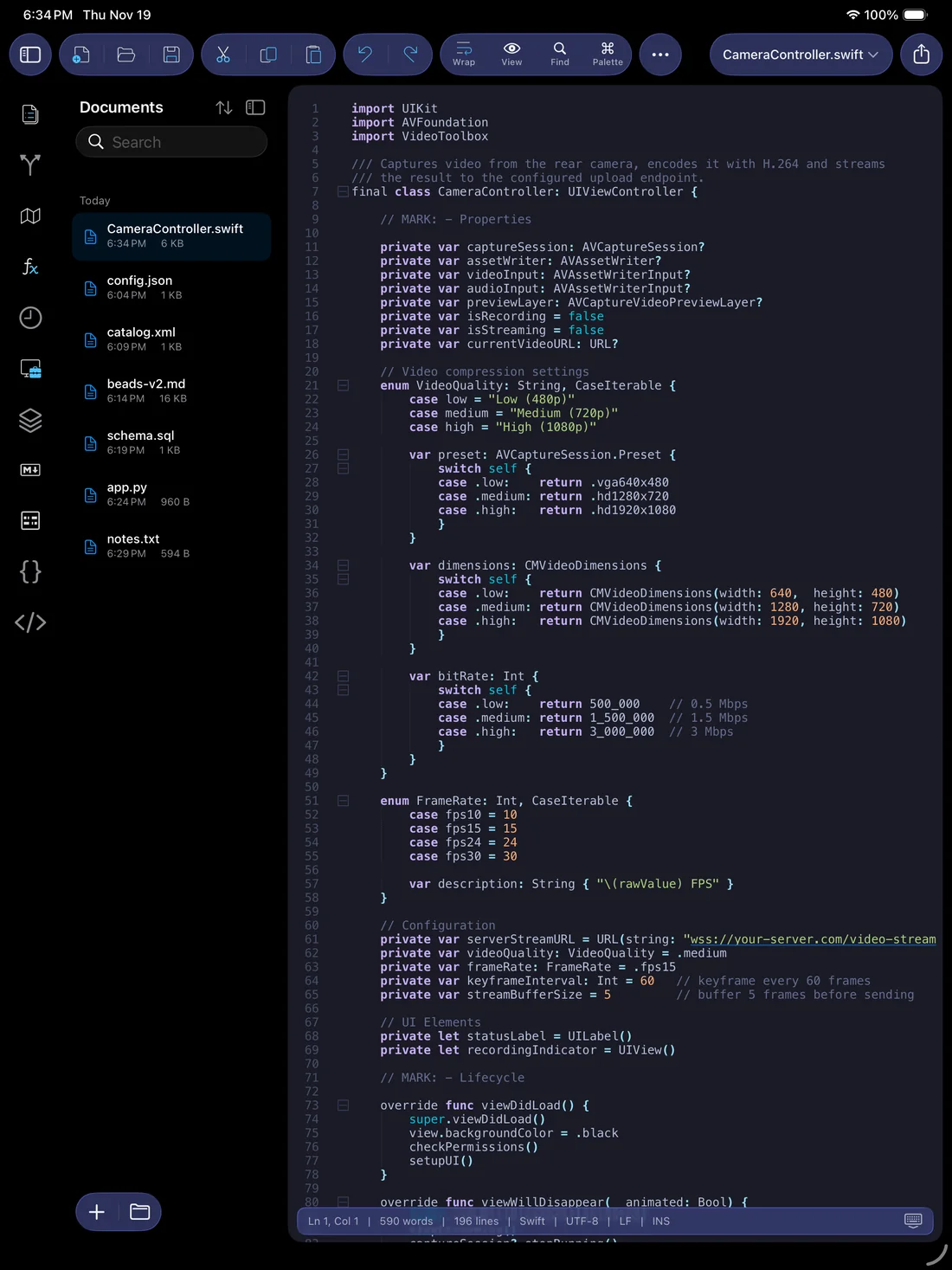
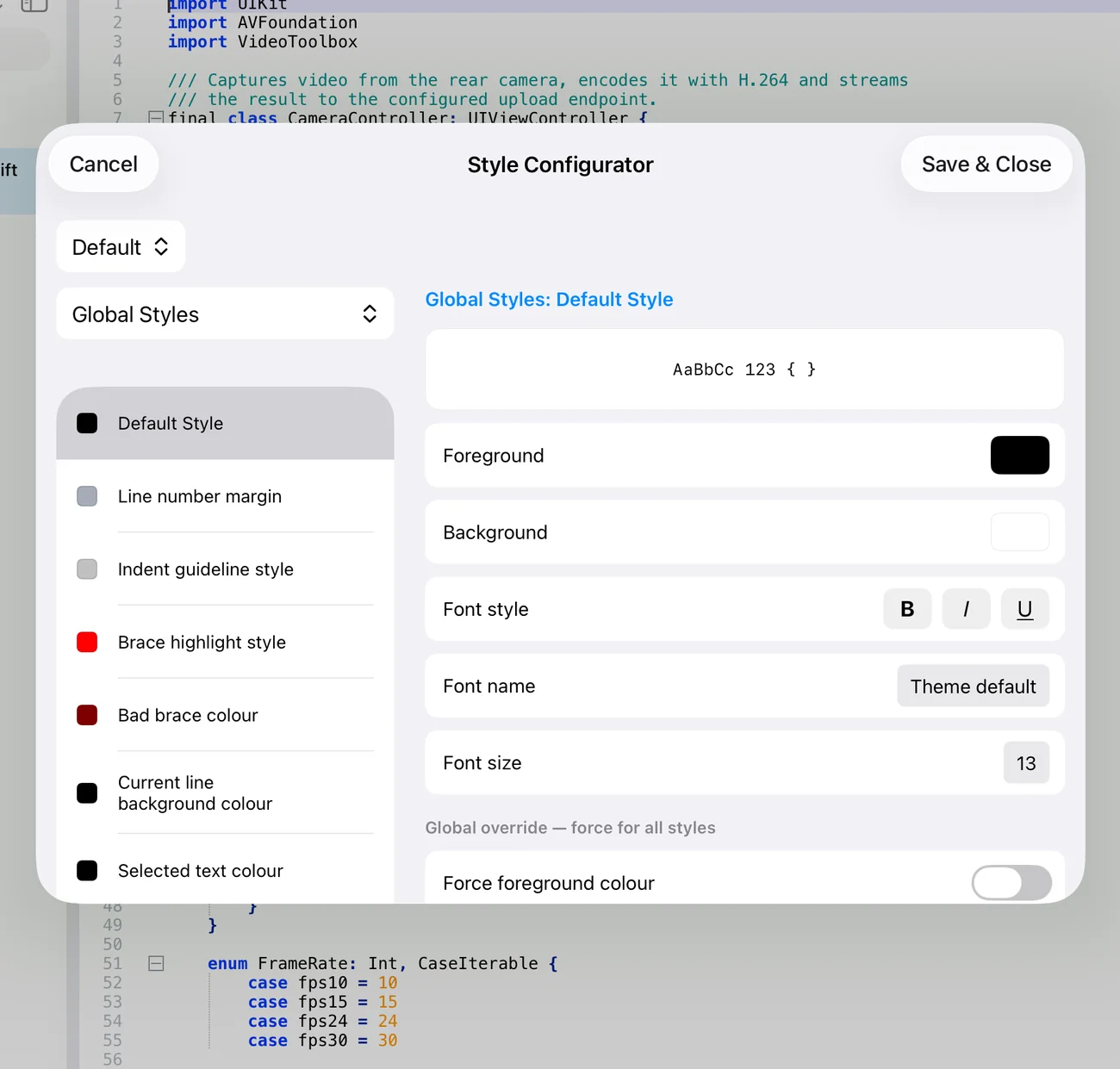
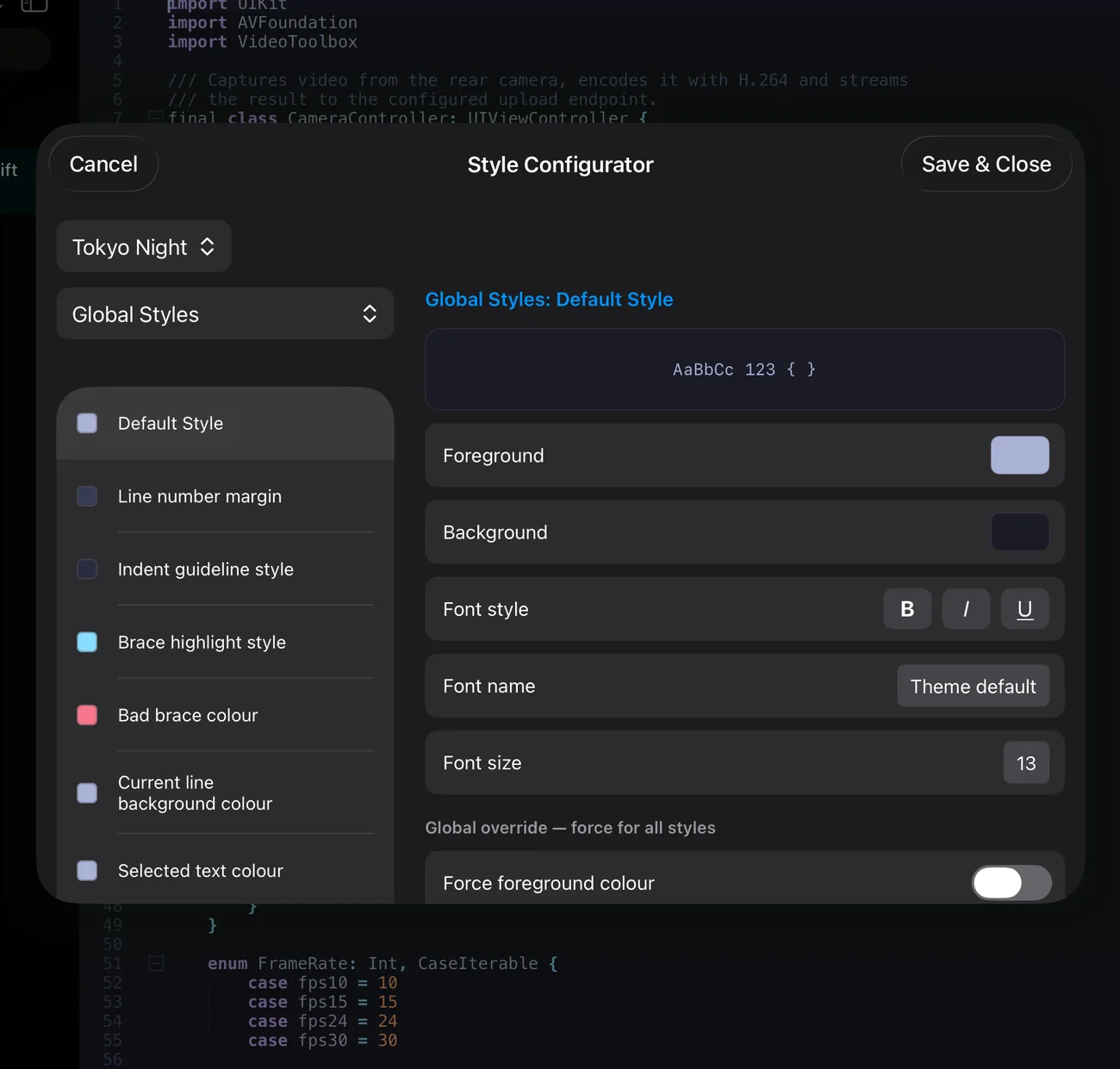
Nextpad++ follows the system appearance by default: a light theme in the day, a dark theme at night. The Style Configurator picks the theme and edits every colour; Preferences ▸ Appearance chooses which theme is used in light and in dark mode and tints the glass chrome.
Themes
Fifteen themes ship with the app: Default, Bespin, Black board, Choco, DarkMode, Deep Black, khaki, Mono Industrial, Monokai, Obsidian, Solarized, Tokyo Night, Tokyo Night Light, Vibrant Ink and vim Dark Blue. They are Notepad++ theme files, so every language style — keywords, strings, comments, numbers, operators — is defined per theme, together with the editor colours (current line, selection, caret, margins, fold markers, brace highlight, smart-highlight marks).
Editing styles
- Pick a theme in the pop-up at the top left; Global Styles is selected in the language list.
- Choose a language to edit its styles, or stay in Global Styles for the editor-wide ones (Default Style, Line number margin, Indent guideline, Brace highlight, Current line background, Selected text…).
- Edit Foreground, Background, Font style (bold / italic / underline), Font name and Font size. The Theme default font is a monospaced system font; any installed font can be chosen.
- Global override switches let one style force its foreground, background or font onto every style — the quickest way to change the font for the whole editor.
- Save & Close keeps your changes as an override on top of the theme; Cancel discards them.
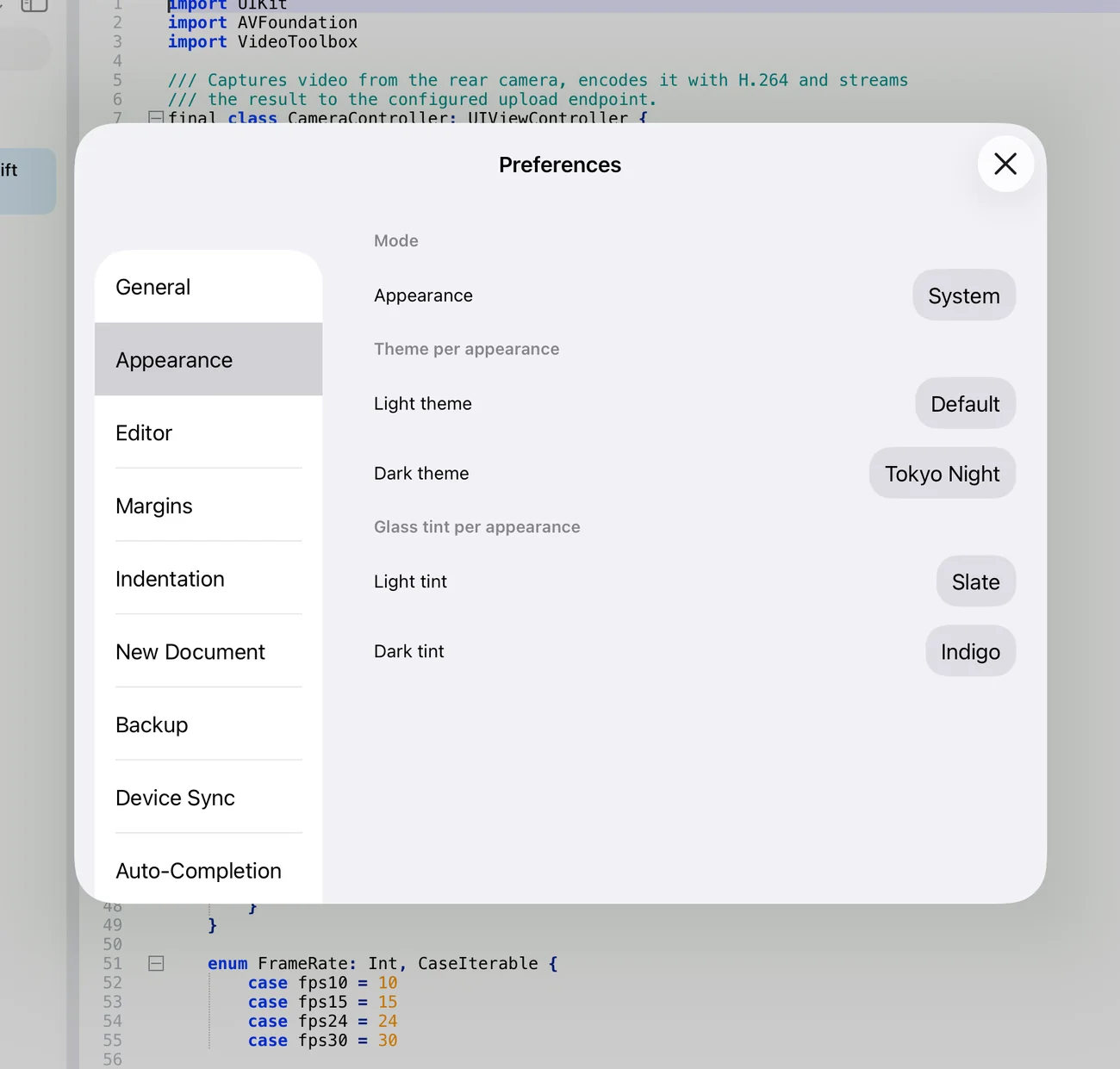
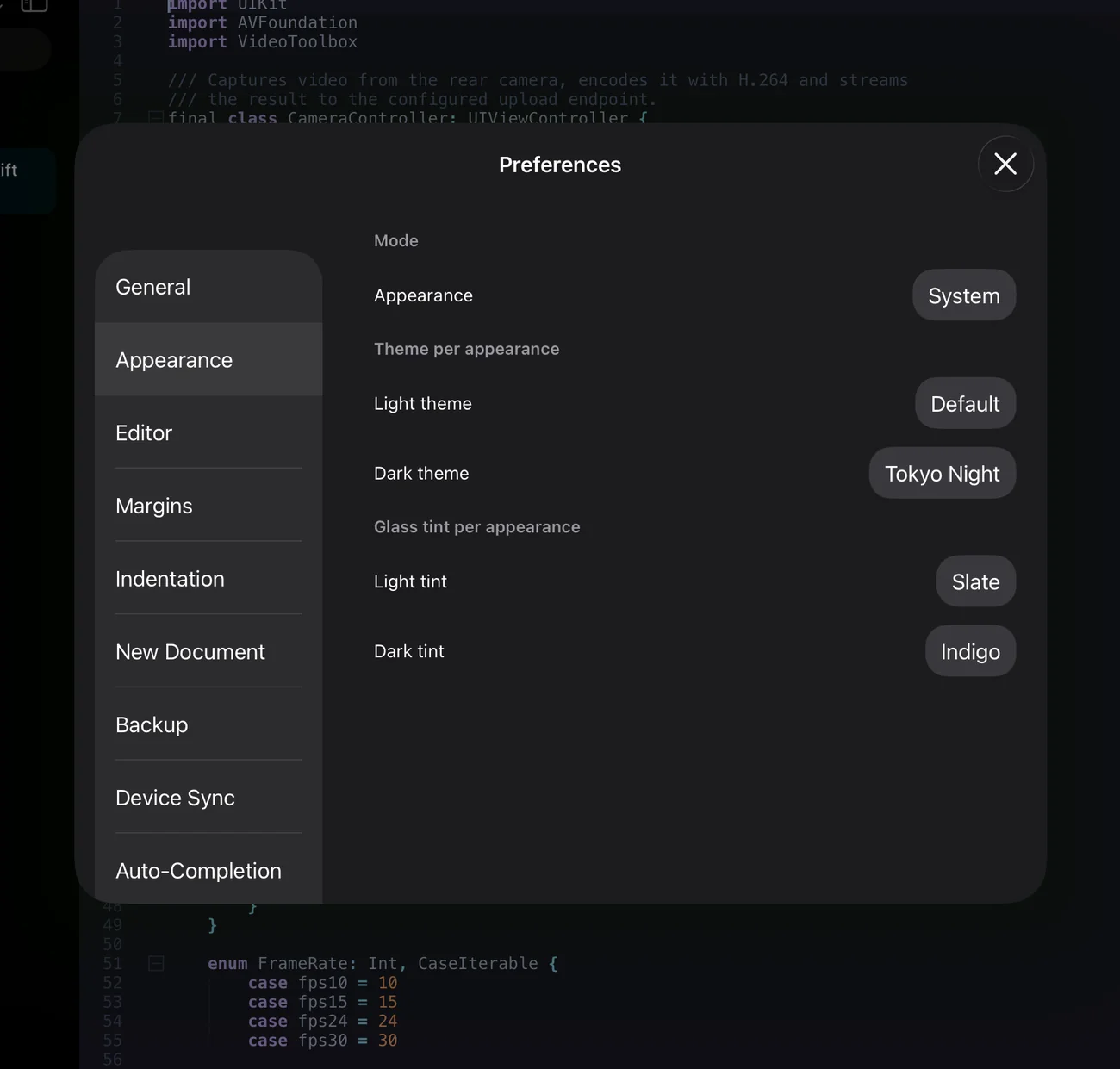
Mode overrides the system setting if you always want the editor dark (or light). Light theme and Dark theme are applied automatically as the appearance switches. Light tint / Dark tint colour the translucent toolbar, sidebar and panels — Default, Slate, Indigo and more.
13.Preferences
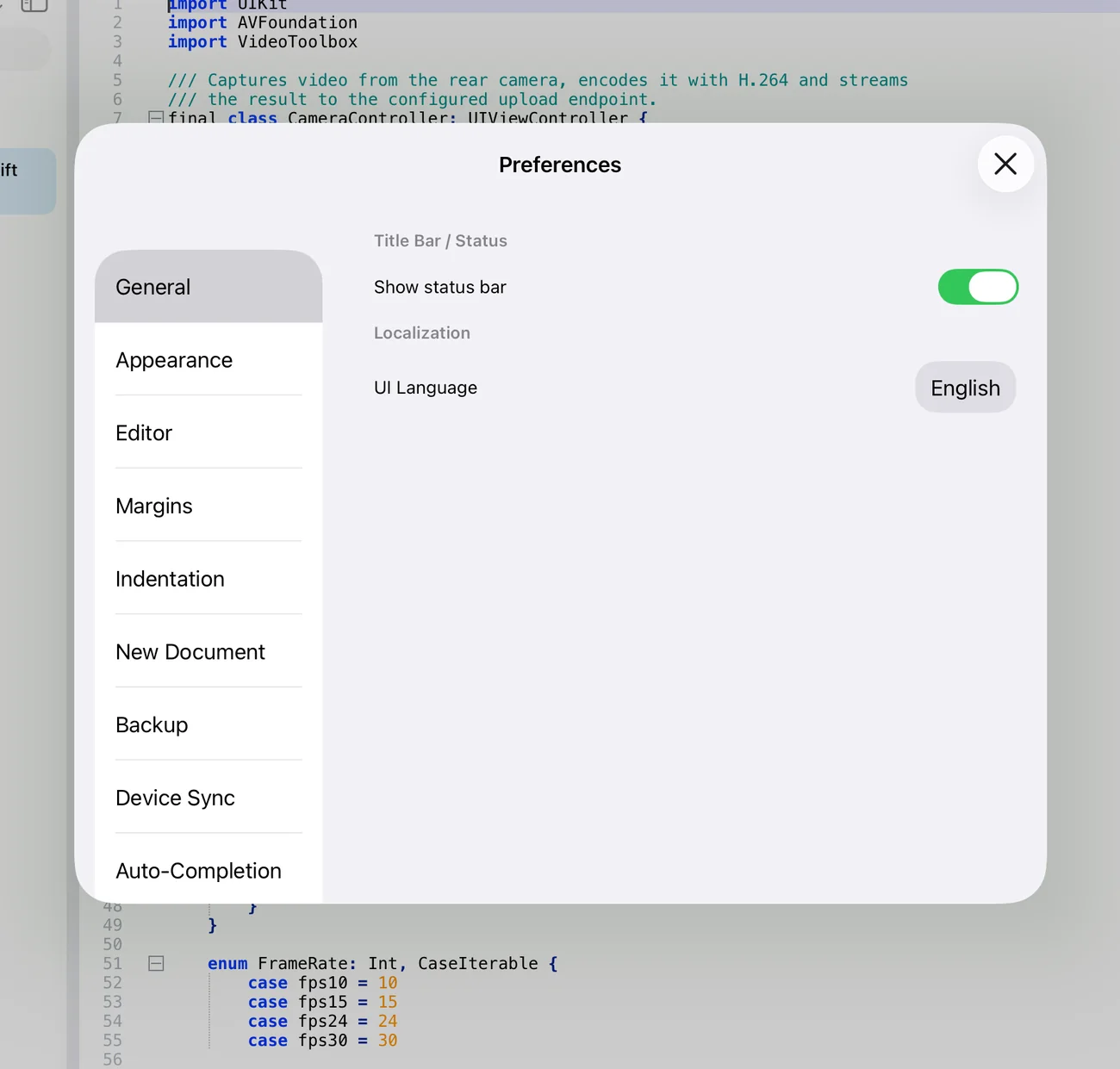
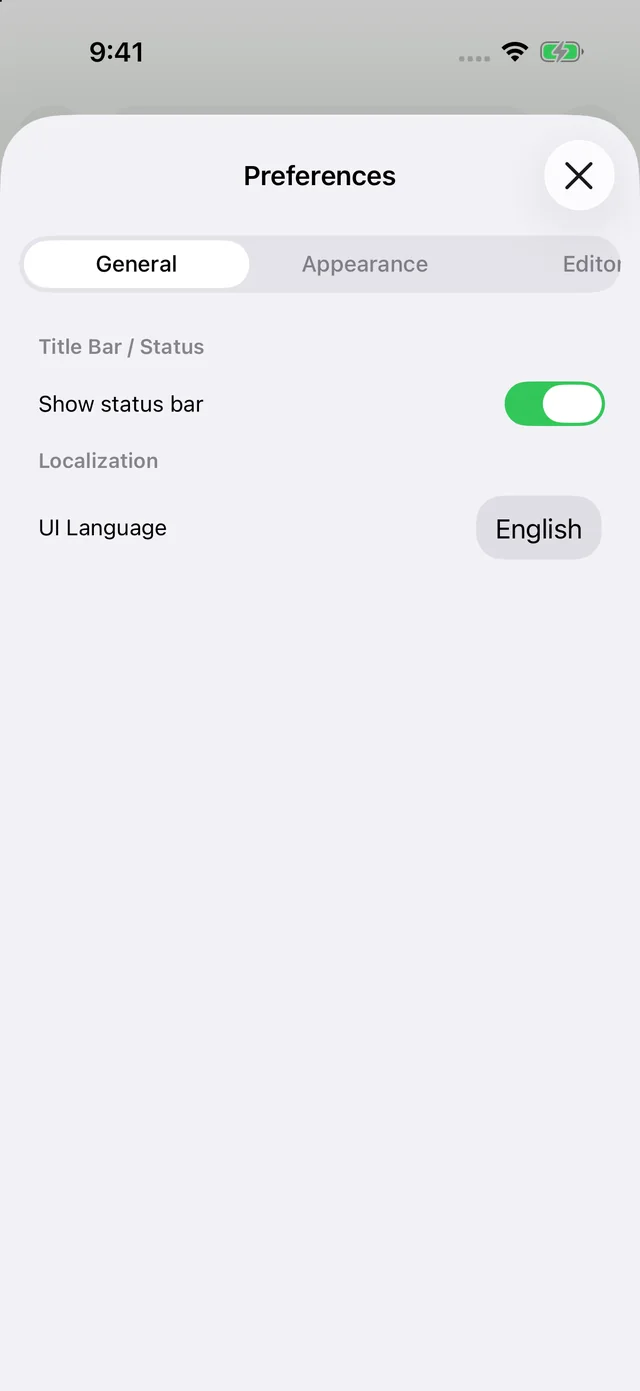
opens a sheet with thirteen pages, listed on the left (iPad) or in a scrolling strip (iPhone). Changes apply immediately; there is no OK button to press. The pages mirror Nextpad++ for Mac, so the same settings mean the same thing on both.
Editor
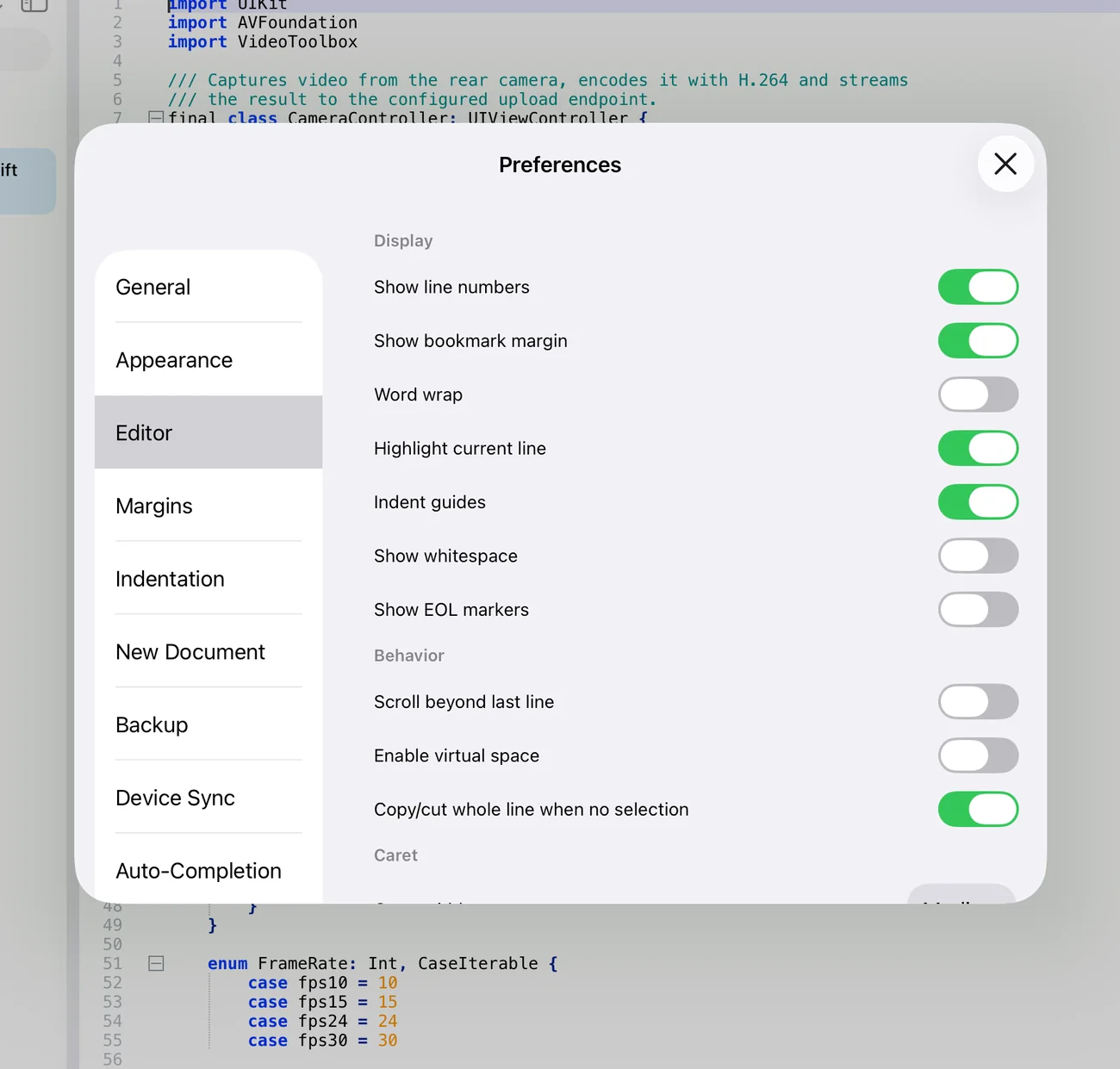
- Display — Show line numbers · Show bookmark margin · Word wrap · Highlight current line · Indent guides · Show whitespace · Show EOL markers.
- Behavior — Scroll beyond last line · Enable virtual space (the caret can go past the end of a line, useful in column mode) · Copy/cut whole line when no selection.
- Caret — width (Thin / Medium / Thick) and blink rate in milliseconds.
Margins
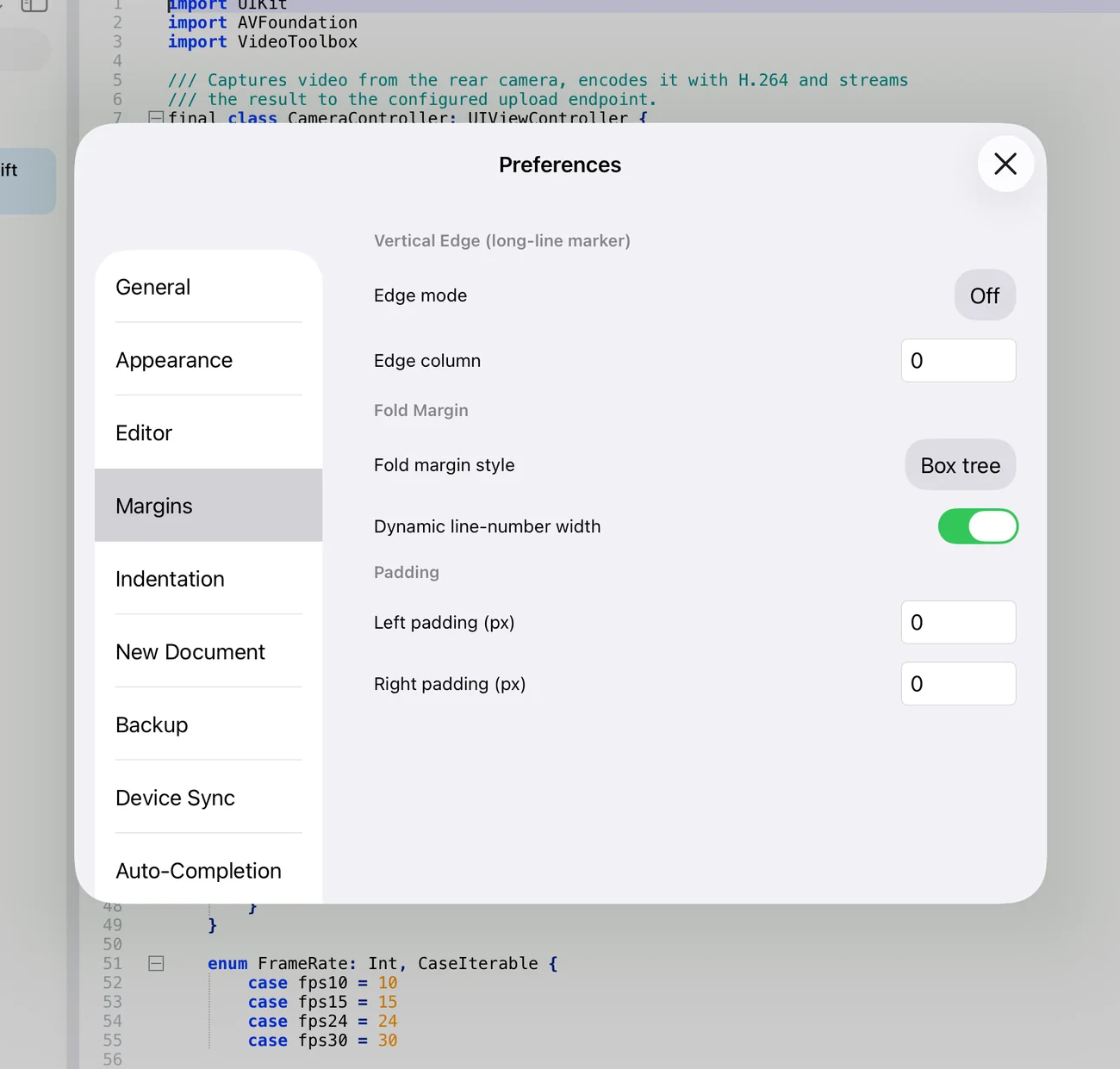
- Vertical edge — a long-line marker: Off, a Line at the edge column, or a different Background beyond it.
- Fold margin style — Box tree, Circle tree, Arrow, Simple +/−, or None; Dynamic line-number width grows the margin only as needed.
- Padding — extra space left and right of the text.
Indentation
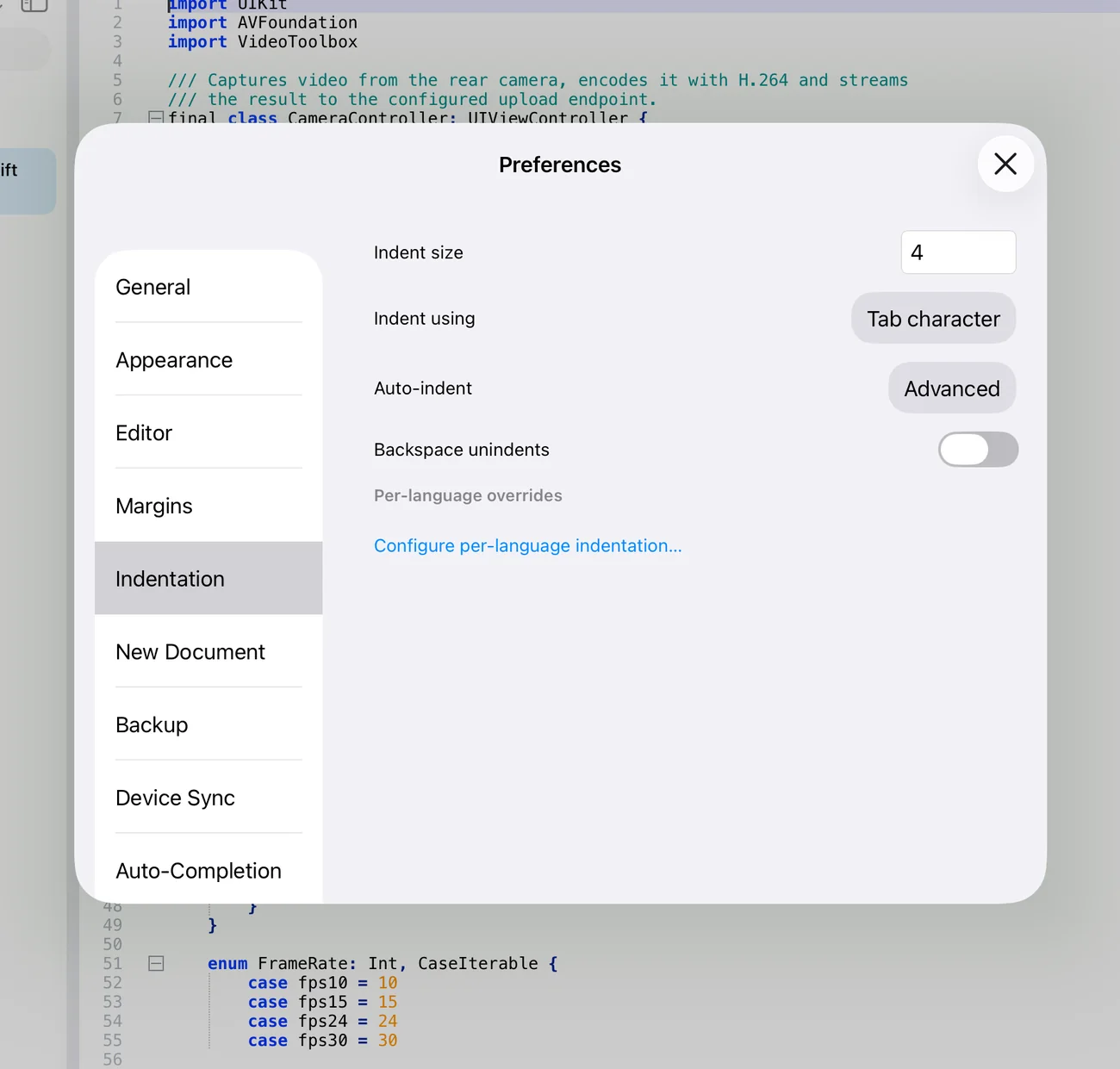
Indent size, Indent using (tab character or spaces), Auto-indent (None / Basic / Advanced) and Backspace unindents. Configure per-language indentation… opens a table of overrides so, for example, Makefiles always use tabs and Python always uses four spaces.
New Document & Backup
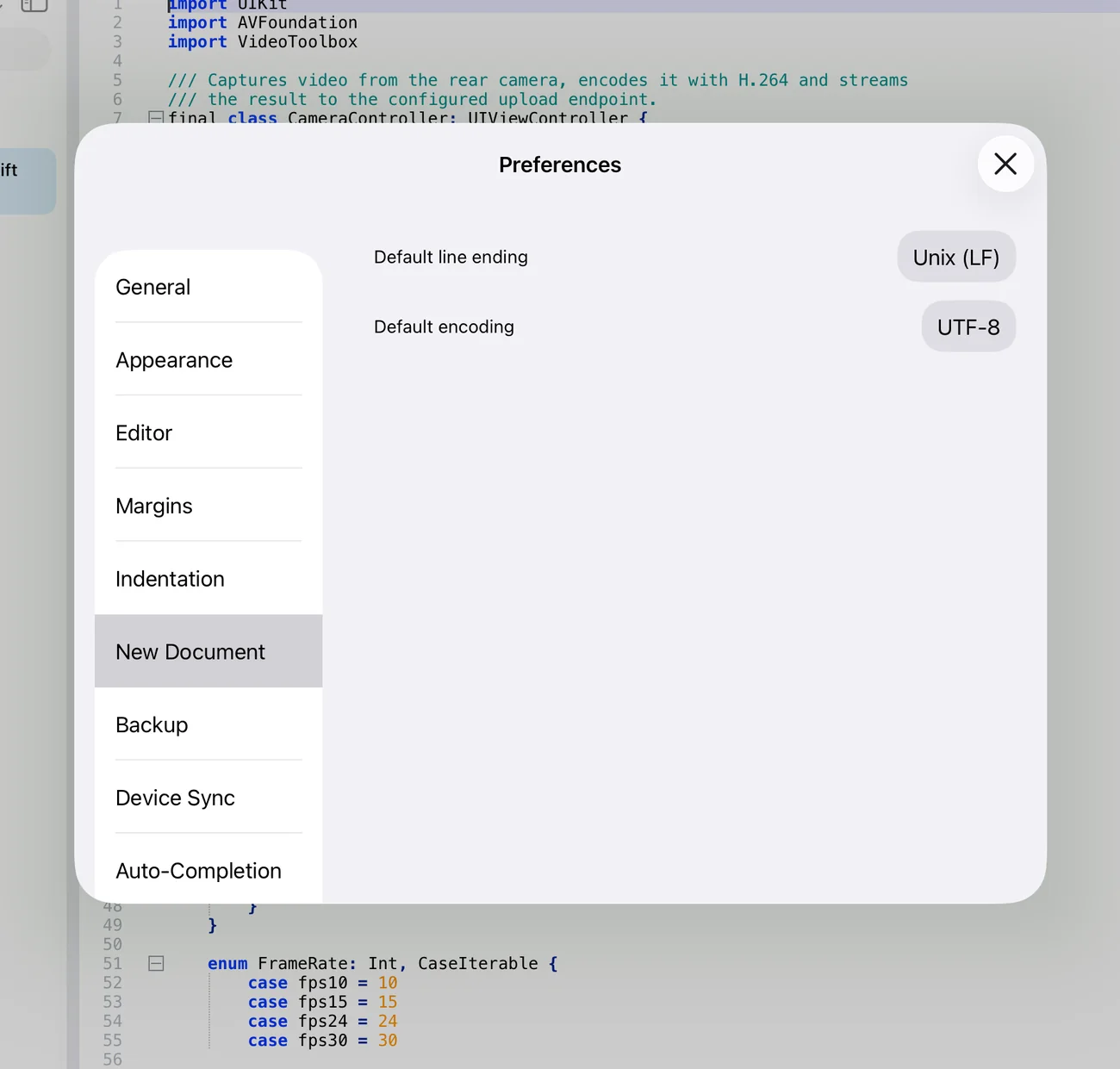
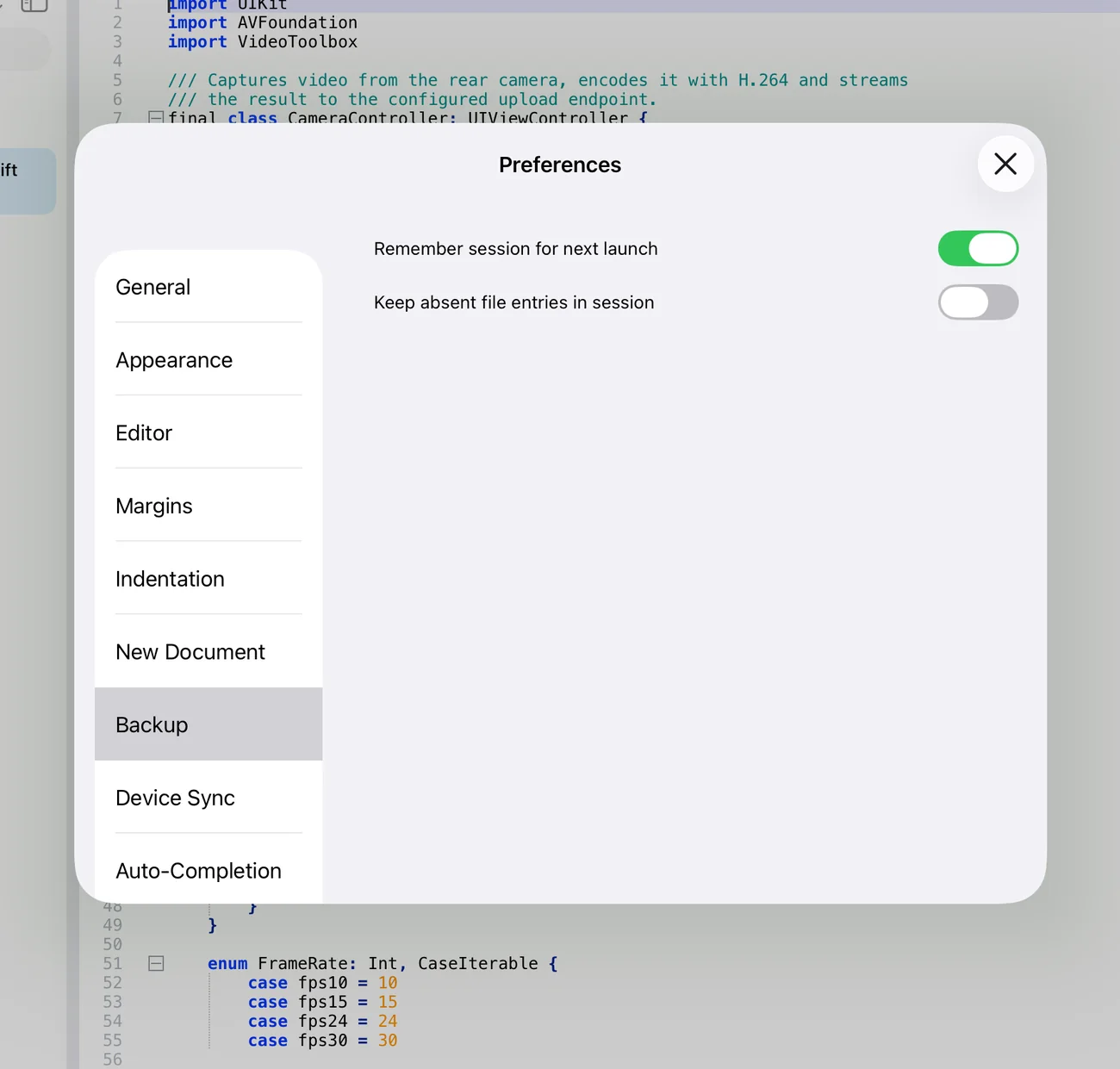
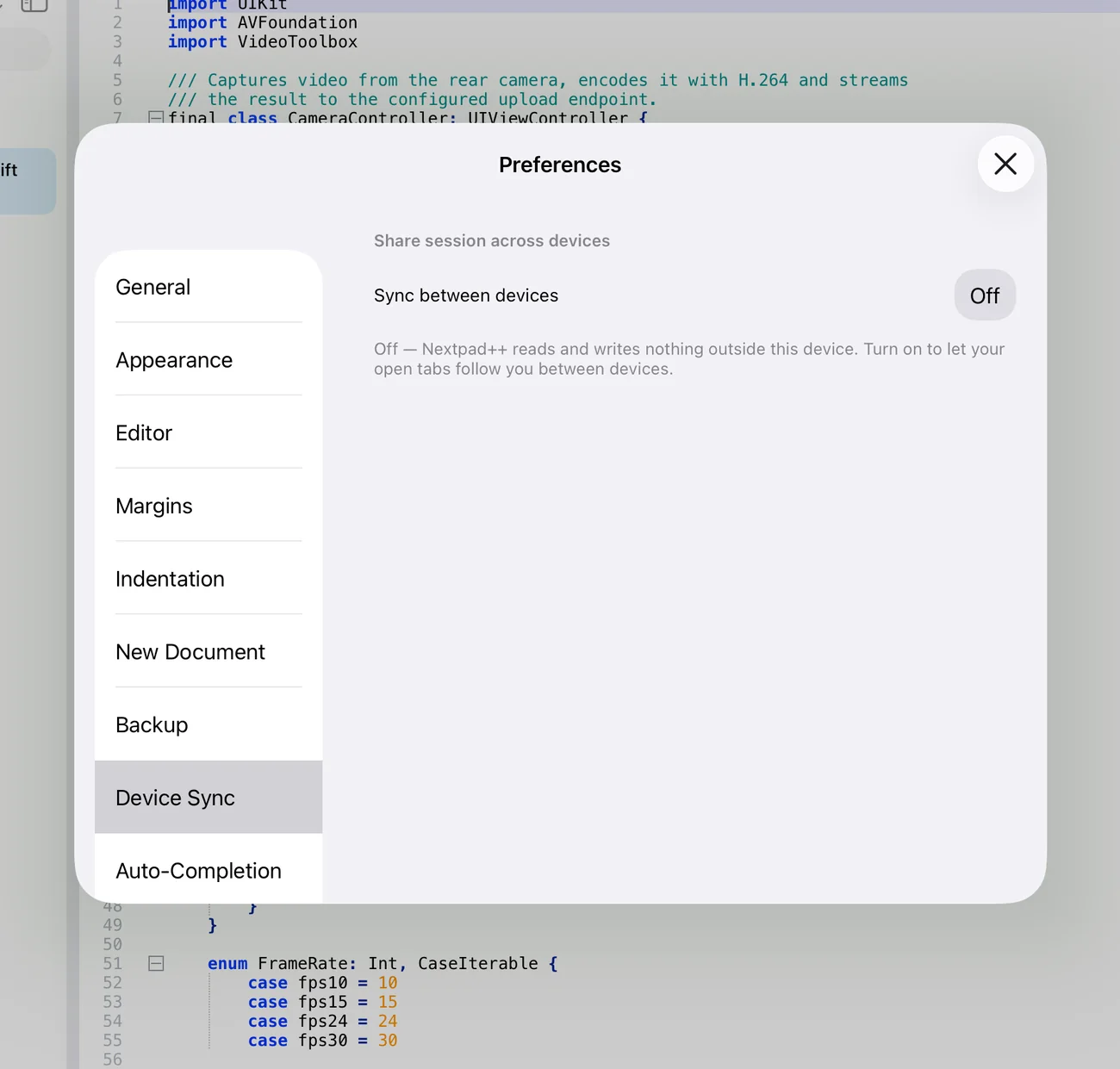
Device Sync
Auto-Completion
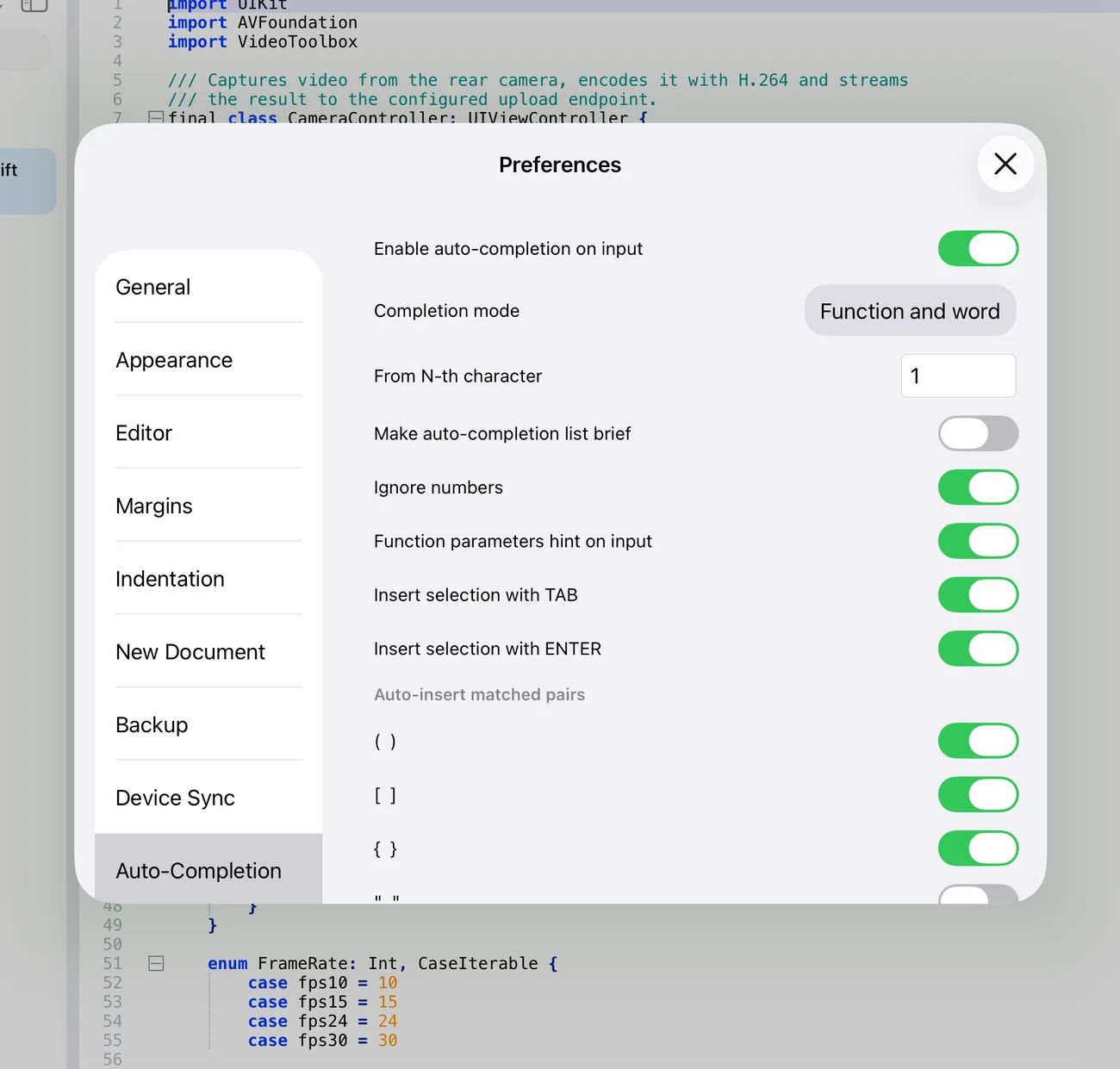
Enable auto-completion on input; completion mode (Function / Word / Function and word); from N-th character; brief list; ignore numbers; function parameters hint; insert with Tab / Return; and the auto-insert pairs — ( ), [ ], { }, " ", ' '.
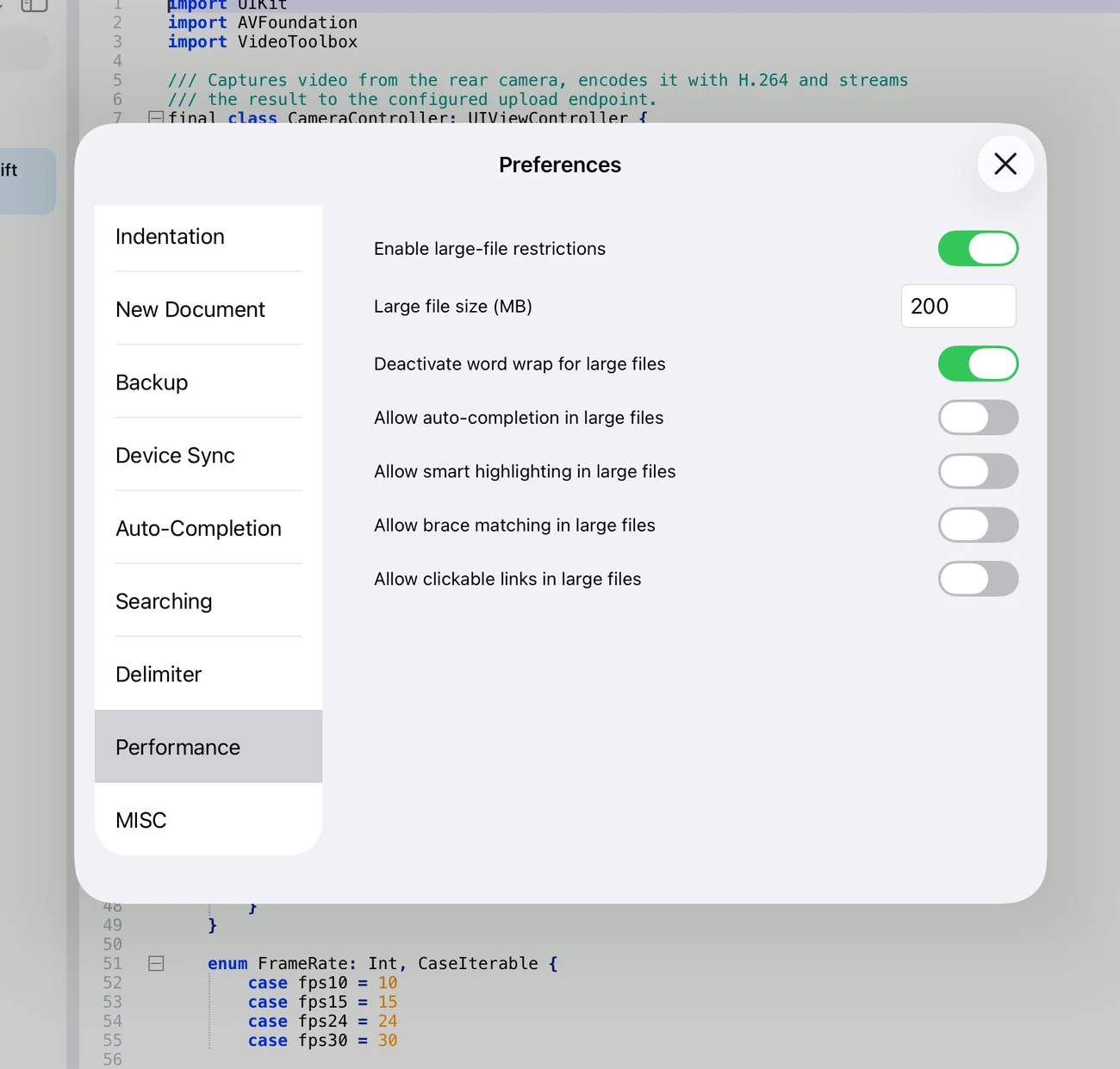
Searching, Delimiter, Performance, MISC
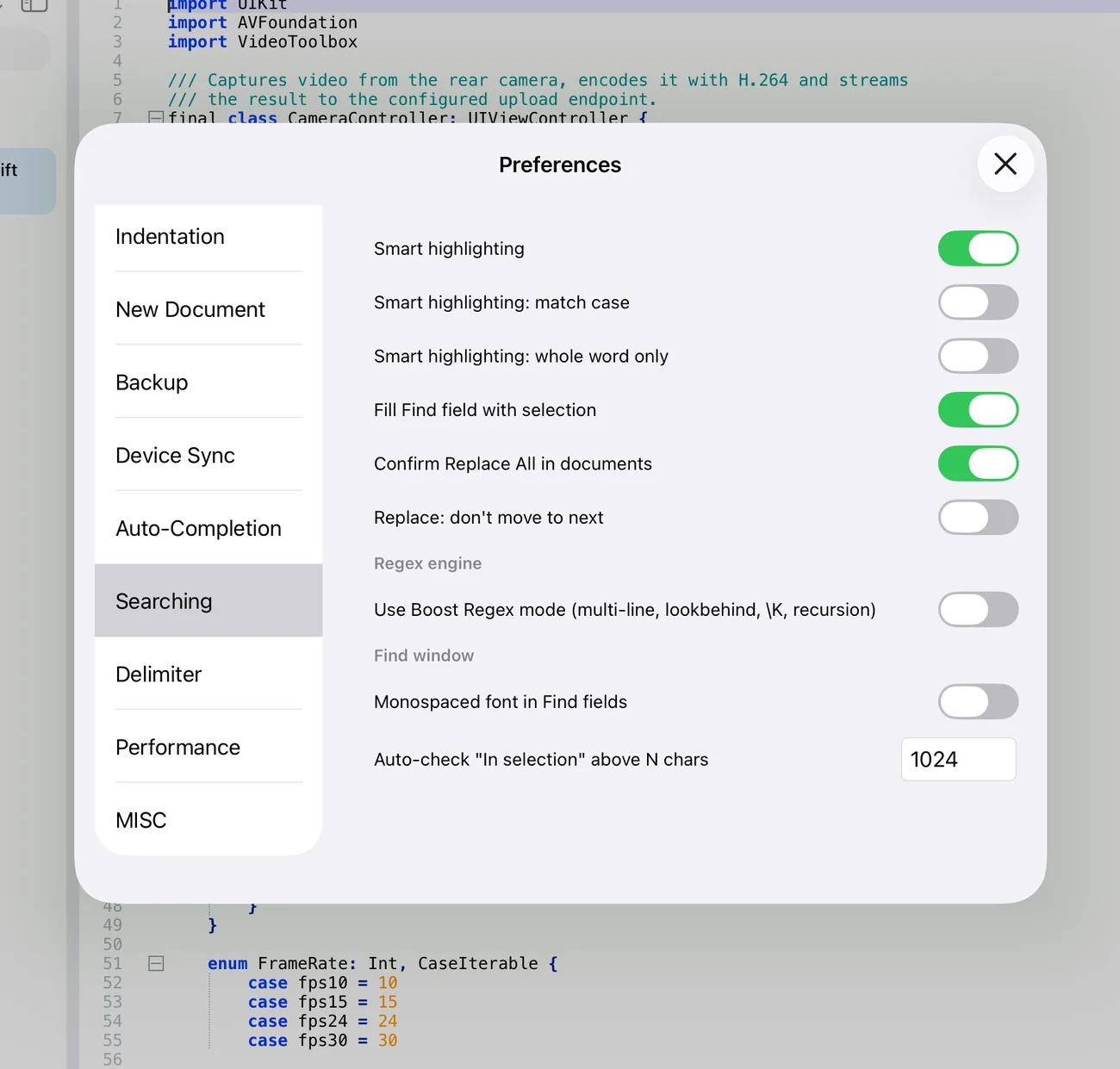
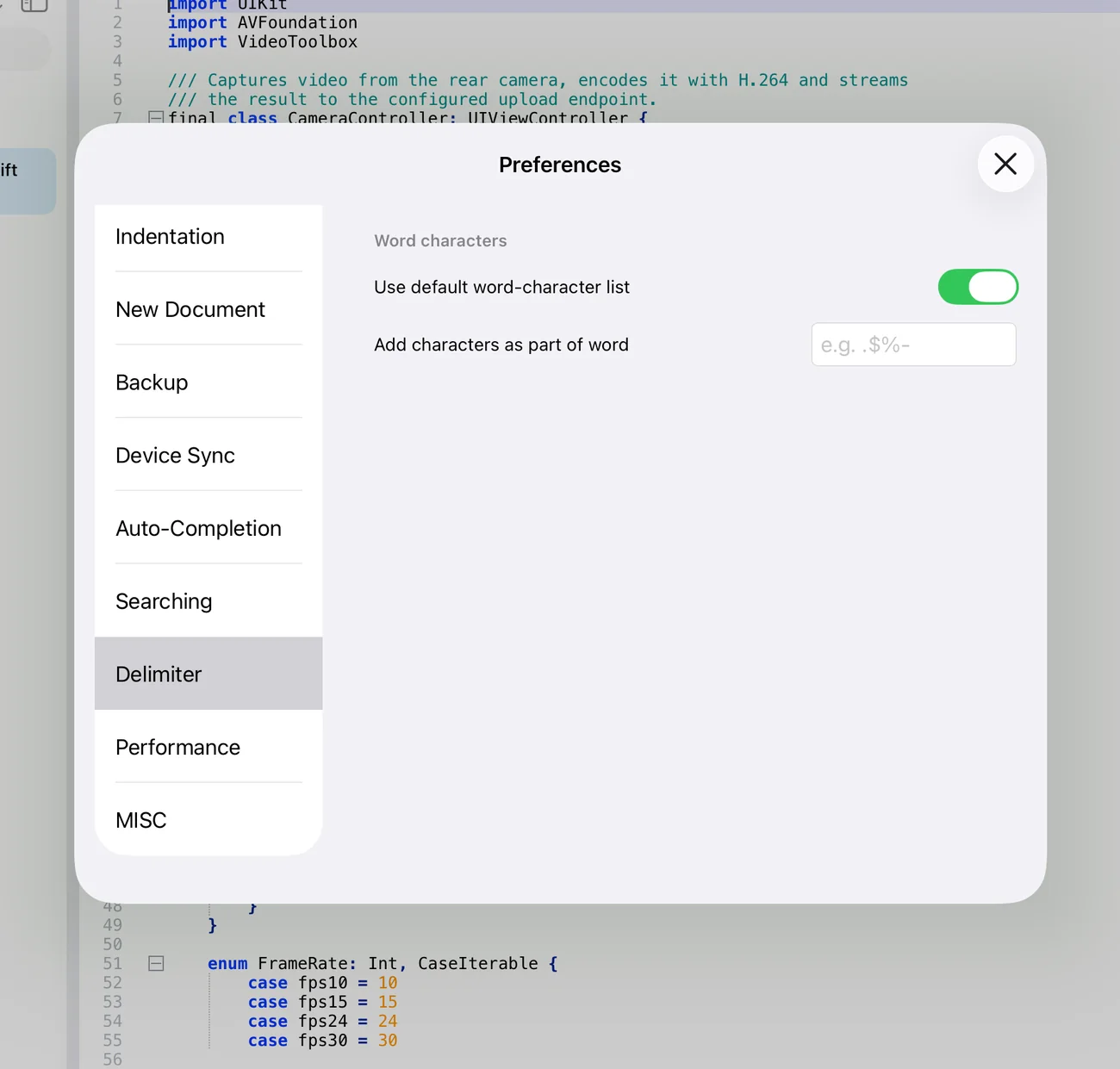
.$%-).
14.Plugins
Nextpad++ for iOS ships its plugins inside the app — there is nothing to download, and they are the same engines as the Nextpad++ for Mac plugins. Each plugin adds a submenu under Plugins; four of them (Markdown Panel, JSON, XML, Compare) also own a panel, reachable from the rail, the Panels chip and the Toggle … Panel command. Plugins Admin… lets you switch any of them off.
Markdown Panel panel
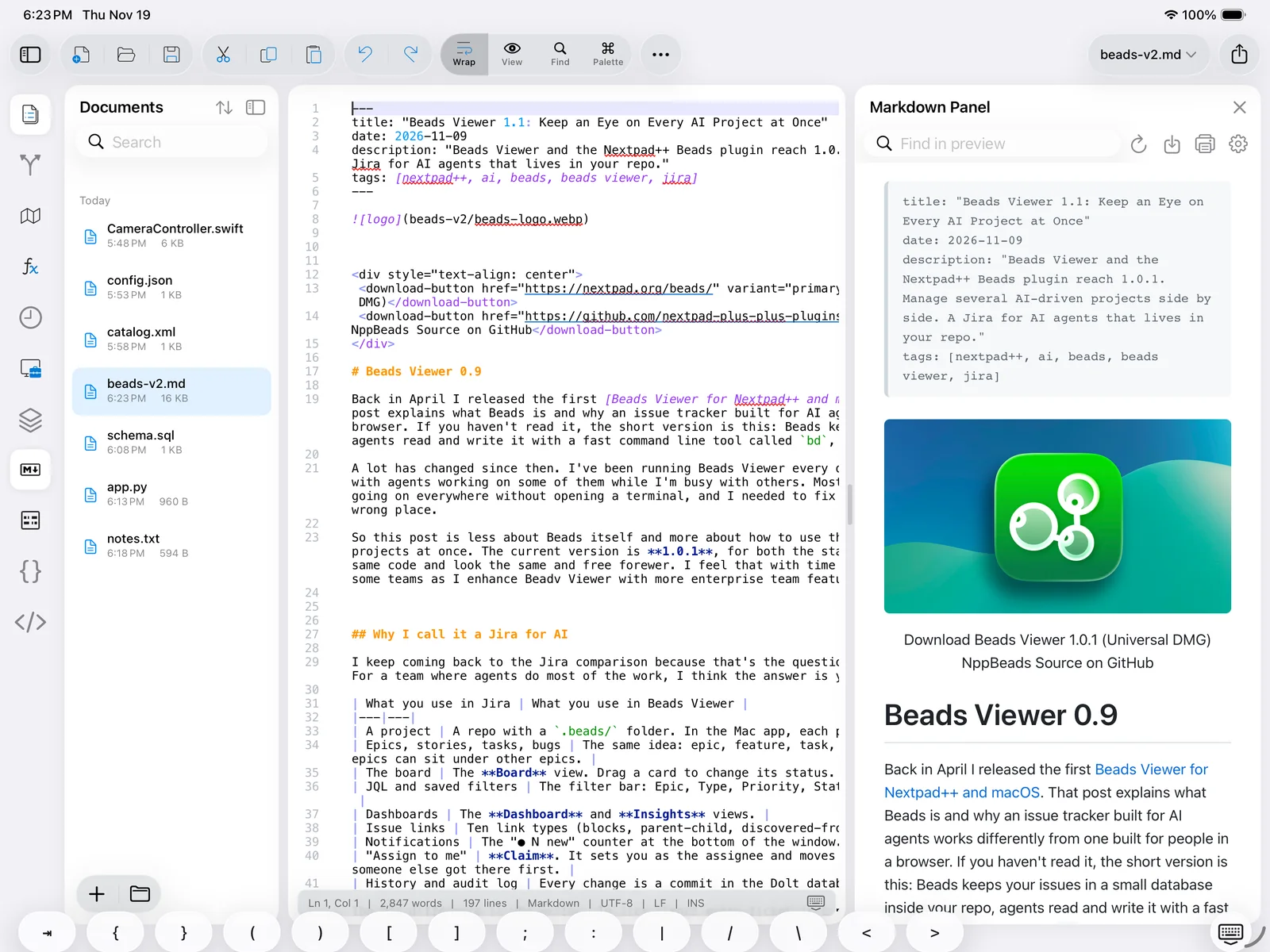
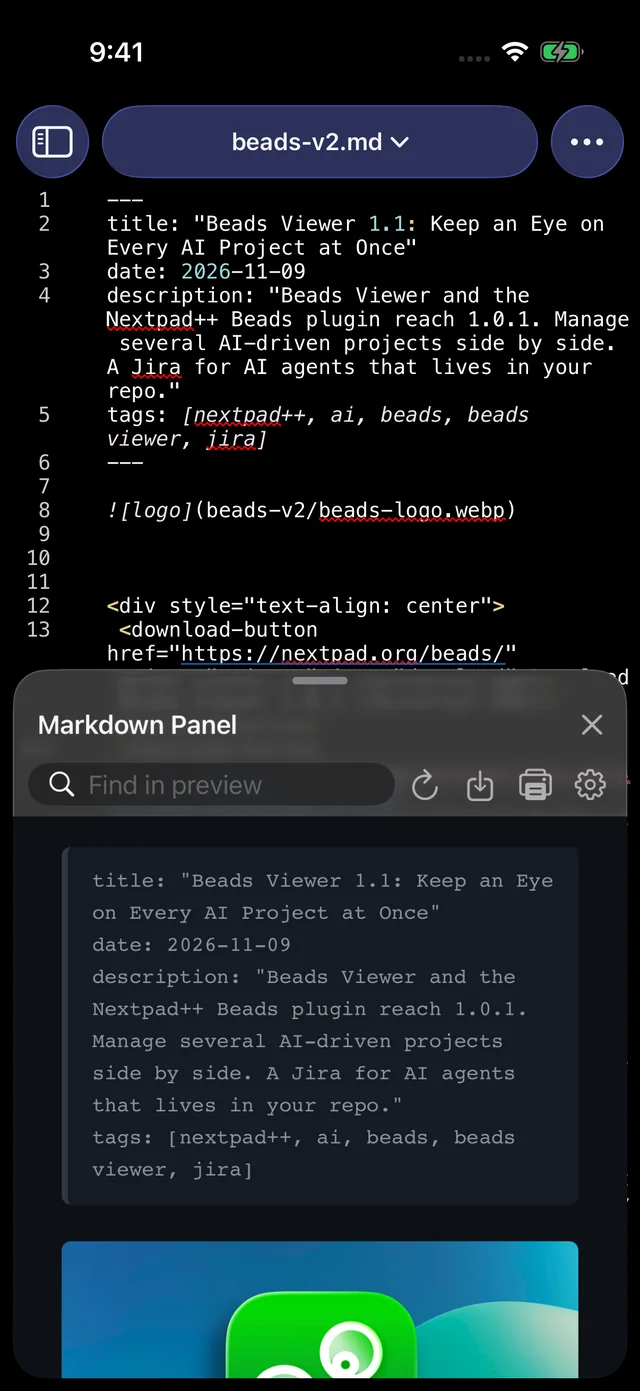
The preview renders GitHub-flavoured Markdown: headings, emphasis, lists, task lists, tables, fenced code blocks with syntax colouring, block quotes, footnote-free links and images, and — when enabled — Mermaid diagrams (flowcharts, sequence diagrams, Gantt charts) written in fenced mermaid blocks. It updates as you type.
- Toggle Markdown PanelShow or hide the preview.
- Synchronize with caret positionScrolls the preview to the paragraph under the caret.
- Synchronize with first visible lineKeeps the preview aligned with the top of the editor as you scroll.
- Export to HTML / Export to PDFWrites a standalone HTML file (with the preview's stylesheet inlined) or a paginated PDF, then shows the share sheet.
- SettingsEnable mermaid diagrams, Squared theme (a sharper, documentation-style preview theme), Scroll editor when preview scrolls.
- Help · AboutThe plugin's own help page and version.
The panel header has a Find in preview field, a refresh button, export and print buttons and the settings gear.
JSON panel
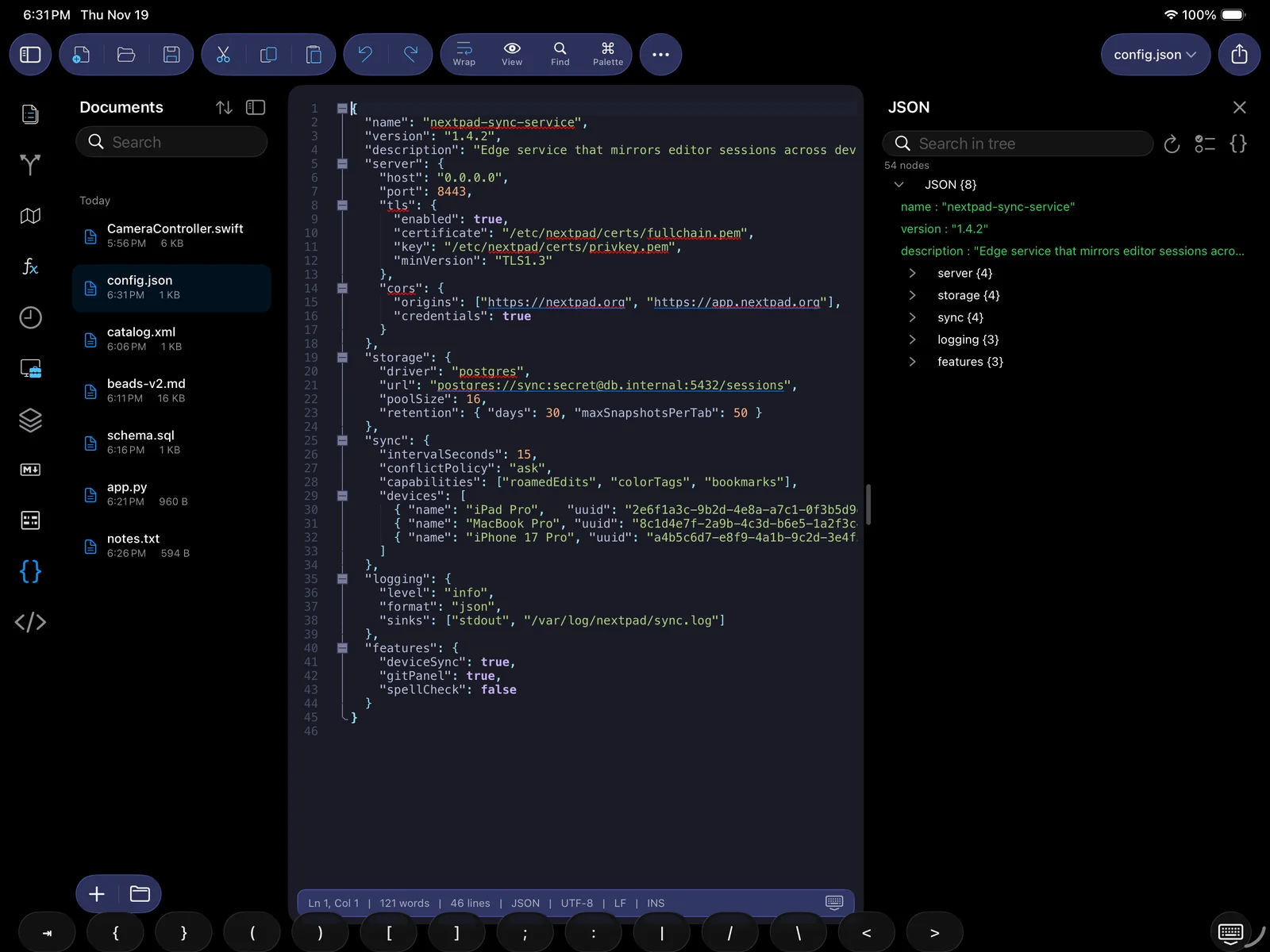
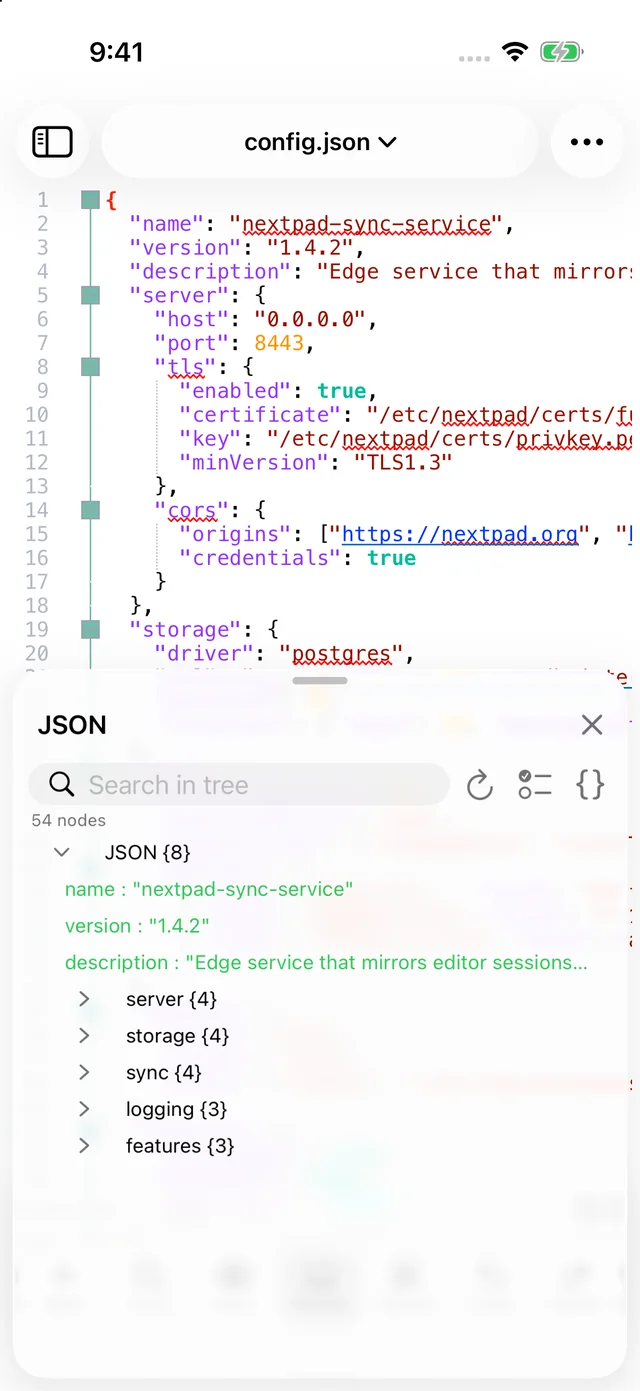
- Toggle JSON PanelThe tree view of the current document. The header offers Search in tree, refresh, collapse/expand all and a formatting shortcut; long-press a node for Copy Name, Copy Path, Copy Value and Expand All Here. Tapping a node selects the corresponding text in the editor. Parse errors are reported with line and column.
- Pretty-Print JSON (Google)Re-indents the document in the selected style (the style name is shown in the command).
- Compress JSONRemoves all insignificant whitespace.
- Sort JSON by KeySorts object members alphabetically, recursively.
- Check JSON for ErrorsValidates and jumps to the first problem.
- JSON SettingsIndent style and other formatting options.
XML panel
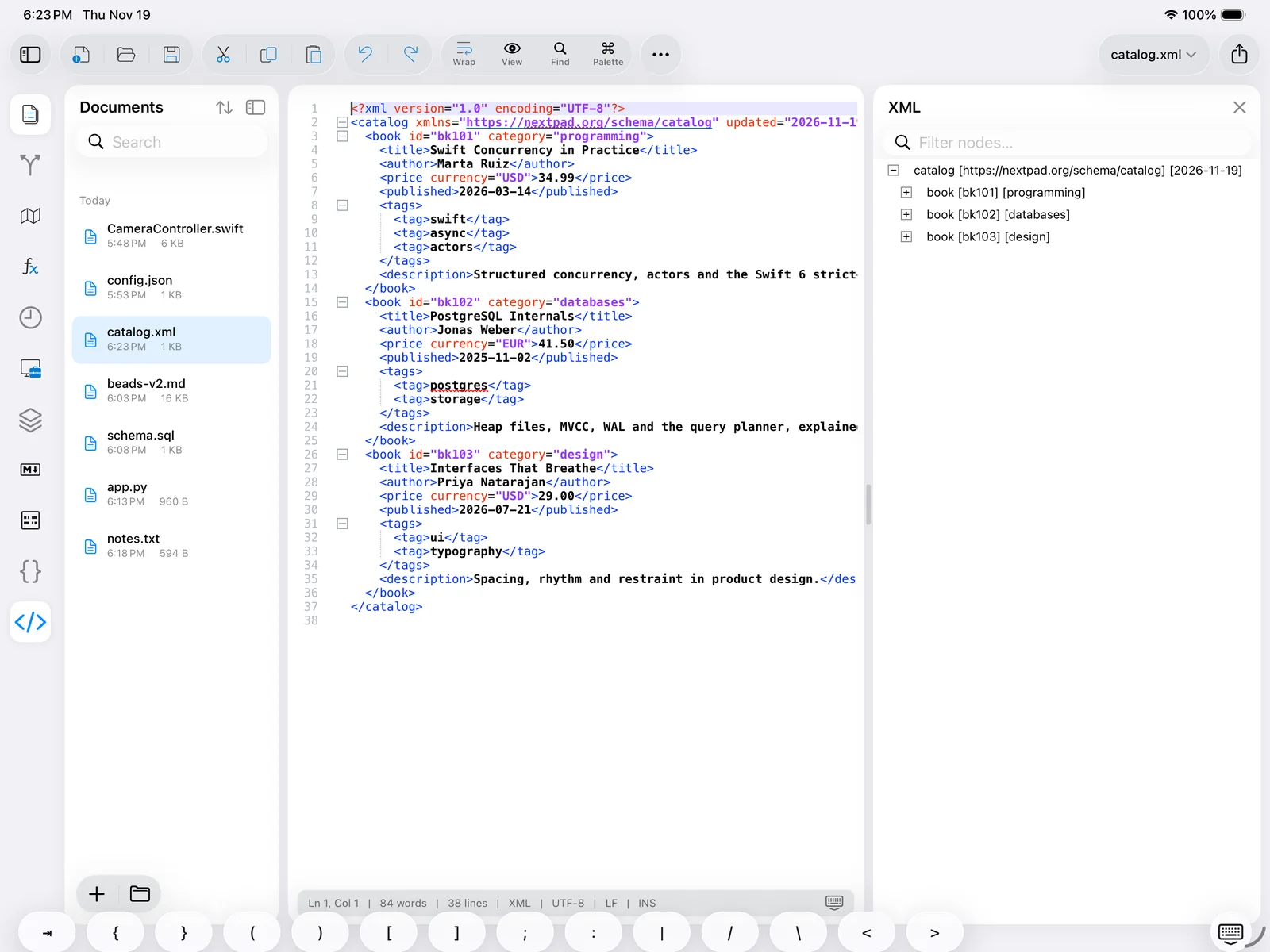
- Toggle XML PanelA tree of the document's elements; tap to select the element in the editor; the filter field narrows by name.
- Pretty Print · Pretty Print — Indent Attributes · Pretty Print — Indent Only · LinearizeReformat the document (or the selection) — fully, with one attribute per line, re-indenting without touching text nodes, or onto a single line.
- Check Syntax NowReports well-formedness errors with their position.
- Validate with XSD…Validates against a schema file you pick.
- Evaluate XPath…Runs an XPath 1.0 expression and lists the result nodes.
- Current XML PathShows (and copies) the path of the element at the caret.
- Escape Selection (<> → <>) · Unescape SelectionEntity-escape or unescape the selected text.
- Comment / Uncomment Selection · Go to Node Start/End · Go to Content Start/End · Select Node · Select ContentStructural navigation and editing (also available in the edit menu).
- XML SettingsIndentation and formatting options.
Compare panel
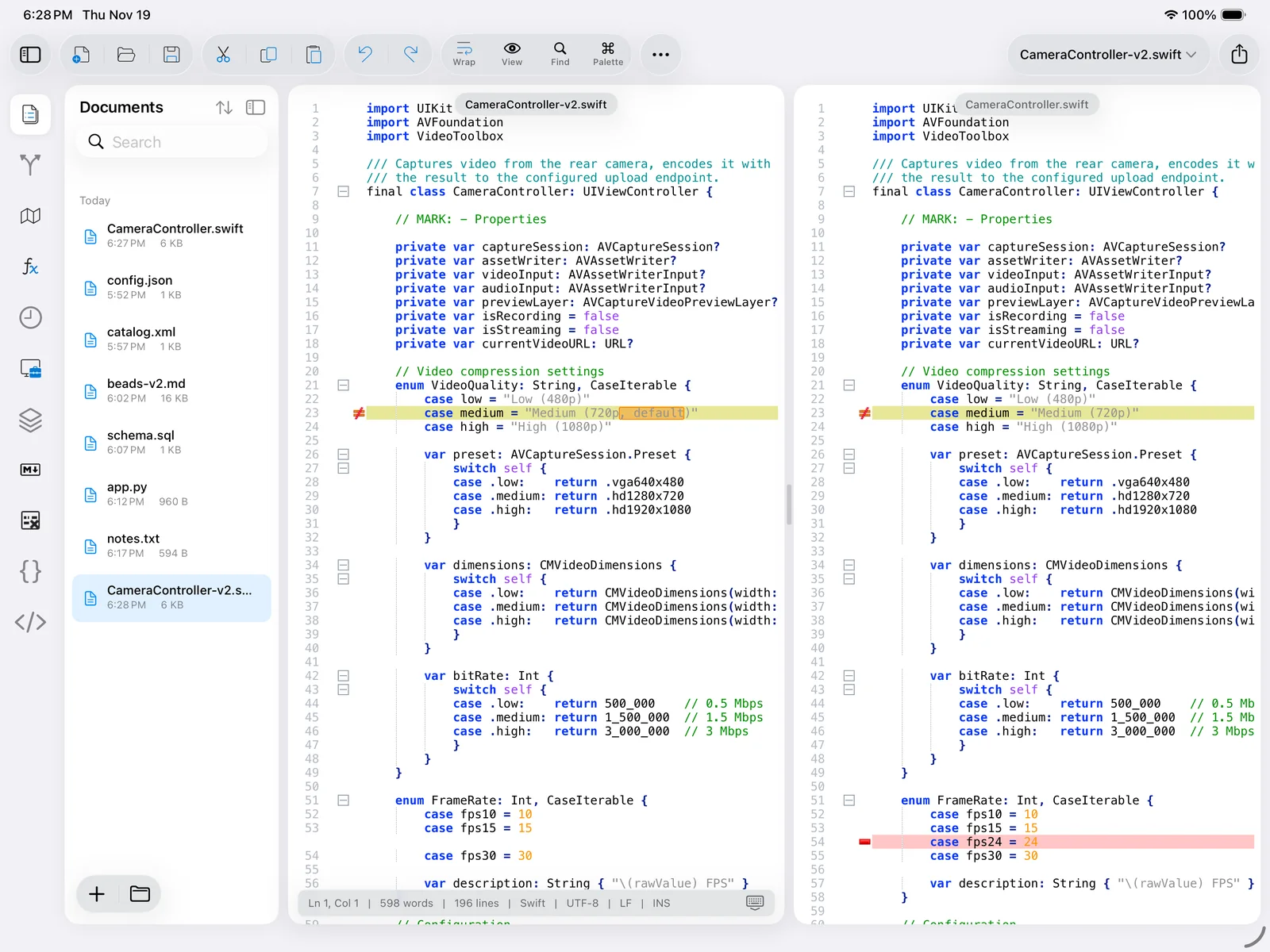
- Open the first document and choose . The status bar confirms First to compare: ….
- Switch to the second document and choose Compare with First. The two open side by side in a split with synchronized scrolling; the summary (N added, N removed, N changed) appears in the status bar.
- Navigate the differences by scrolling; edit either side — the comparison is live. Clear Compare ends it.
Compare Options…: Ignore all spaces, Ignore changed spaces, Ignore empty lines, Ignore case, Detect moves, Detect sub-line moves, Detect changed lines (sub-block), the Changed-line resemblance percentage and Character-level diffs. Compare is also what Device Sync uses when you choose Compare… for an edit made on another device.
SpellCheck
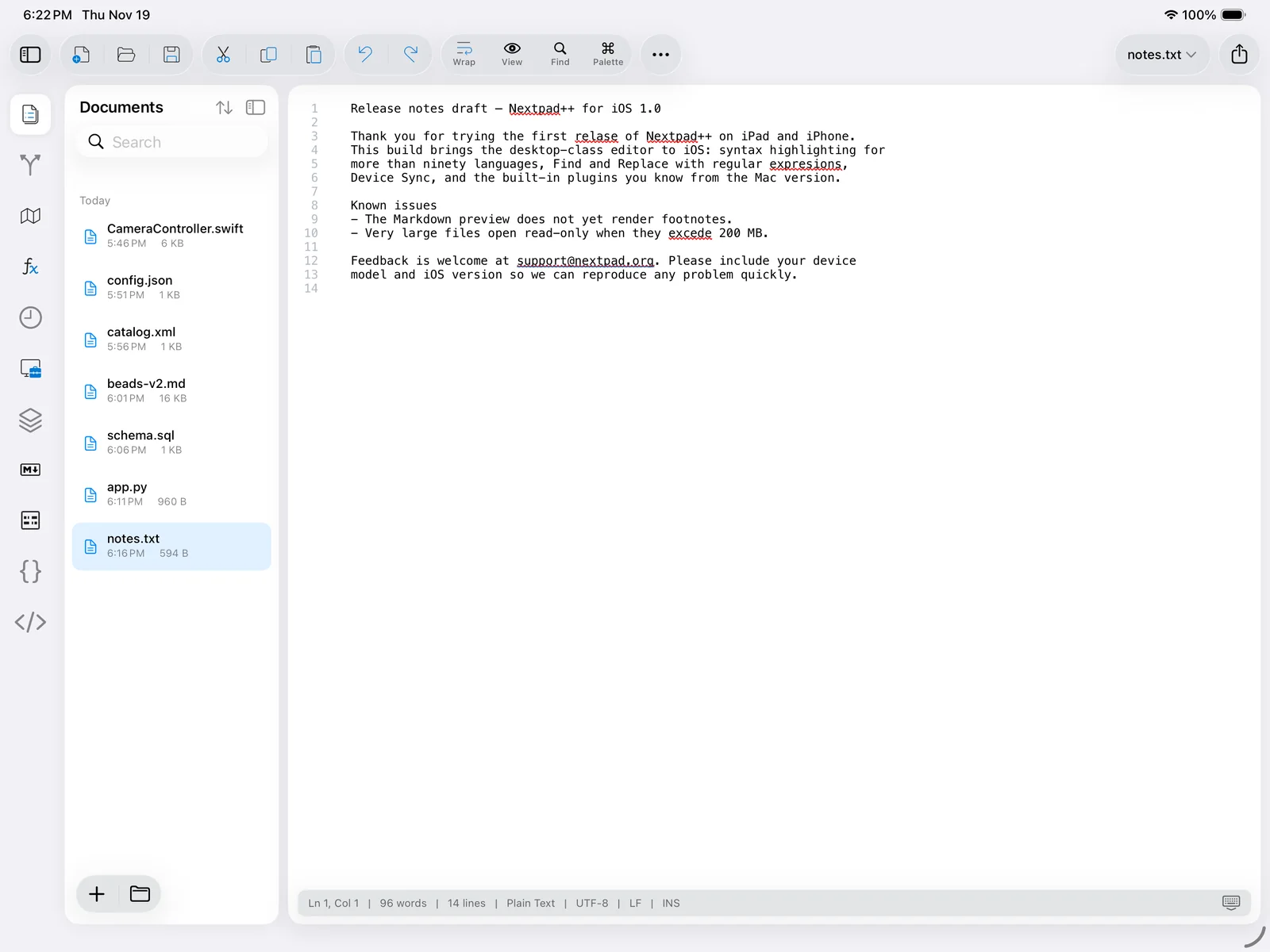
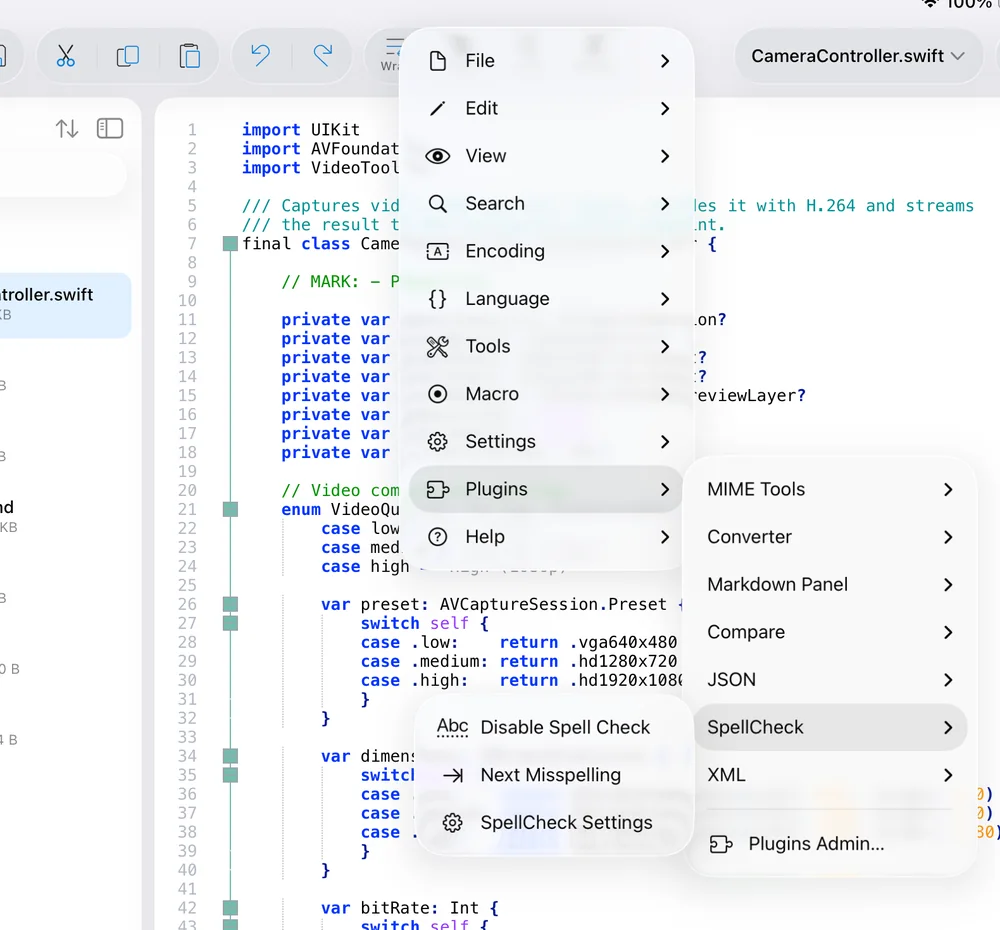
- Enable / Disable Spell CheckTurns the underlines on or off (on by default for prose; code is checked in comments and strings only).
- Next MisspellingJumps to the next underlined word.
- Spelling (edit menu)Long-press a misspelled word: suggestions to replace it, Learn (add to your dictionary), Ignore for This Session, Forget / Forget All learned words.
- SpellCheck SettingsThe checking language — Auto (keyboard) follows the keyboard language, or pick one.
MIME Tools, Converter and Surround Selection
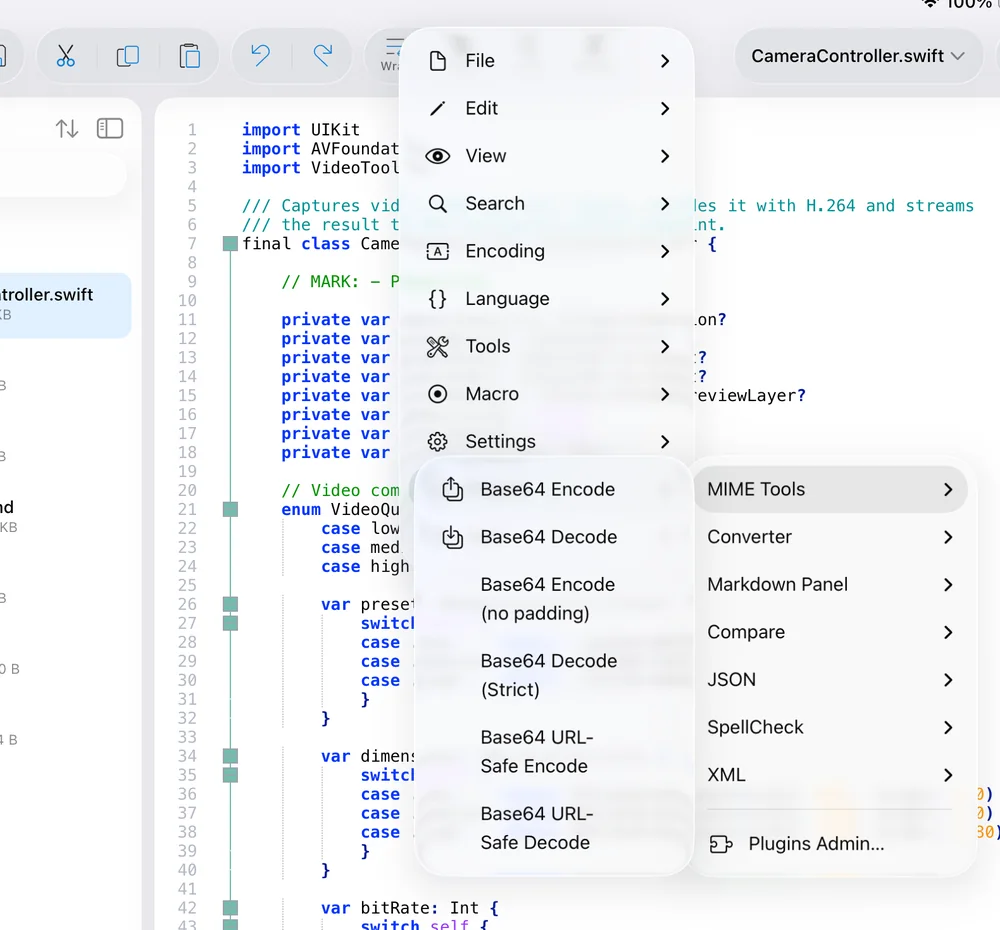
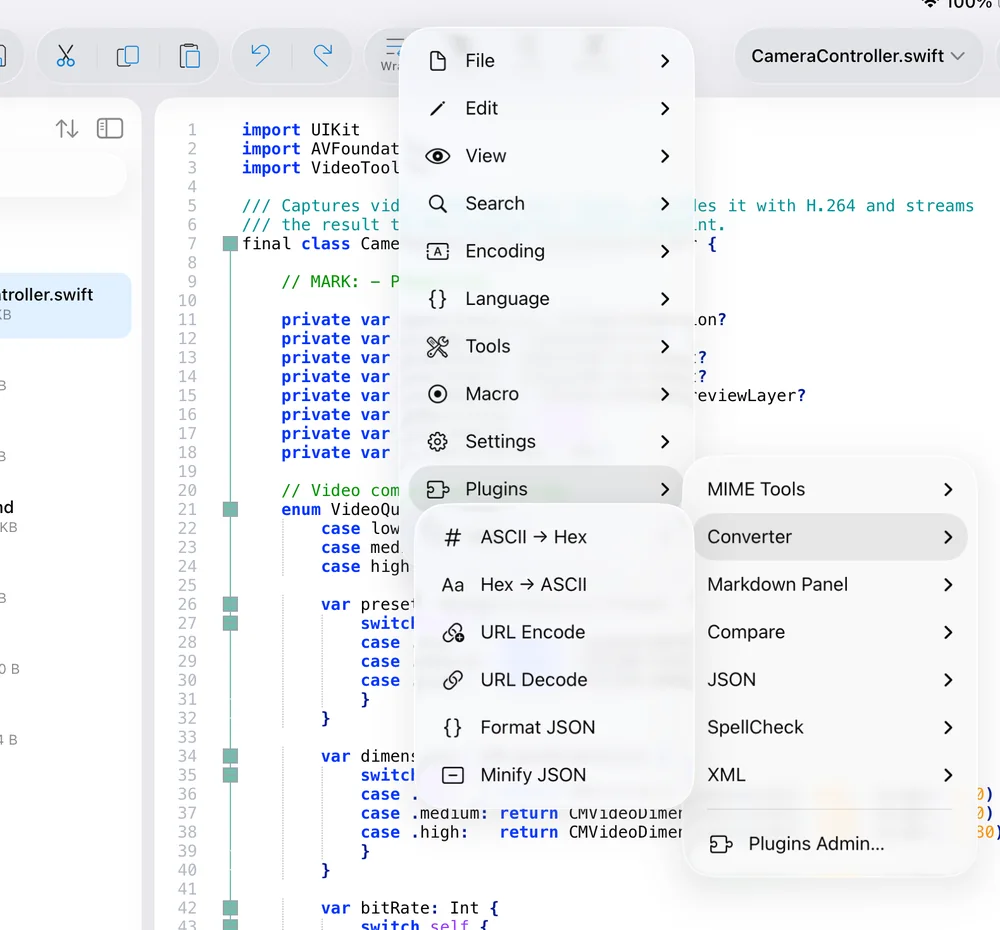
Surround Selection has no menu: with text selected, typing ", ', (, [, { or < wraps the selection in the pair instead of replacing it.
Plugins Admin
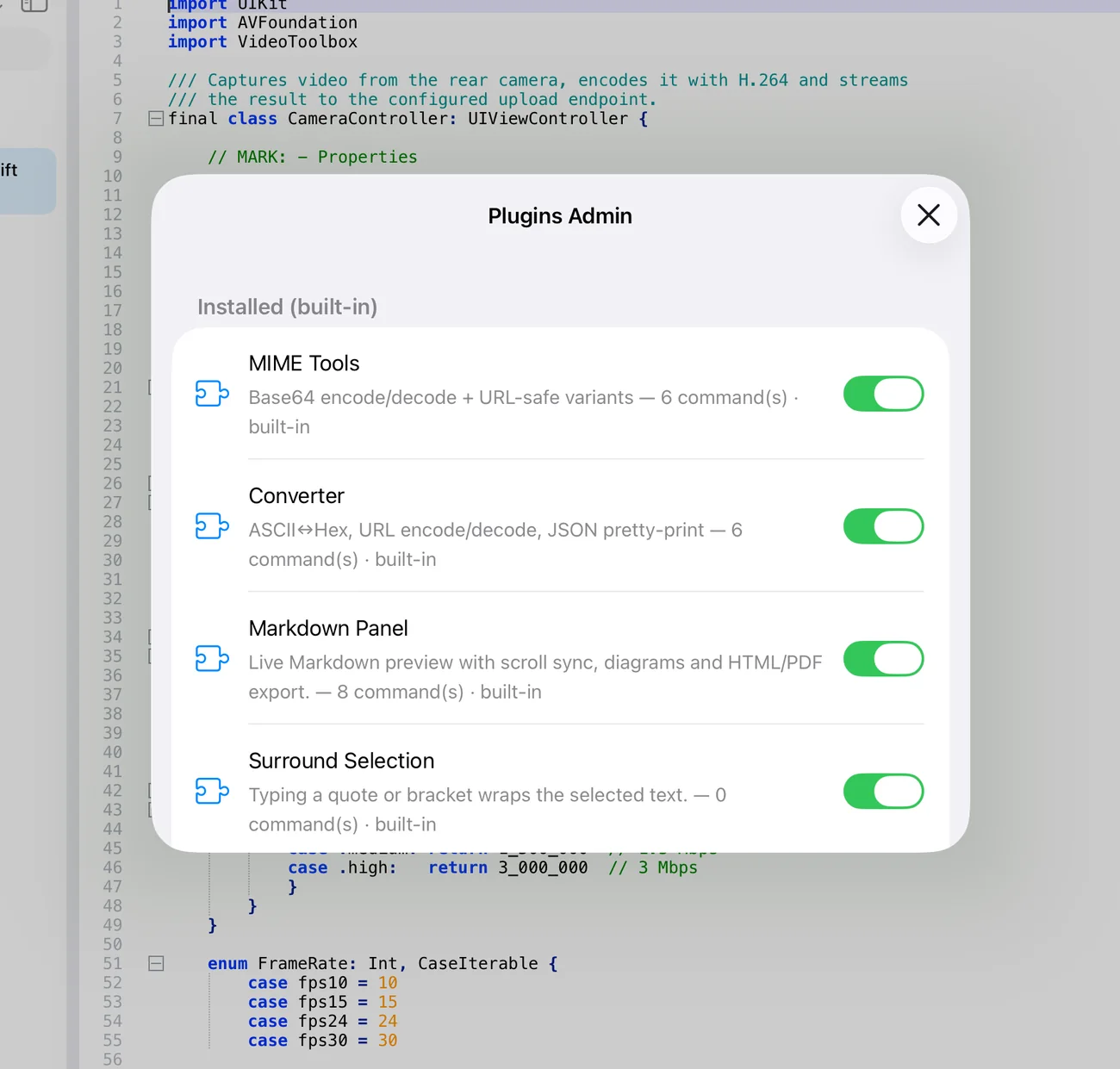
A disabled plugin disappears from the Plugins menu, the rail and the Panels chip until you enable it again. Because the plugins are part of the app, there is nothing to install or update separately — they are updated with Nextpad++ itself.
15.Device Sync
Device Sync lets your editing session follow you between devices — iPad, iPhone and Nextpad++ for Mac. It is not a file-sync service and it needs no account: each device publishes a small description of its open tabs (and snapshots of the ones with unsaved changes) into a folder you own — your iCloud Drive or any folder from a provider — and the other devices read it. Everything stays in your storage.
Turning it on
Open and set Sync between devices to:
- iCloud Drive (Nextpad++) — uses the app's own iCloud container. Zero configuration; every device signed into the same iCloud account sees the others.
- Choose Folder… — any folder from the Files app: a folder in iCloud Drive, Dropbox, OneDrive, a NAS share… Pick the same folder on every device.
- Off (default) — Nextpad++ reads and writes nothing outside the device.
Once on, the page shows the folder and when you last published, Include unmodified open files (publish clean tabs too, so the other device can open them in place), This device's name (what the other devices will call it), a list of the Devices that have published — each with Forget… — and Publish Now.
Continuing a session
On another device, the File menu gains Continue from <device> entries (e.g. Continue from iPad — 7 tabs (2 modified) · 5 minutes ago). Choosing one shows a confirmation sheet that lists what will happen to each tab:
- opens in place — the same file is reachable here (same iCloud path or synced folder), so the tab opens the real file, with the published caret and scroll position. If the local copy differs from what was published, the sheet says local file differs.
- editable copy, edits go back — an unsaved (modified) tab arrives as a snapshot. You can edit it; when you save, your edit is sent back to the origin device (see below).
- read-only from snapshot — the origin device runs an older Nextpad++ that cannot take edits back; use Duplicate to Edit if you need a working copy.
- only on that device — a clean file that this device cannot see; it is skipped.
Nothing is opened automatically — you always confirm — and the origin device's published files are never modified by the reader.
Edits that roam back
An edit for a tab that is no longer open on the origin shows up under File ▸ Edit from <device> with the choices Open File & Review, Open as New Tab, Discard Edit or Later. If the same change was made on both devices, Nextpad++ notices and quietly marks it as applied.
Good to know
- Privacy. The only data that leaves the device is what you put in your own sync folder; there is no Nextpad++ server. Turn sync Off and the app touches nothing outside its sandbox.
- Forget… removes a device's published session and snapshots from the folder (and any unsent edits you had for it). The device itself is unaffected and can publish again.
- Conflicts. If iCloud reports a version conflict for a file you have open, Nextpad++ offers the versions so you can choose or compare.
- Mixed versions. A session published by a newer Nextpad++ opens read-only from snapshots (or is listed as needs a newer Nextpad++) — nothing breaks, nothing is overwritten.
16.Git
Nextpad++ embeds a real Git engine (libgit2), so the Git panel works offline and on any repository folder you can reach through the Files app — including ones you cloned with the panel itself.
- Clone Repository…Enter an HTTPS URL (SSH is not supported); the clone lands in the app's Documents folder, visible in the Files app under On My iPad ▸ Nextpad++. Private repositories ask you to Sign in to <host> with a personal access token, stored in the iOS Keychain.
- Choose Repository…Point the panel at an existing repository (a folder with a
.gitdirectory) anywhere in Files. - ChangesModified, added, deleted and untracked files. Tap a file to open it; use the toggle to stage or unstage. The diff of a file opens in the editor.
- CommitCommits the staged changes with a message. Commit Identity sets the author name and e-mail.
- Fetch · Pull · PushSynchronise with the remote over HTTPS. Pull performs a fast-forward; if the branches diverged you are told so rather than given an automatic merge.
- RefreshRe-reads the working tree status (it also refreshes when you save).
- Sign Out of Remote…Removes a saved token from the Keychain.
The panel shows No repository — tap ⋯ to clone or choose until a repository is set. Files you edit inside a repository show their status in the panel immediately after saving. Git is a convenience for quick fixes on the go; heavy history surgery is better done on a Mac.
17.Macros
A macro is a recording of editing commands — keystrokes, Find/Replace actions, line operations — that you can replay. Recordings run on the Scintilla command level, so they are exact and fast.
- Choose . The status bar shows Recording macro….
- Perform the edits: type, move with the keyboard, use Edit and Search commands.
- Choose Stop Recording. The status bar reports how many steps were recorded.
- Playback replays it once at the caret. Run a Macro Multiple Times… asks for a count — leave it empty to run until the end of the file, which is the classic way to transform every line of a document.
- Save Current Recorded Macro… names it; saved macros are listed in the Macro menu with Run and Delete, and are kept across launches.
Macros are easiest to record with a hardware keyboard: start at the beginning of a line, use Home/End and arrow keys rather than taps so the recording is position-independent, and finish with ↓ + Home so Run until end of file advances one line per iteration.
18.Saving, sessions & printing
Where files live
Nextpad++ edits files where they are. Files you create with Save go wherever you choose in the picker; the app's own folder is visible in the Files app as On My iPad (or On My iPhone) ▸ Nextpad++ and holds anything you save there, cloned repositories, your UDL definitions (userDefineLangs) and named sessions. Files from other locations are opened with security-scoped access, which is why they can be reopened from Open Recent and sessions without picking them again.
Saving and reloading
- Save (⌘S) writes atomically through a coordinated write, so iCloud and other providers see a complete file; nothing is lost if the app is suspended mid-save.
- When the file changes outside the app (another device, a Git pull, a script) and File-status auto-detection is on, a clean document reloads silently and keeps your caret; a modified one asks Reload or Keep Mine.
- Reload from Disk (⌘R) forces a re-read.
- Rename… and Move to Trash act on the file on disk; Trash uses the Files app's Recently Deleted so you can recover it.
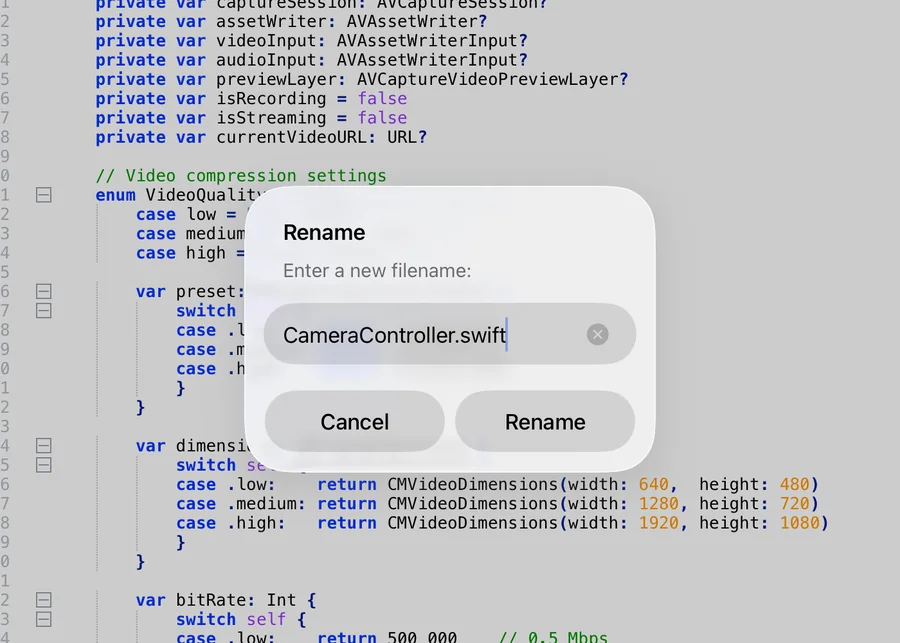
Sessions
The current session is automatic (see Your session comes back). Named sessions are explicit: File ▸ Save Session… writes a Nextpad.session file listing the open documents; File ▸ Load Session… opens the files of a session file you pick, adding them to what is already open. Keep a session file next to a project to reopen the whole set in one tap.
Printing and sharing
File ▸ Print… (⌘P) renders the document with its syntax colours and wrapped lines into the iOS print panel — any AirPrint printer, or Save to Files as PDF from the share icon in the preview. The share button in the toolbar (iPad) or title capsule (iPhone) sends the file itself to another app, AirDrop, Mail, or saves a copy.
19.Command Palette & keyboard shortcuts
Command Palette
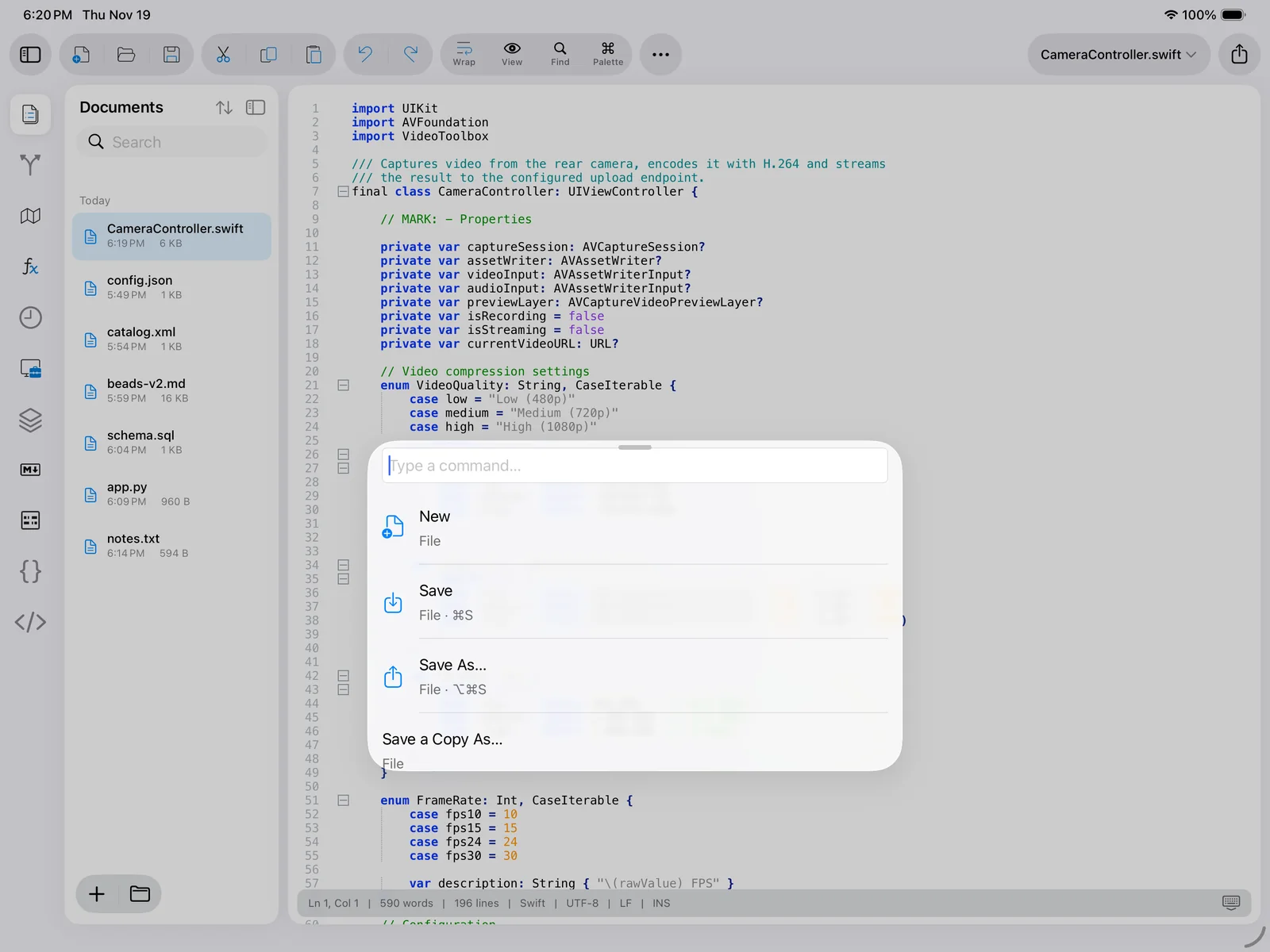
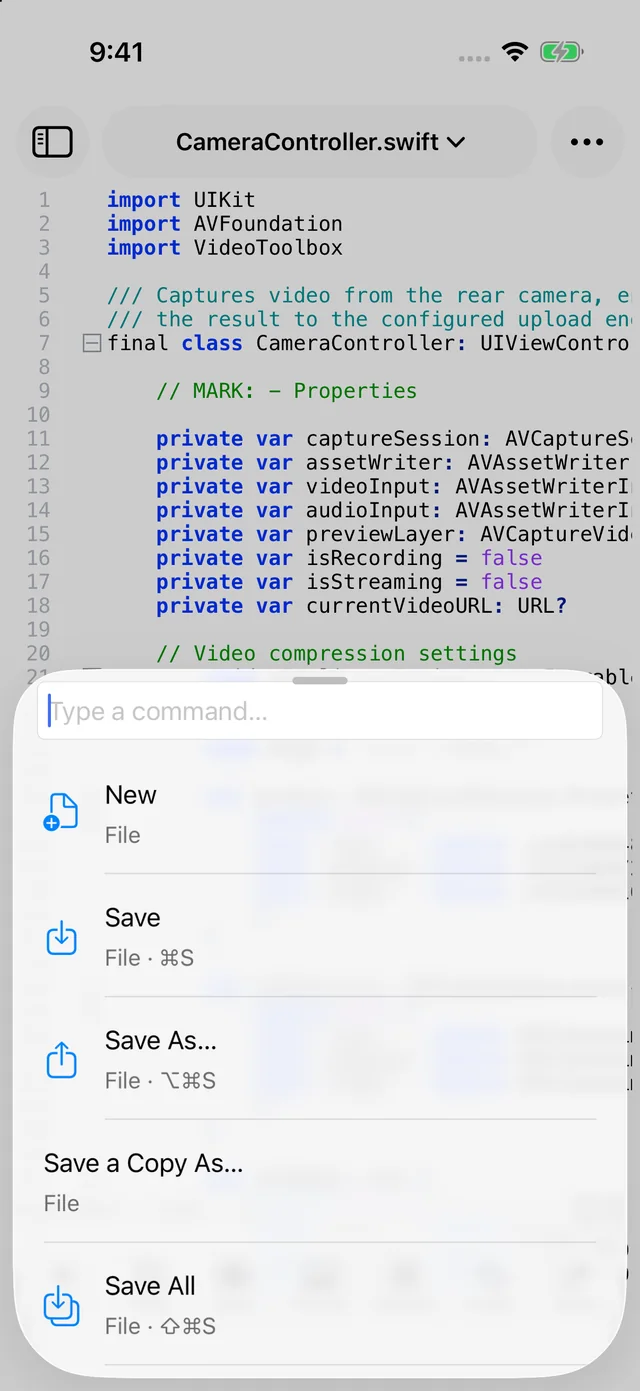
Tap the Palette chip or press ⇧⌘P, then type a few letters of what you want — sort, upper, trim, json. The list filters fuzzily across all menus and plugin commands (Sort JSON by Key — Plugins ▸ JSON, Shortcut Mapper… — Settings, Show All Characters — View ▸ Show Symbol), shows the shortcut where one exists, and runs the command on Return or a tap. It is the fastest way to reach deep menu items without touching the menu at all.
Hardware keyboard
With a Magic Keyboard, Smart Keyboard or any Bluetooth keyboard, Nextpad++ behaves like a desktop editor: all the shortcuts below, plus the standard iPadOS text navigation (⌥/⌘ + arrows, ⇧ to extend). Hold ⌘ for a moment to see the system shortcut overlay with every available command.
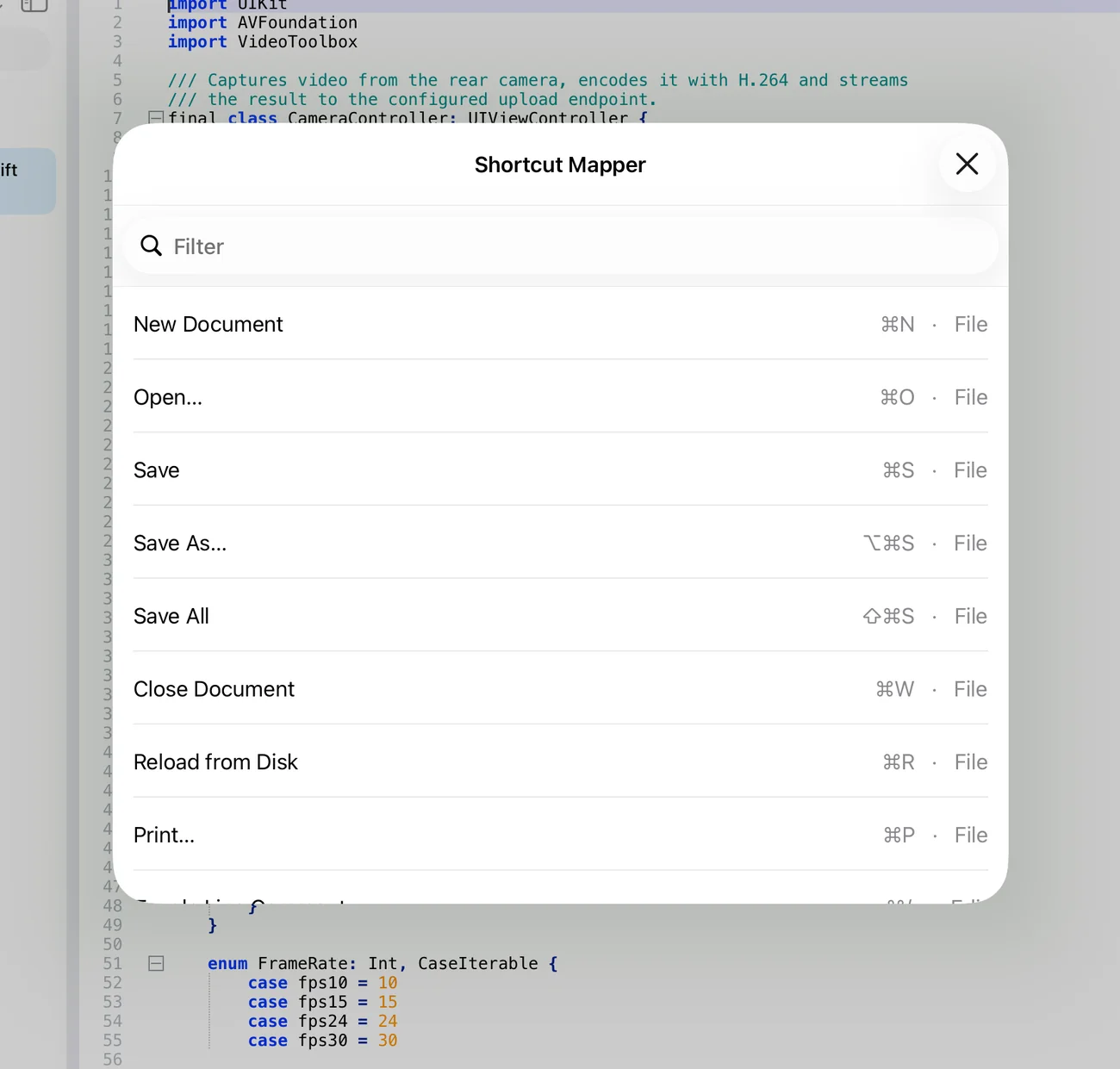
| Shortcut | Command | Shortcut | Command |
|---|---|---|---|
| ⌘N | New Document | ⌘F | Find… |
| ⌘O | Open… | ⌥⌘F | Replace… |
| ⌘S | Save | ⌘G / ⇧⌘G | Find Next / Previous |
| ⌥⌘S | Save As… | ⌃G | Go to Line… |
| ⇧⌘S | Save All | ⌘I | Incremental Search |
| ⌘W | Close Document | ⌘F2 | Toggle Bookmark |
| ⌘R | Reload from Disk | F2 / ⇧F2 | Next / Previous Bookmark |
| ⌘P | Print… | ⇧⌘P | Command Palette |
| ⌘Z / ⇧⌘Z | Undo / Redo | ⌘+ / ⌘− / ⌘0 | Zoom In / Out / Restore |
| ⌘X ⌘C ⌘V ⌘A | Cut, Copy, Paste, Select All | ⌃⌘F | Full Screen |
| ⌘/ | Toggle Line Comment | ⌃[ / ⌃] | Paragraph Up / Down (⇧ extends) |
| ⌃D | Duplicate Selection/Line | ⌃/ / ⌃\ | Word Part Left / Right (⇧ extends) |
| ⌘D | Select Next Occurrence | ⌥⇧←↑↓→ | Rectangular (column) selection |
| ⇧⌘L | Select All Occurrences | ⌃↑ / ⌃↓ | Scroll Line Up / Down |
| ⌘] / ⌘[ | Indent / Unindent | ⌥⌘↑ / ⌥⌘↓ | Move Lines Up / Down |
| ⌃L / ⌃⇧L | Cut Line / Delete Line | ⌃T | Transpose Lines |
| ⌃⌫ | Delete Word Left | Esc | Close menus and popups |
Shortcuts are stored in shortcuts.xml in the app's folder, in the same format Nextpad++ for Mac uses.
20.Large files & performance
Nextpad++ opens multi-megabyte logs and data files comfortably; the editor core styles only what is visible and the Rust-based lexers keep up with fast scrolling. For really large files there is a two-step policy, configurable under Preferences ▸ Performance:
- Large-file mode (files of 200 MB or more by default): the file opens, but word wrap, auto-completion, smart highlighting, brace matching and clickable links are switched off unless you allow them individually. Syntax highlighting stays on. The threshold is adjustable.
- Hard cap: a file that would not fit in memory is refused with an explanation rather than crashing the app. The cap is derived from the device's RAM (between 64 MB and 512 MB) because decoding, the edit buffer and the styling need several times the file size.
Other tips: keep Monitoring (tail -f) for growing logs instead of reloading manually; use Find in Files rather than opening dozens of files; and prefer Hide Lines or folding over splitting a file when you only need a region.
21.Help, feedback & privacy
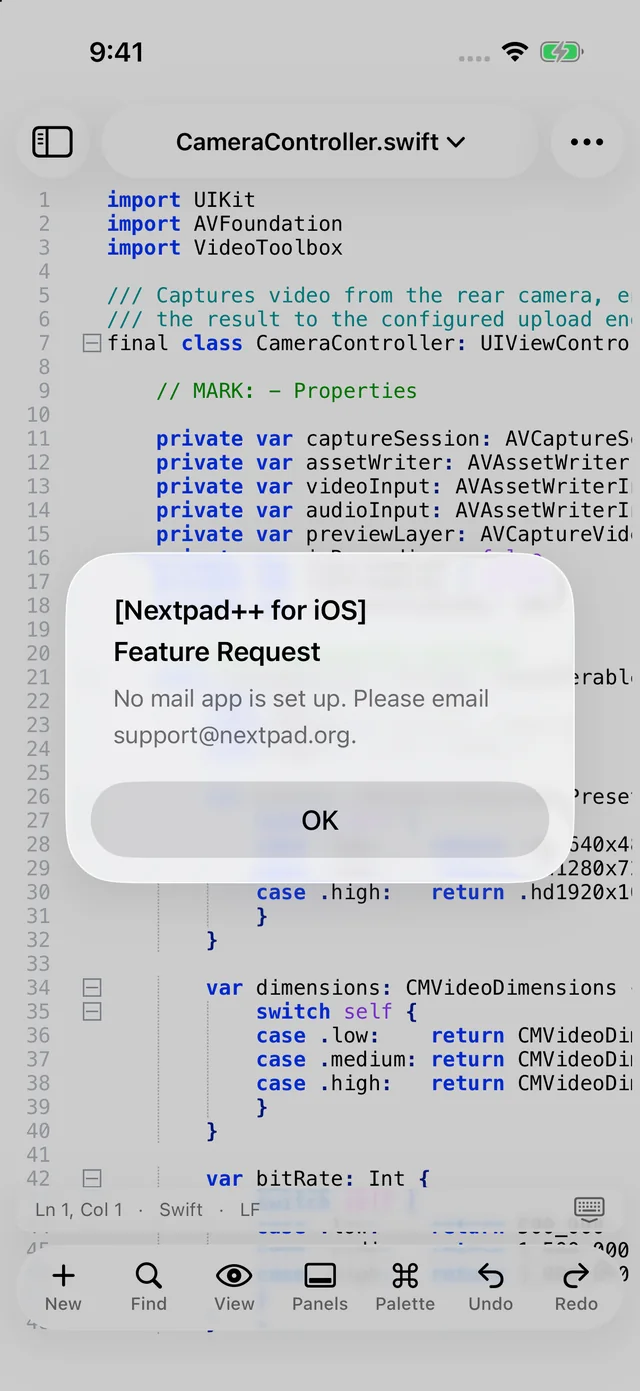
- Report a Bug… / Request a Feature… in the Help menu open a pre-filled e-mail to [email protected] with your device, iOS and app version included — the quickest way to get a problem looked at. You can also use the Feedback page.
- Privacy. Nextpad++ has no account, no telemetry and no server. It reads only the files you open and, if you enable Device Sync, writes only into the folder you choose. The full policy is at nextpad.org/privacy.
- Acknowledgements. The editor builds on Scintilla and Lexilla, Boost.Regex, libgit2, libxml2, PCRE2 and other open-source components; their licences are listed under About ▸ Acknowledgements.
- Nextpad++ for Mac and Linux. The same editor family is available for macOS and Linux; Device Sync connects them all.